Screens and guided workflows
Use the main tutorial for the complete first-run path and the home user guide for pages, drawers, widgets, scripts, themes, logging and Android access. This guide covers the app, assistant and management screens. Each image links to its full capture. Images use private emulator data; model replies and catalogs use a demonstration API. Android-owned permission and hardware results depend on the device.
Contents
- Startup and version
- Apps and complete bundles
- Assistant and conversations
- Providers, models and access
- Remote access tokens
- Activity, resources and rules
- Backups and recovery
- Places, trips and device connections
- Reset the home
- Urgent alerts and cancellation
- Widget options
- Permission setup and logs
- Script creation and transfer
Startup and version
The cold-start splash shows the running version and build type at its bottom. Tap it to continue early. The launcher controls also show the serving version, so release and debug installs can be distinguished. Installation and shared-storage setup are in the home user guide.
View the screens
Cold-start version and build label.
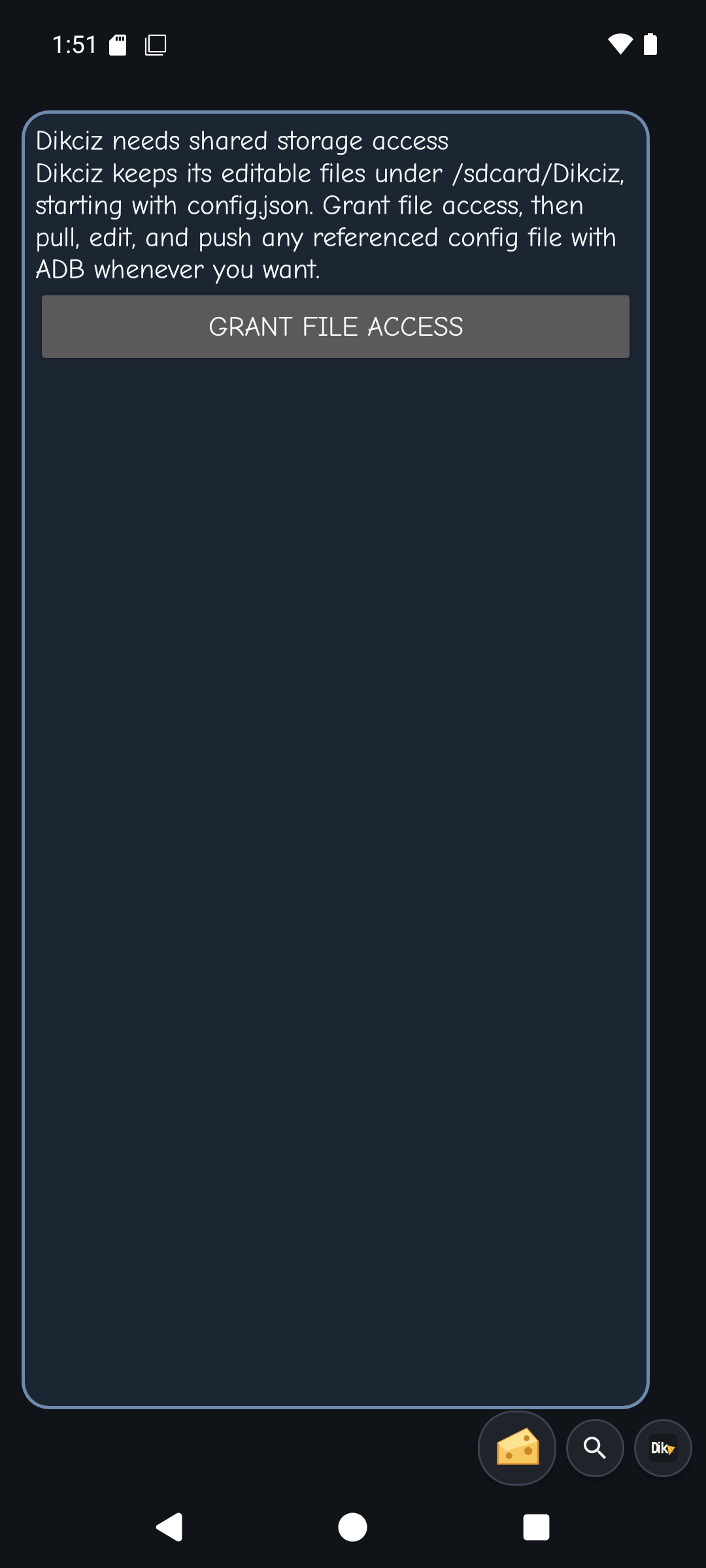
First-run shared-storage handoff.
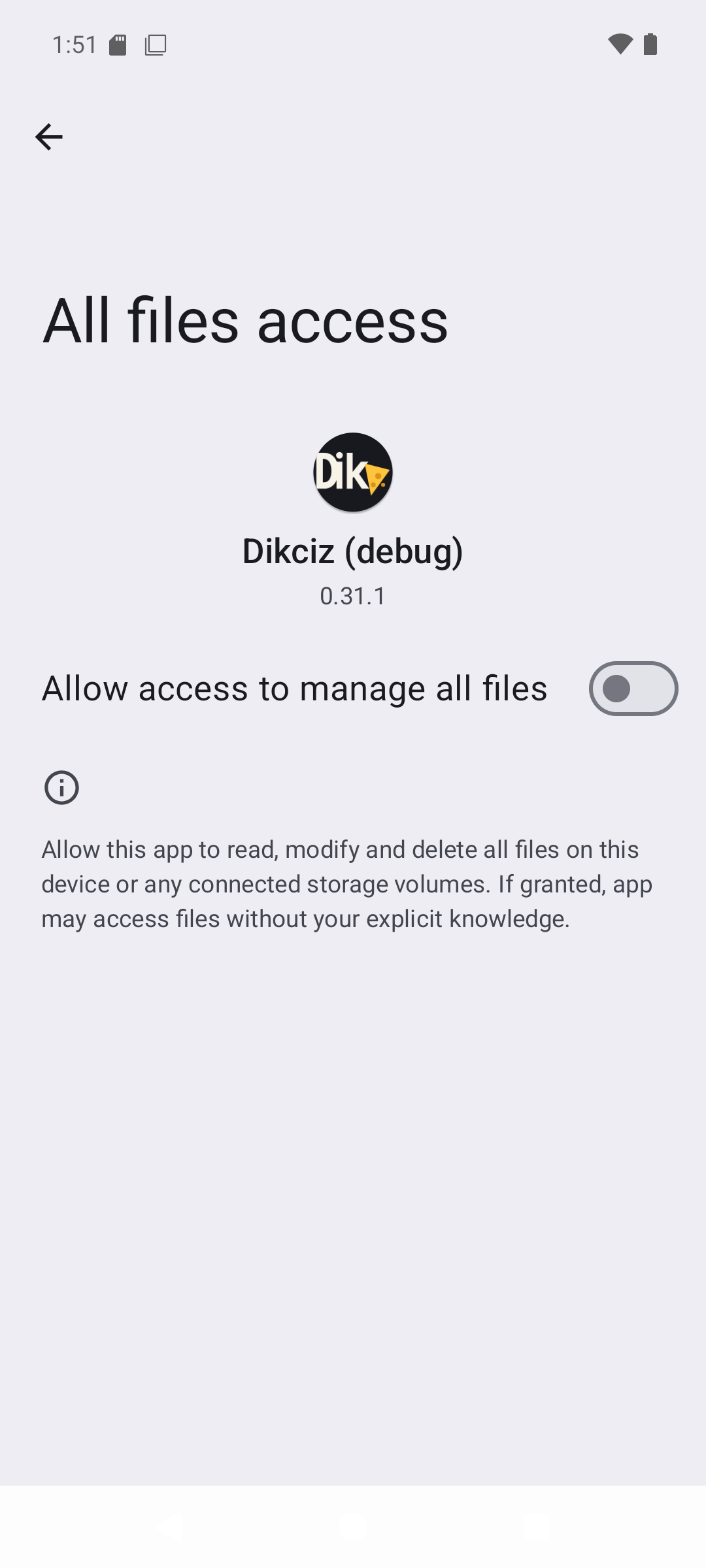
Android shared-storage access control.
Apps and complete bundles
Open the Dikciz mark, then Apps. Tap a title to open its interface. Home preserves its task; Recents returns to it. The overflow beside each title contains Edit bundle, execution controls, source export and removal. Editing opens one source file at a time. Switching files retains the other drafts; Save bundle writes the complete package. Back asks before discarding edits. Import expects a source archive path and keeps an invalid path available for correction. Read custom apps and the GPS todo tutorial for source, state and events.
Use a bundled app
| App | Walkthrough |
|---|---|
| SOS and check-ins | Add exact recipients, save an inactive plan and preview it. Arm a missed check-in or explicitly start the countdown, then cancel pending work when needed. Follow the phone setup steps. |
| Voice notes | Tap Record voice note, allow the microphone if asked, then Stop and save. Use the saved recording's playback control. Leaving the interface stops recording; reopen it to complete a pending save. |
| Agenda and alarms | Allow calendar access, then Refresh agenda. Open calendar and Open alarms hand off to Android's apps. The agenda reads upcoming events; it does not create them. |
| Device status | Read the battery gauge, process CPU history and memory/storage meters. Expand Device details for additional readings. Protected system counters remain explicit. |
| Travel todo | Add or check tasks manually. Review location access and choose Watch New York only when you want its background arrival rule. Follow the GPS and custom-event tutorial. |
View the screens
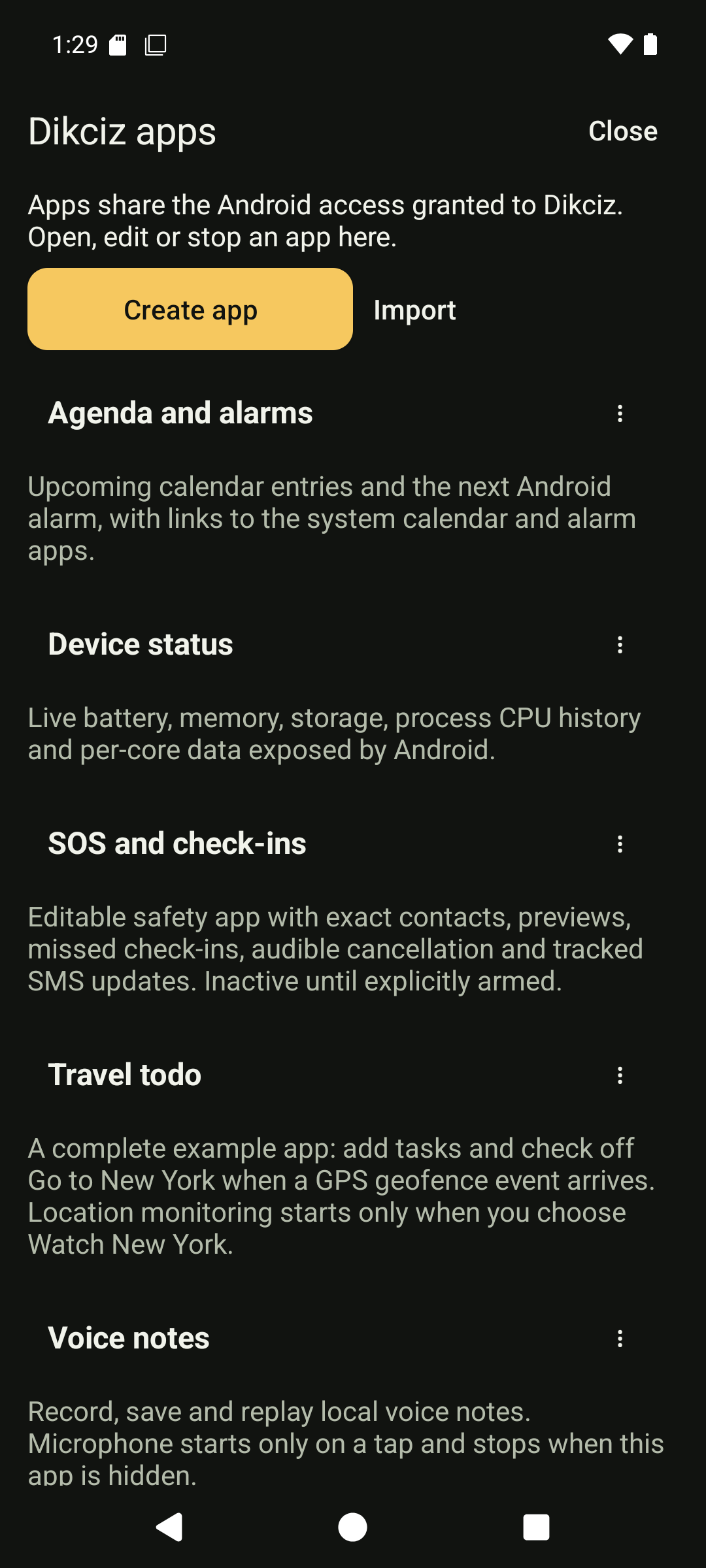
App list.
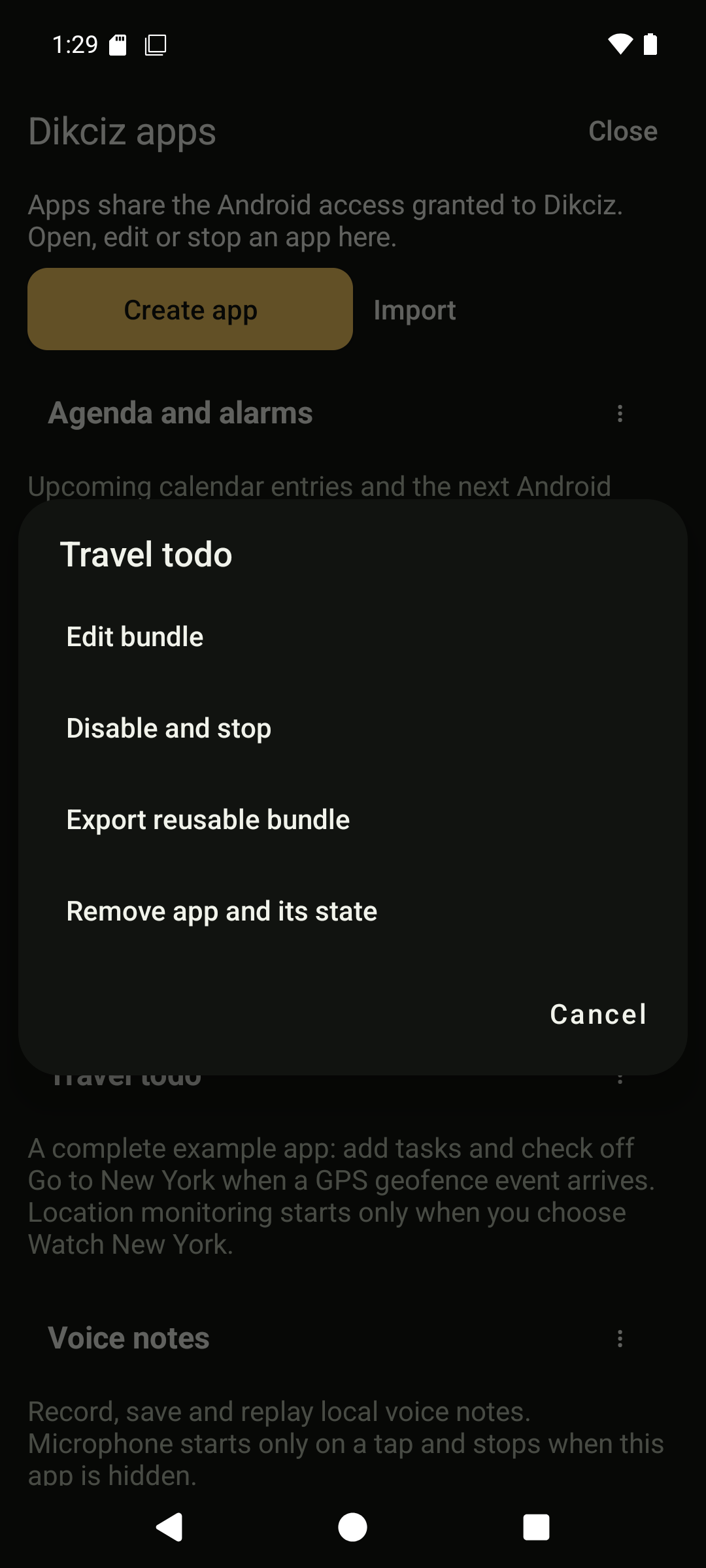
App management overflow.
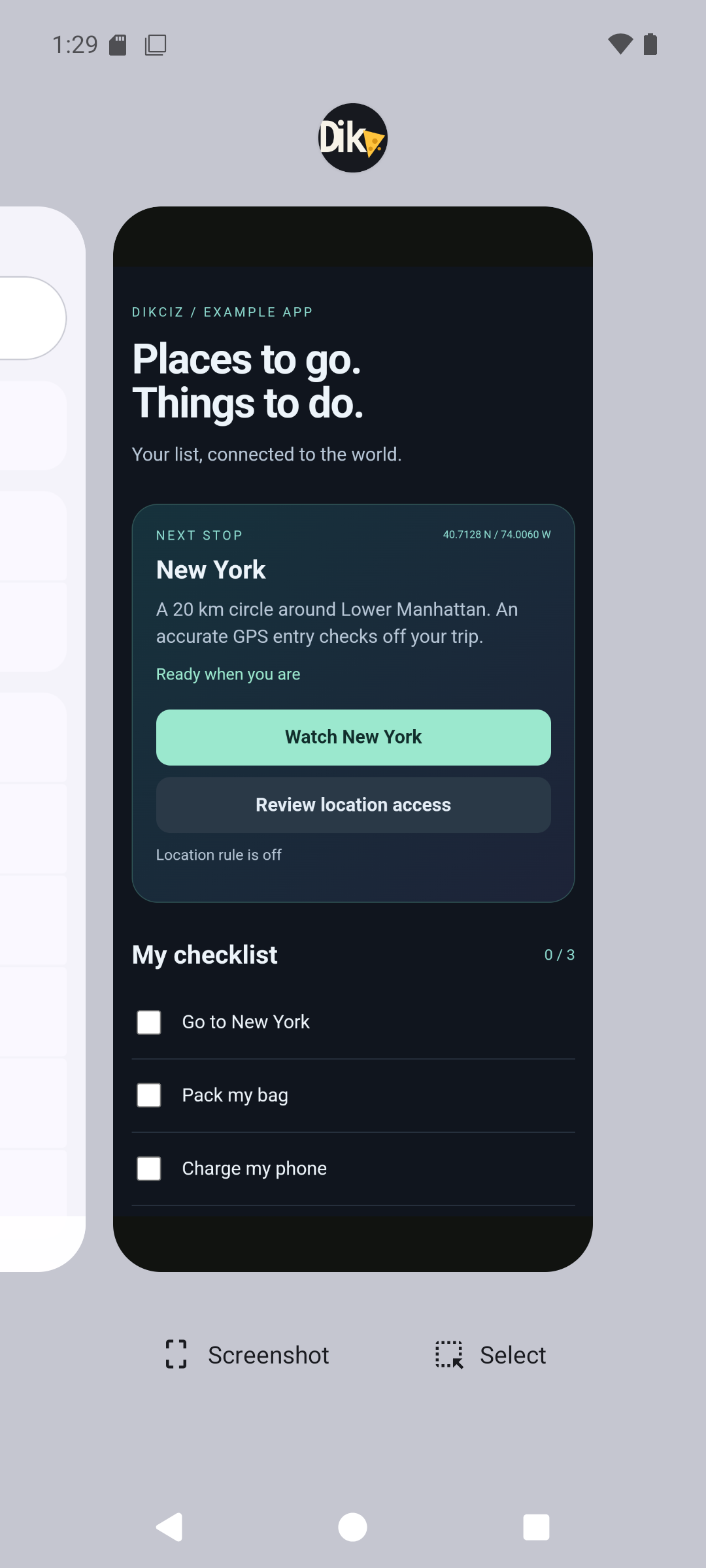
App in Android Recents.
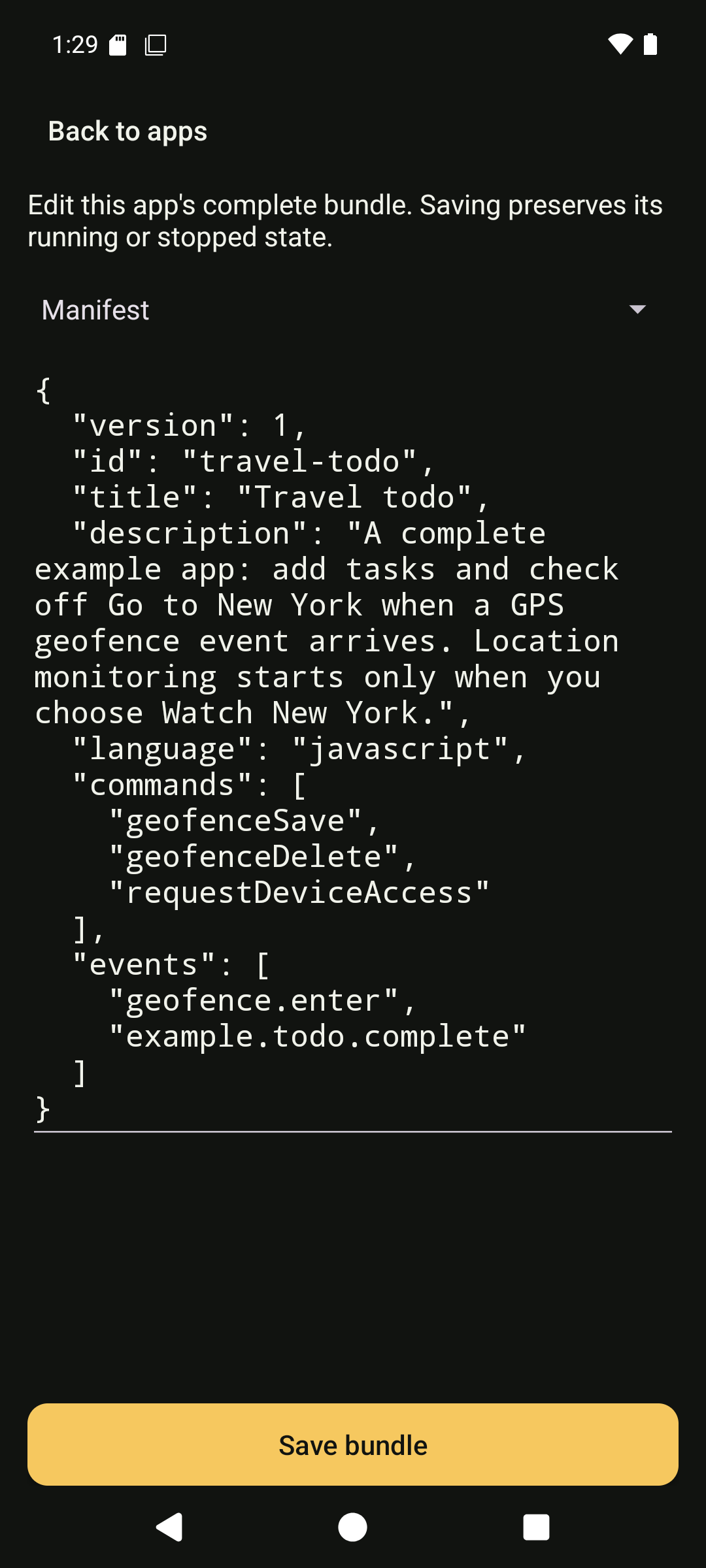
Bundle editor and file selector.
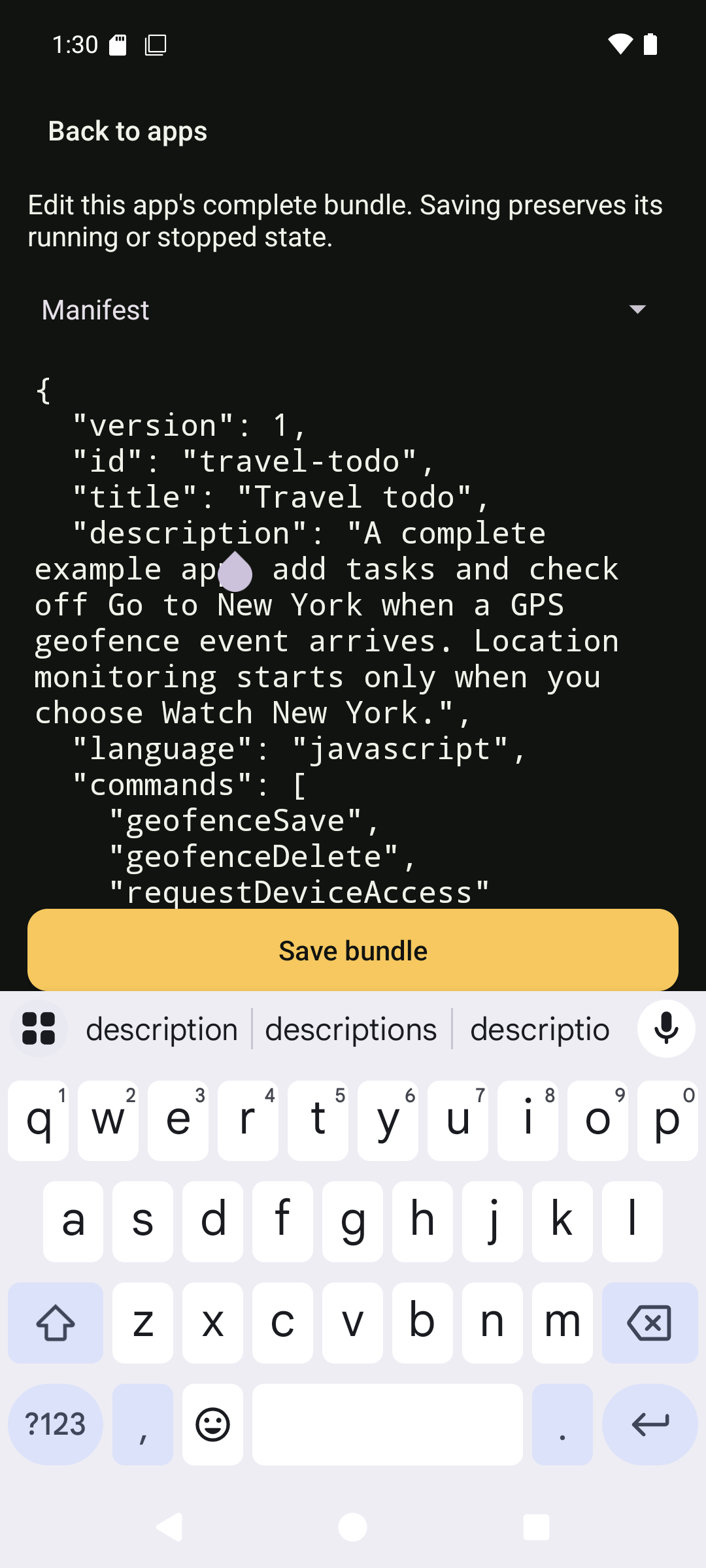
Save remains above the keyboard.
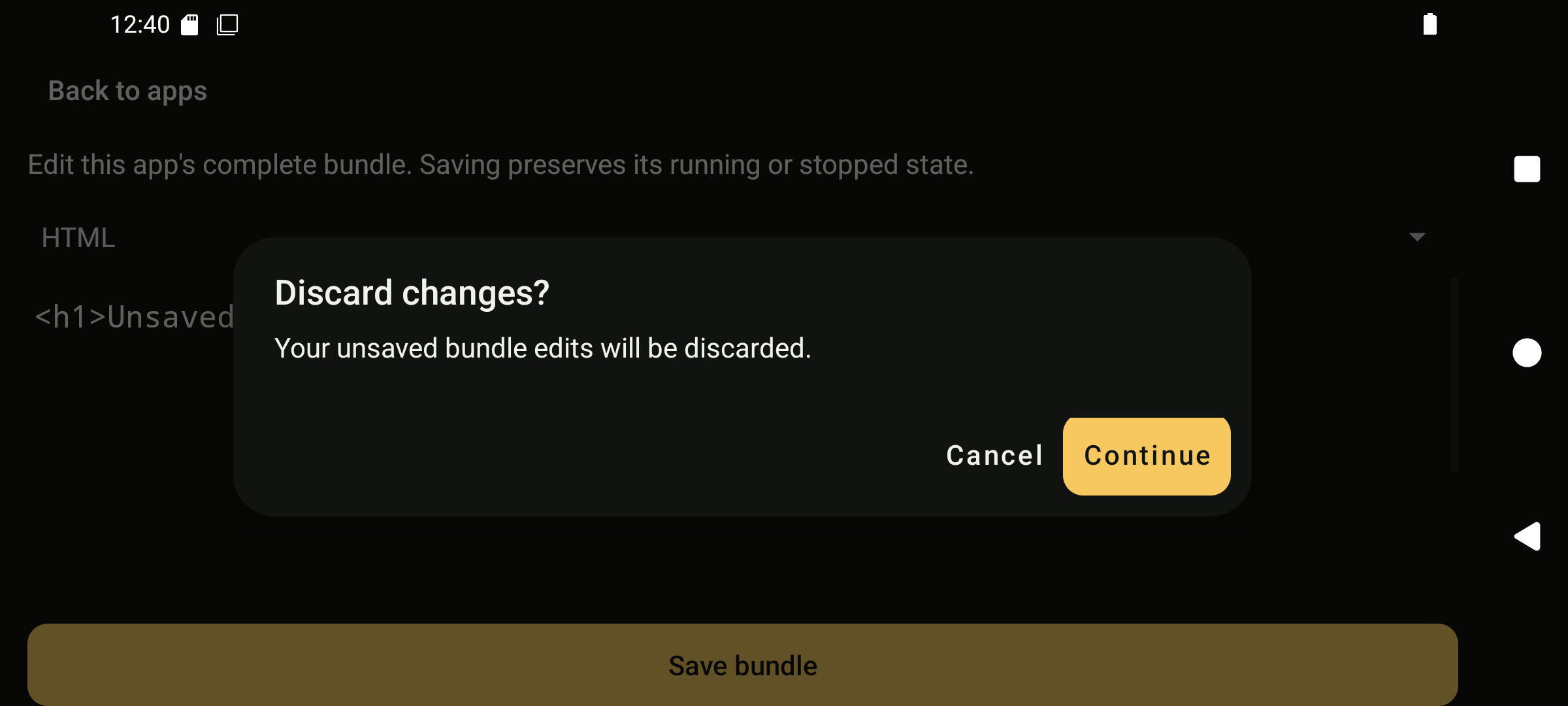
Discard unsaved changes.
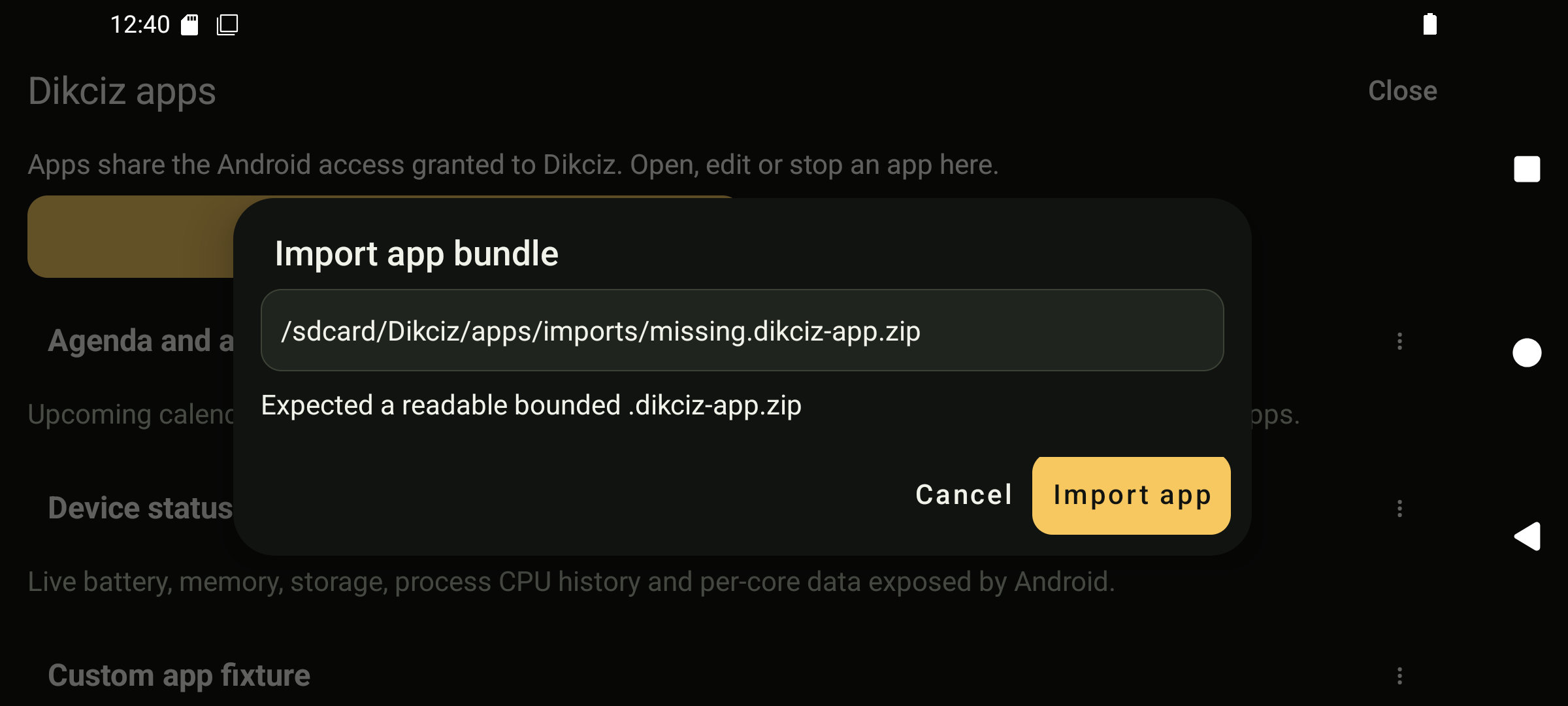
Import failure and retry.
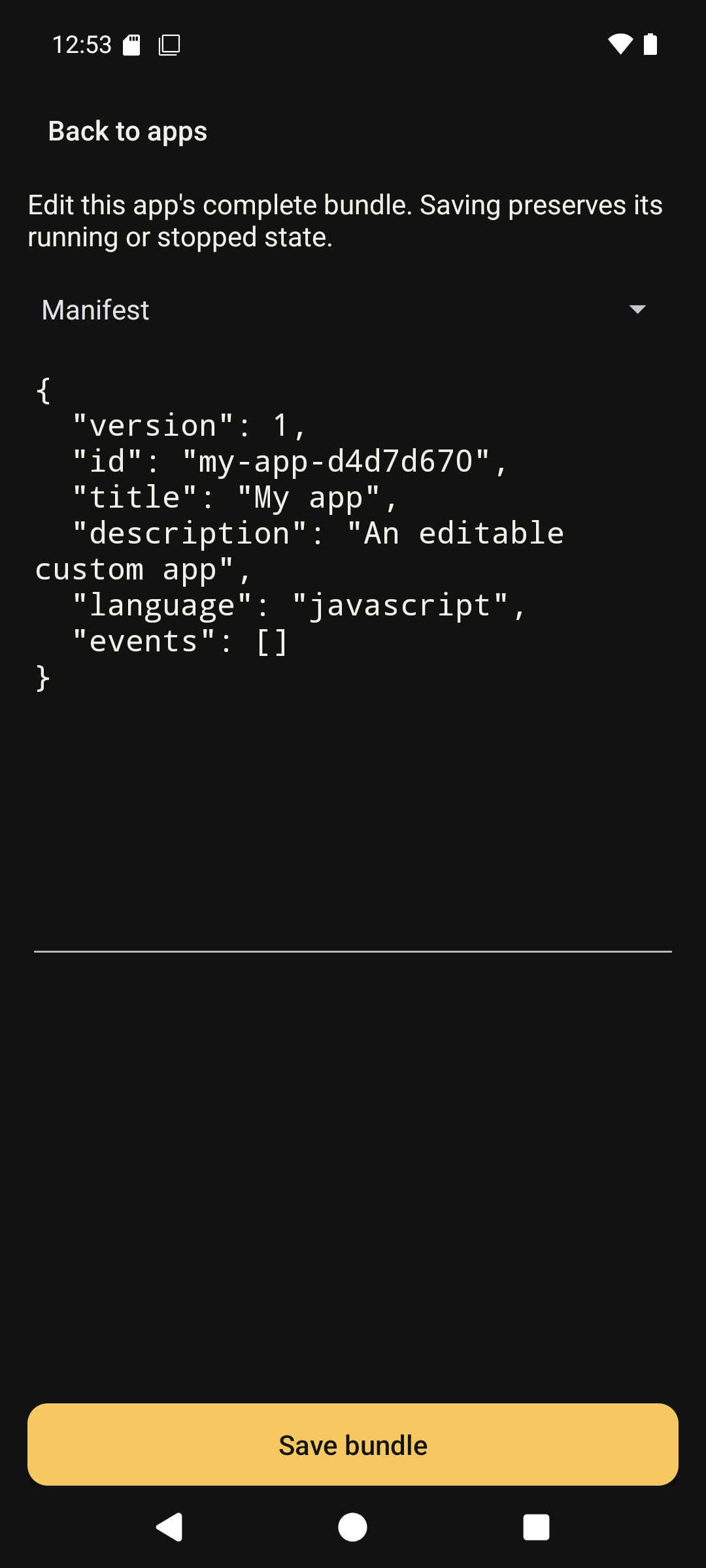
Create a complete app.
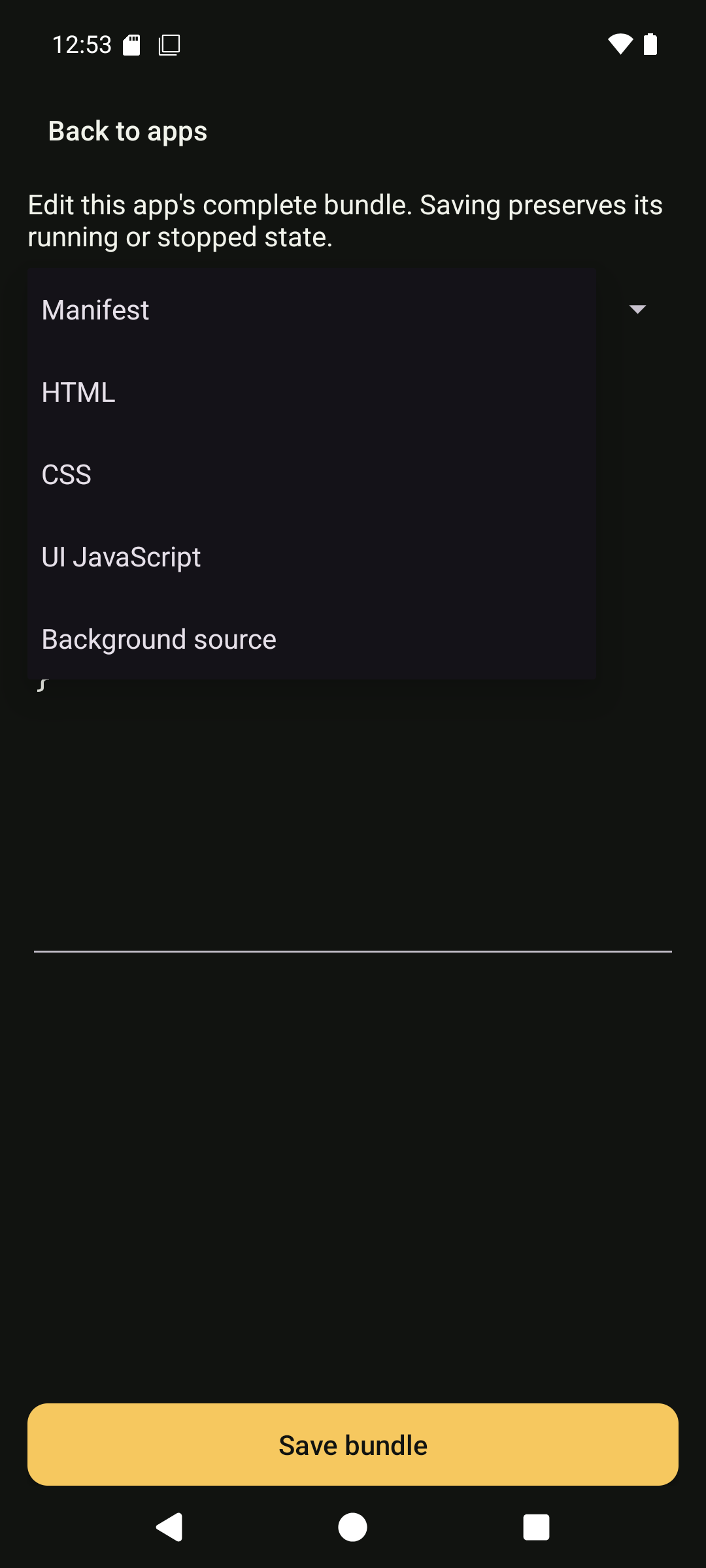
Choose a source file.
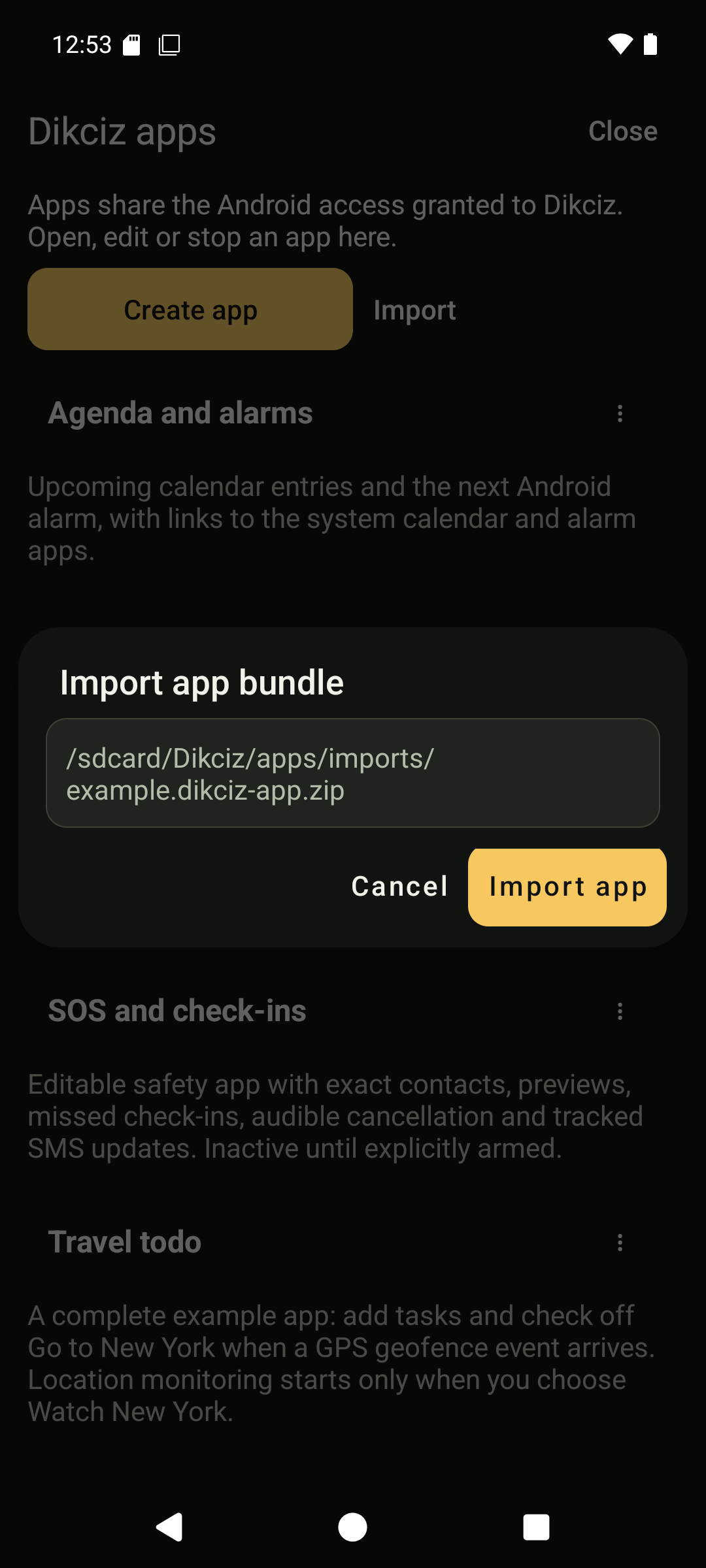
Import a source archive.
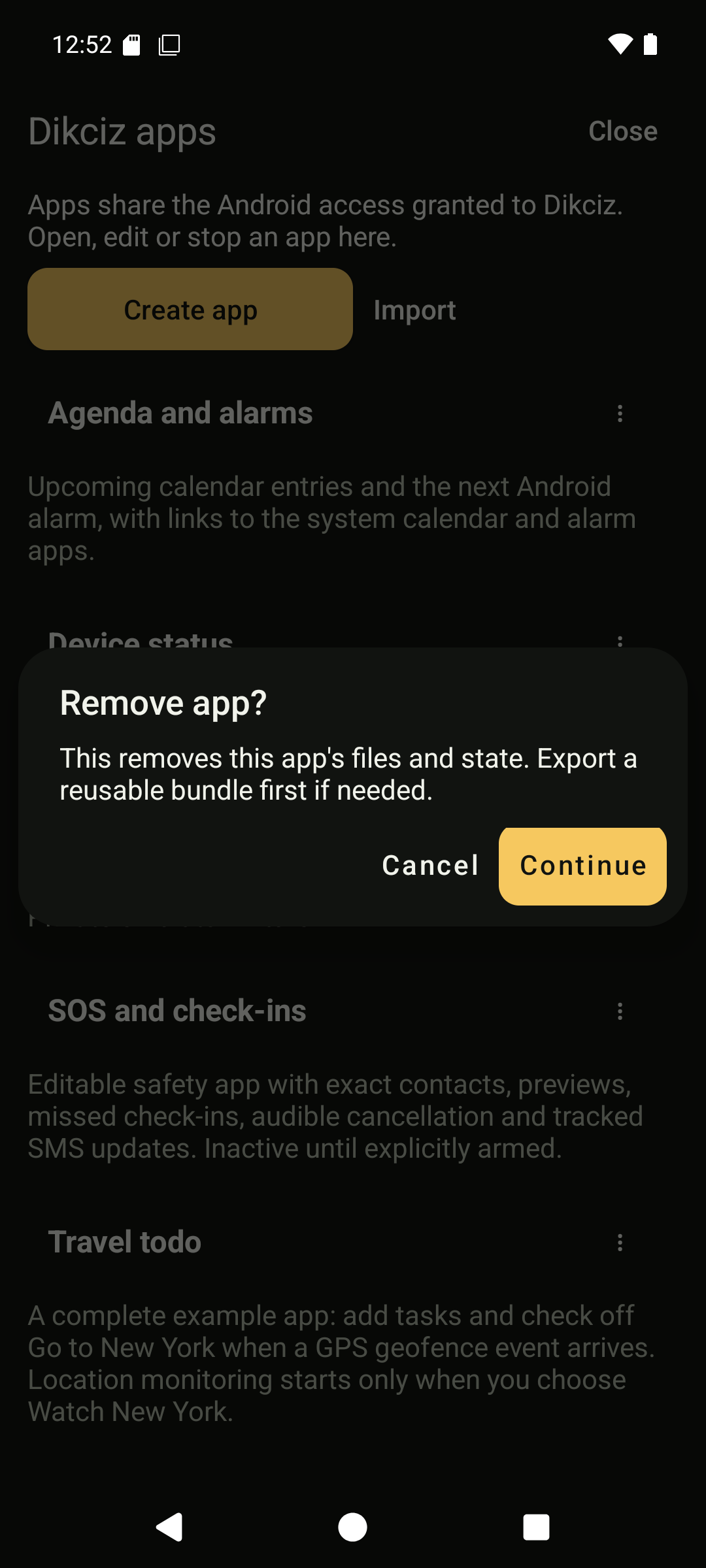
Remove an app and its data.
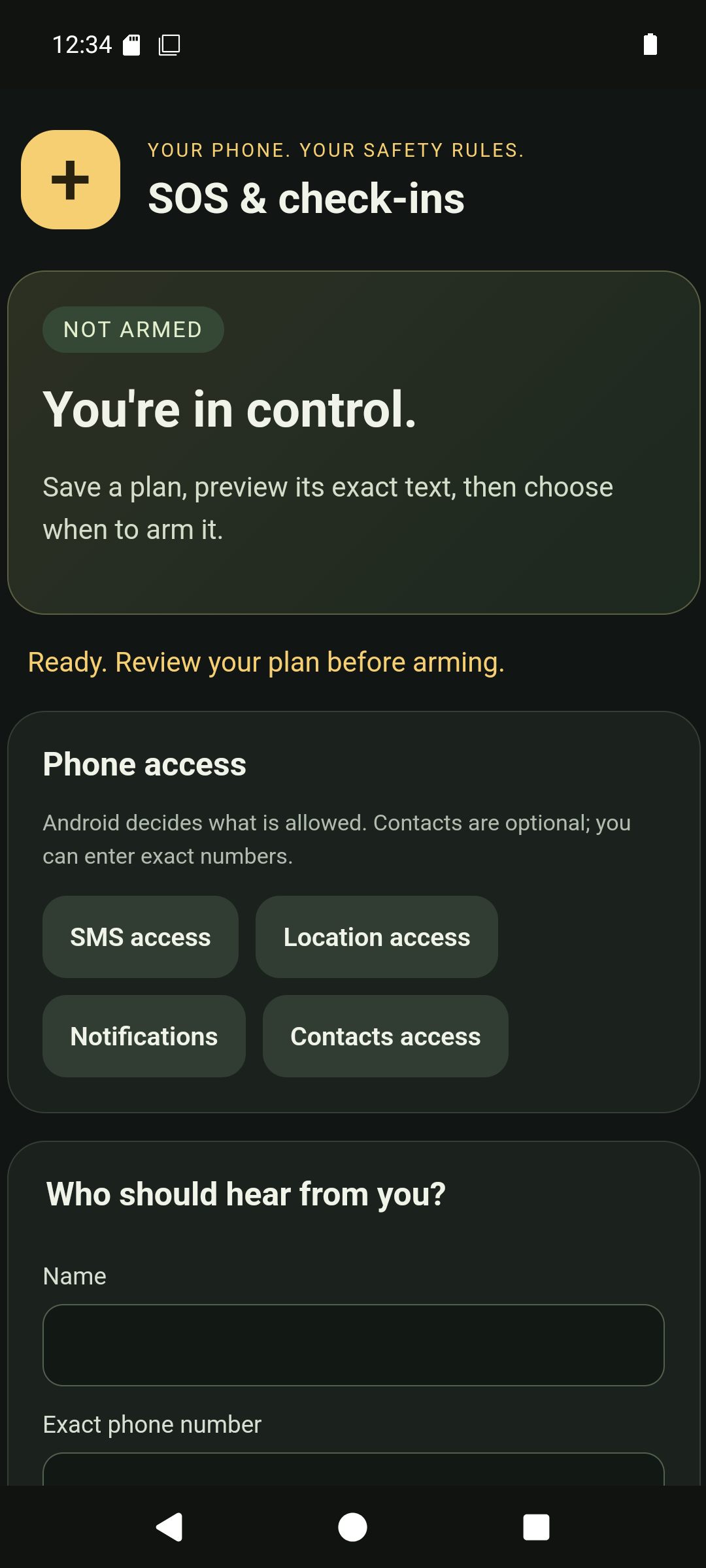
SOS and check-ins.
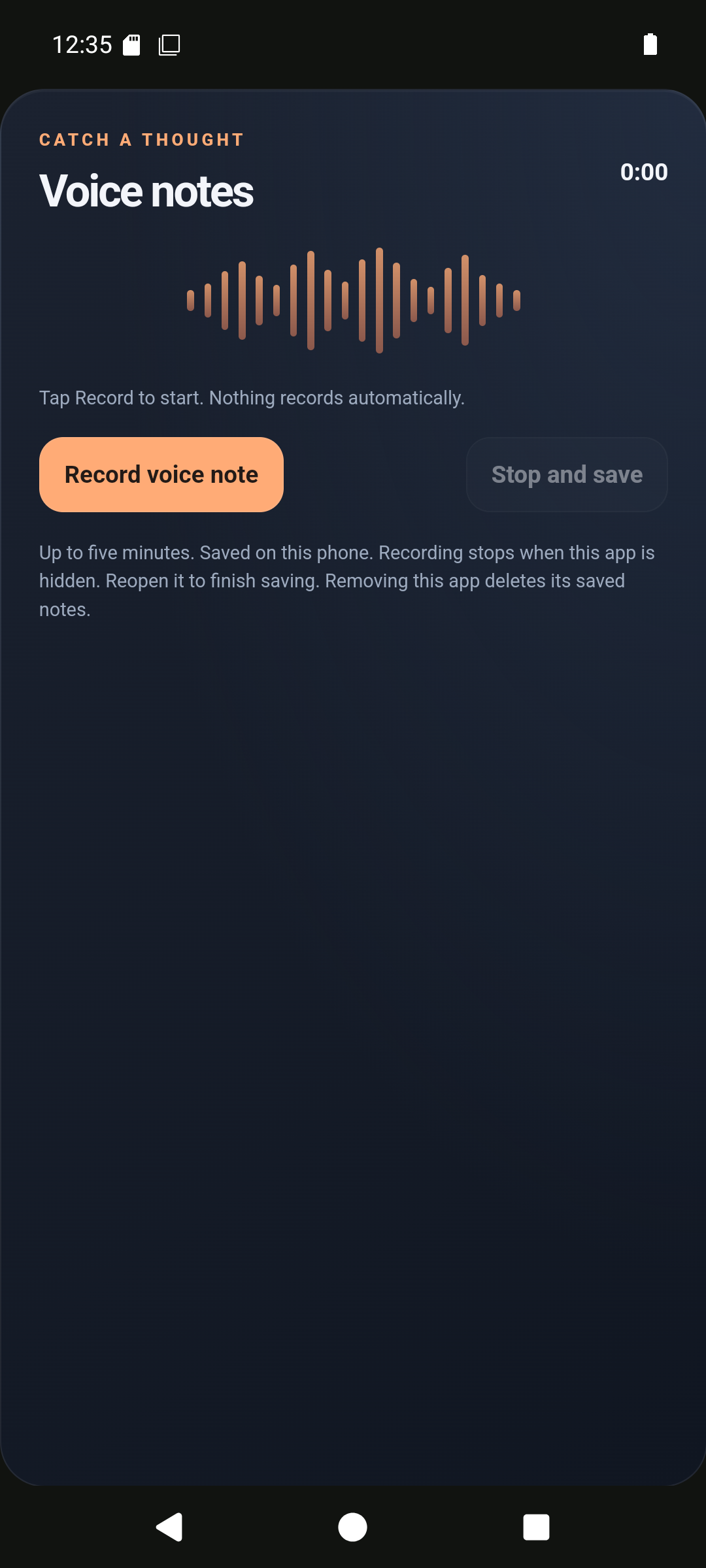
Voice notes.
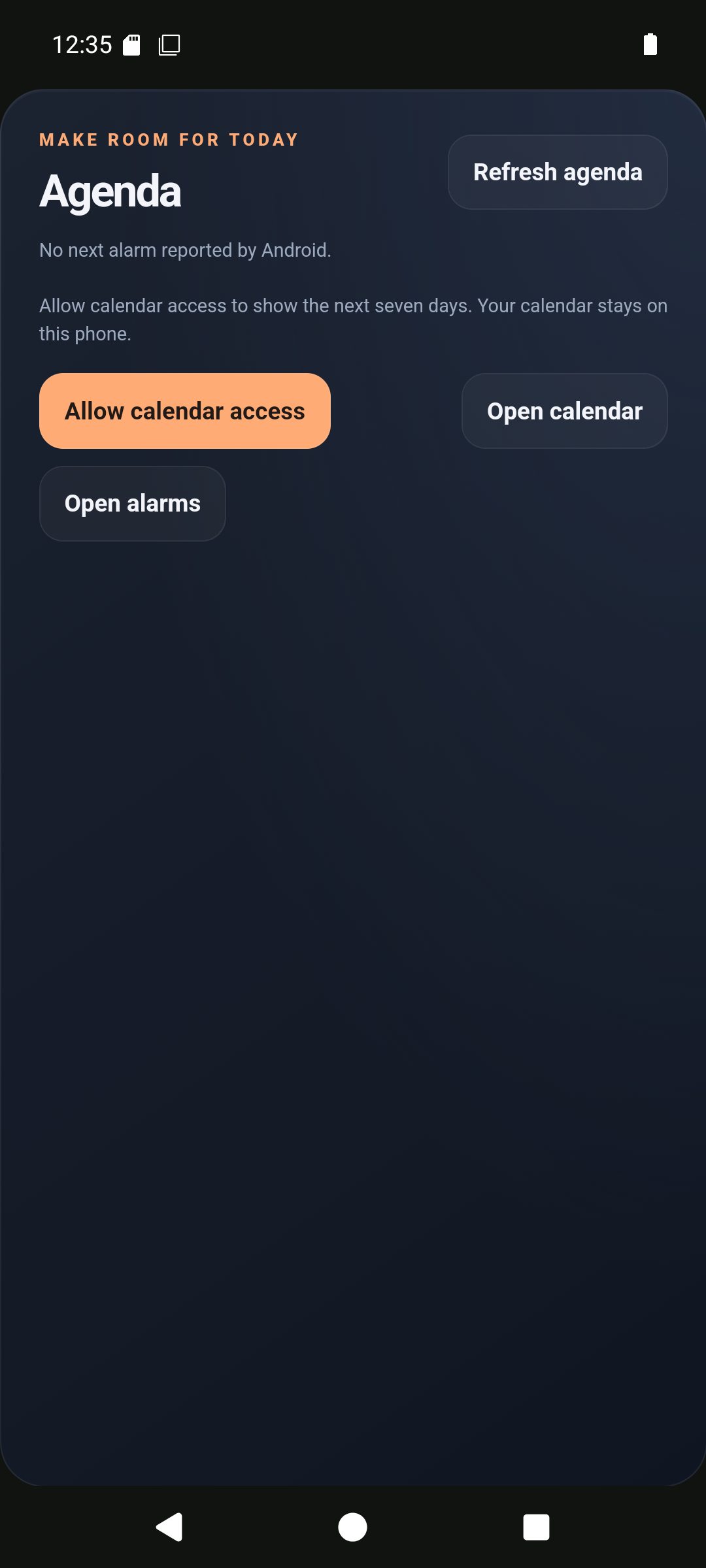
Agenda and alarms.
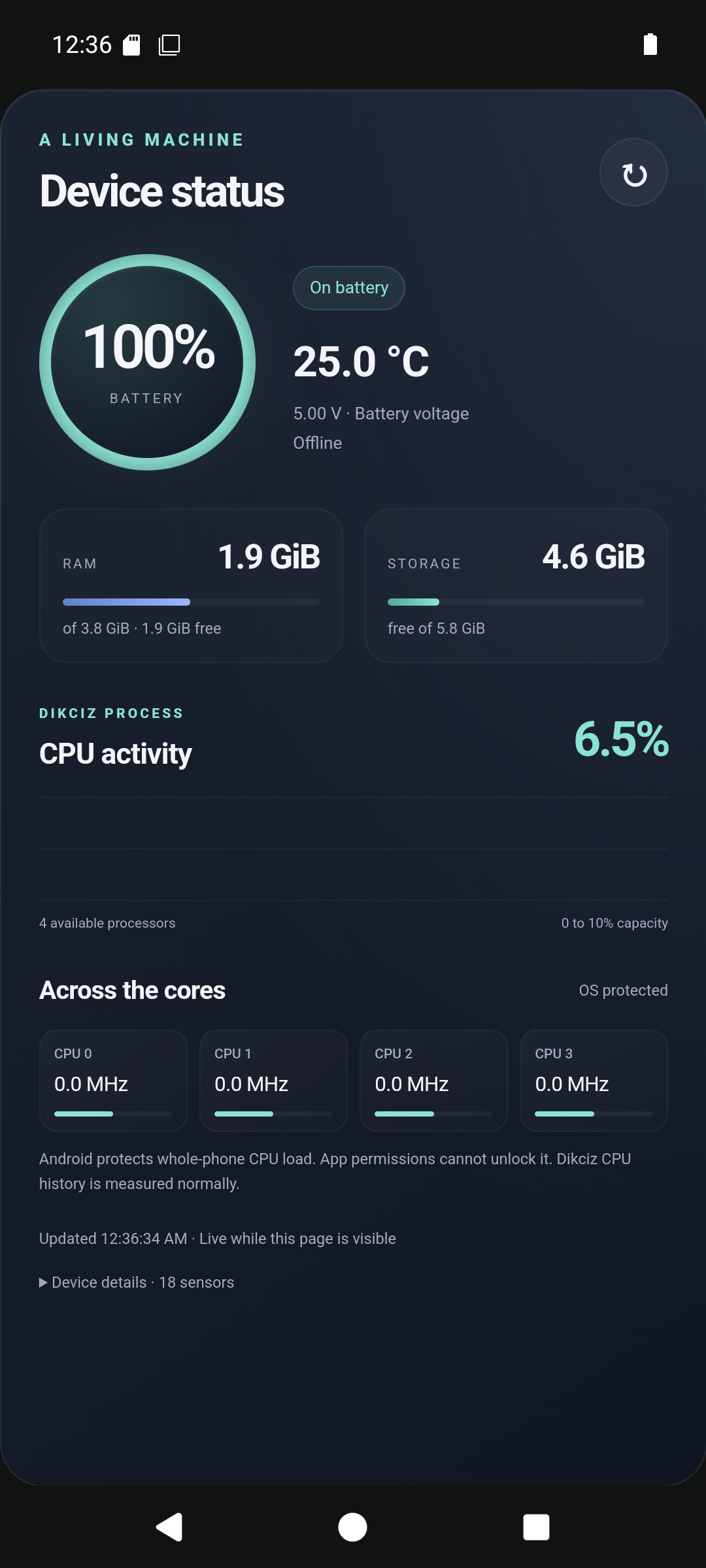
Device status.
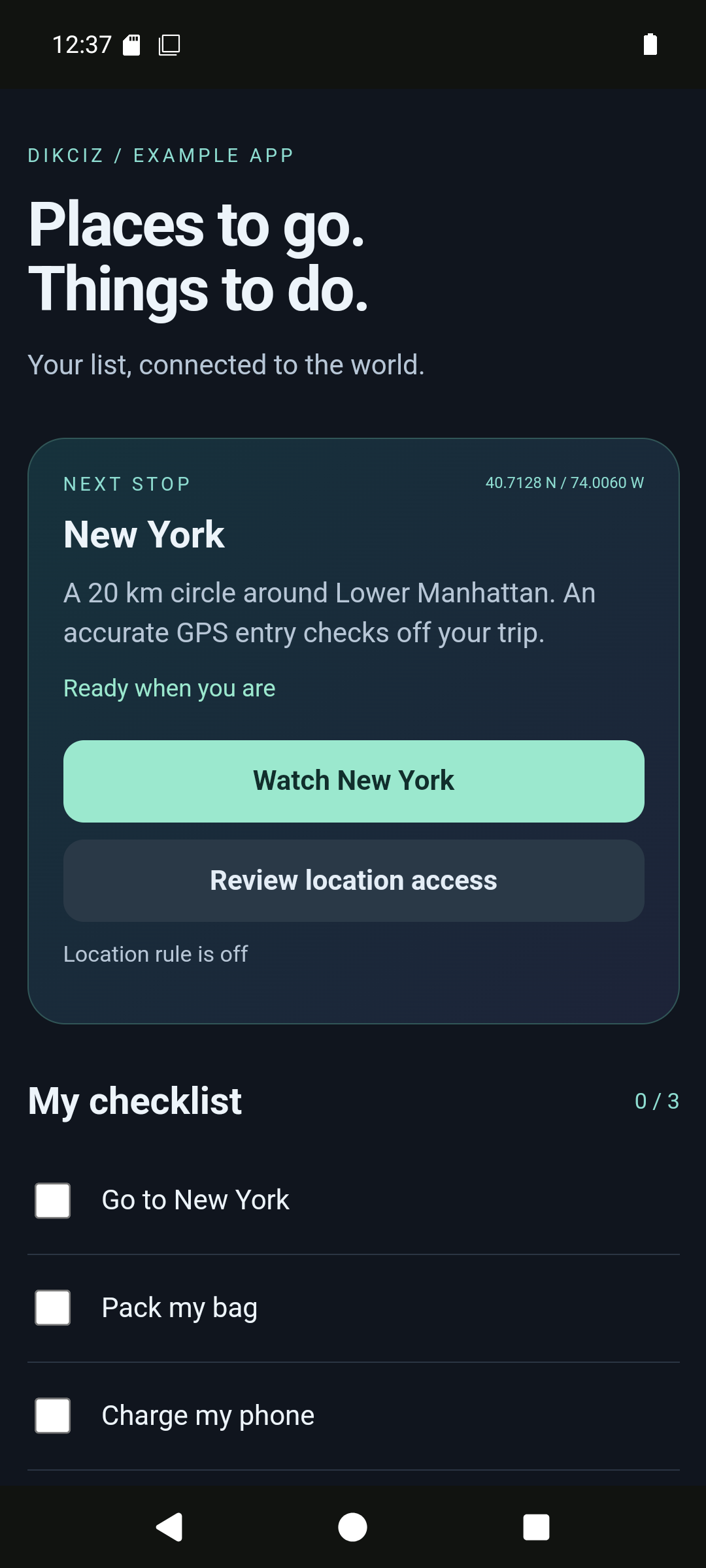
Travel todo.
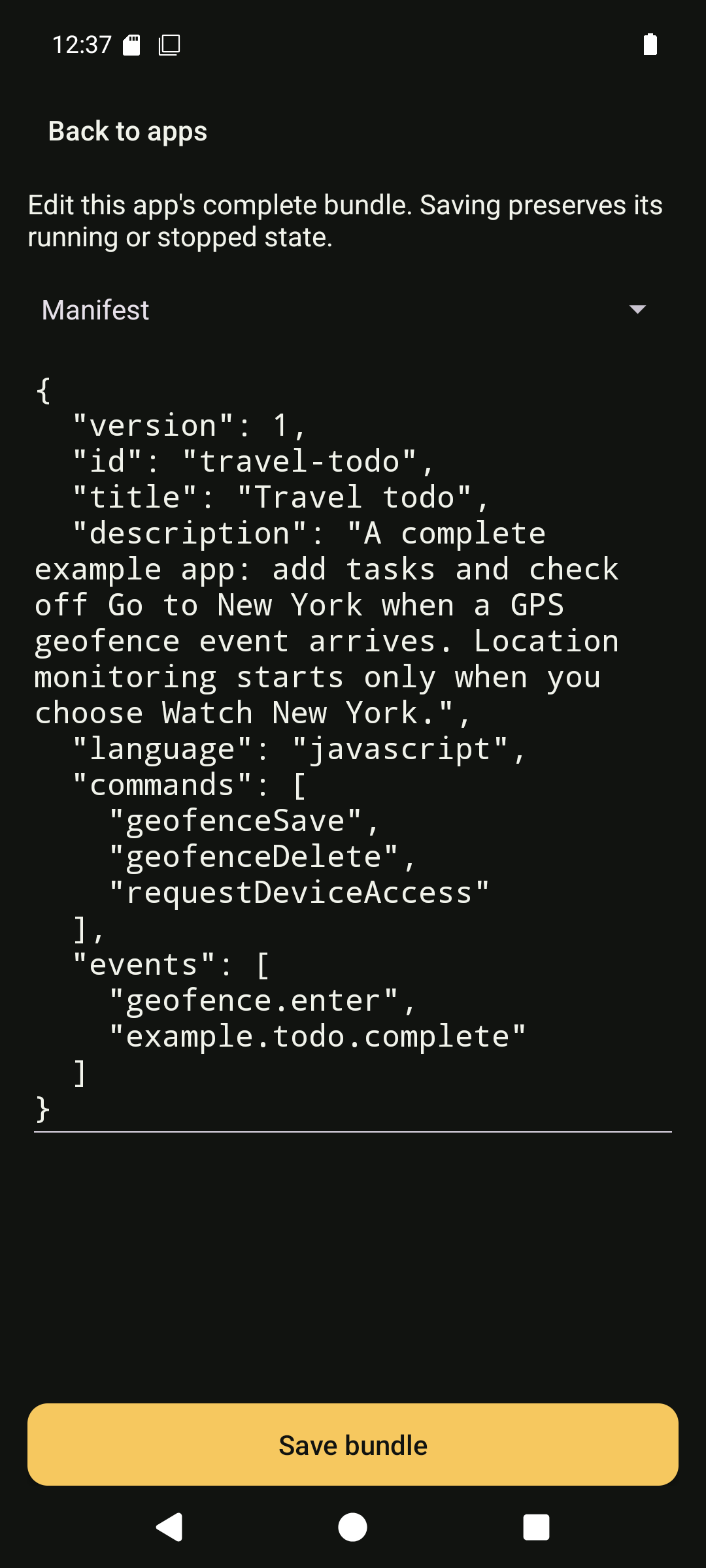
App identity and subscriptions.
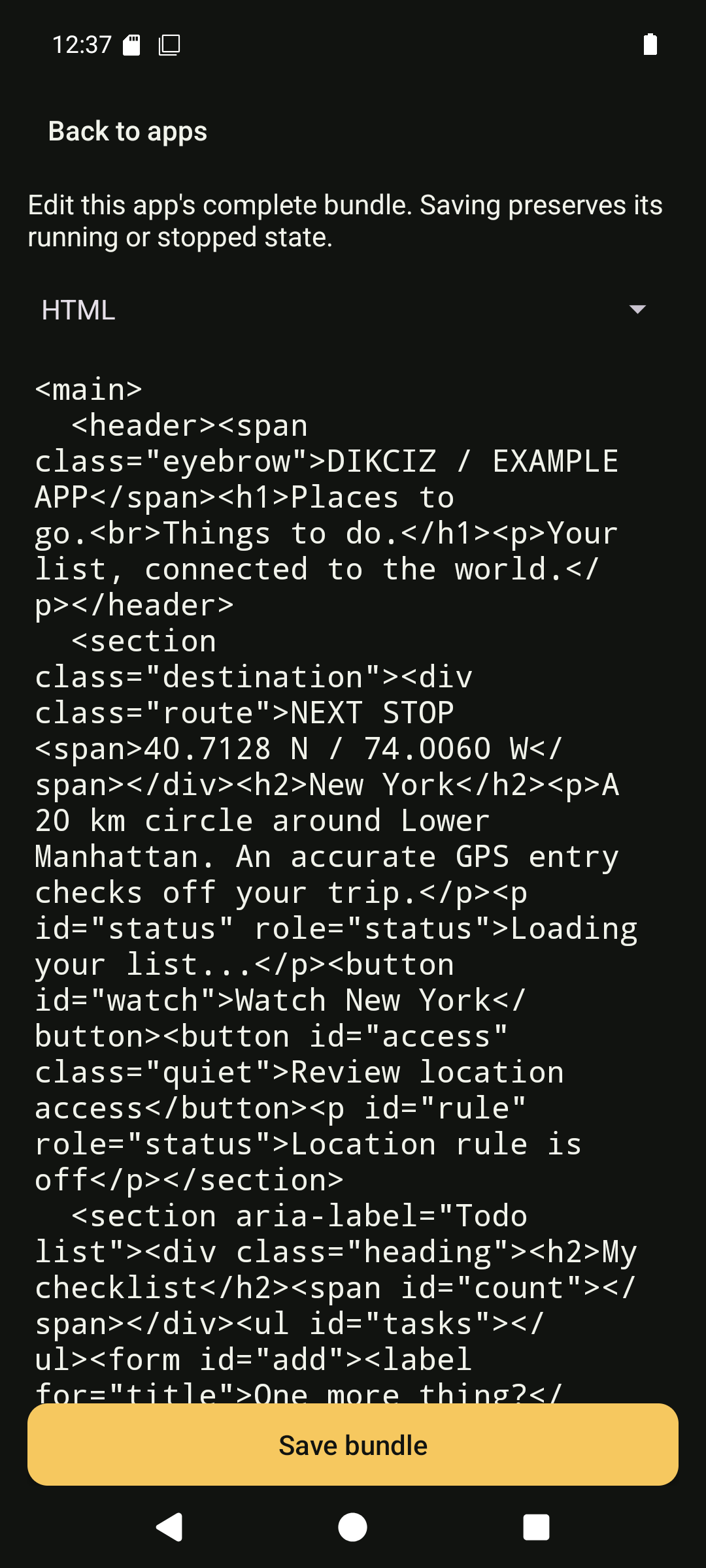
HTML document.
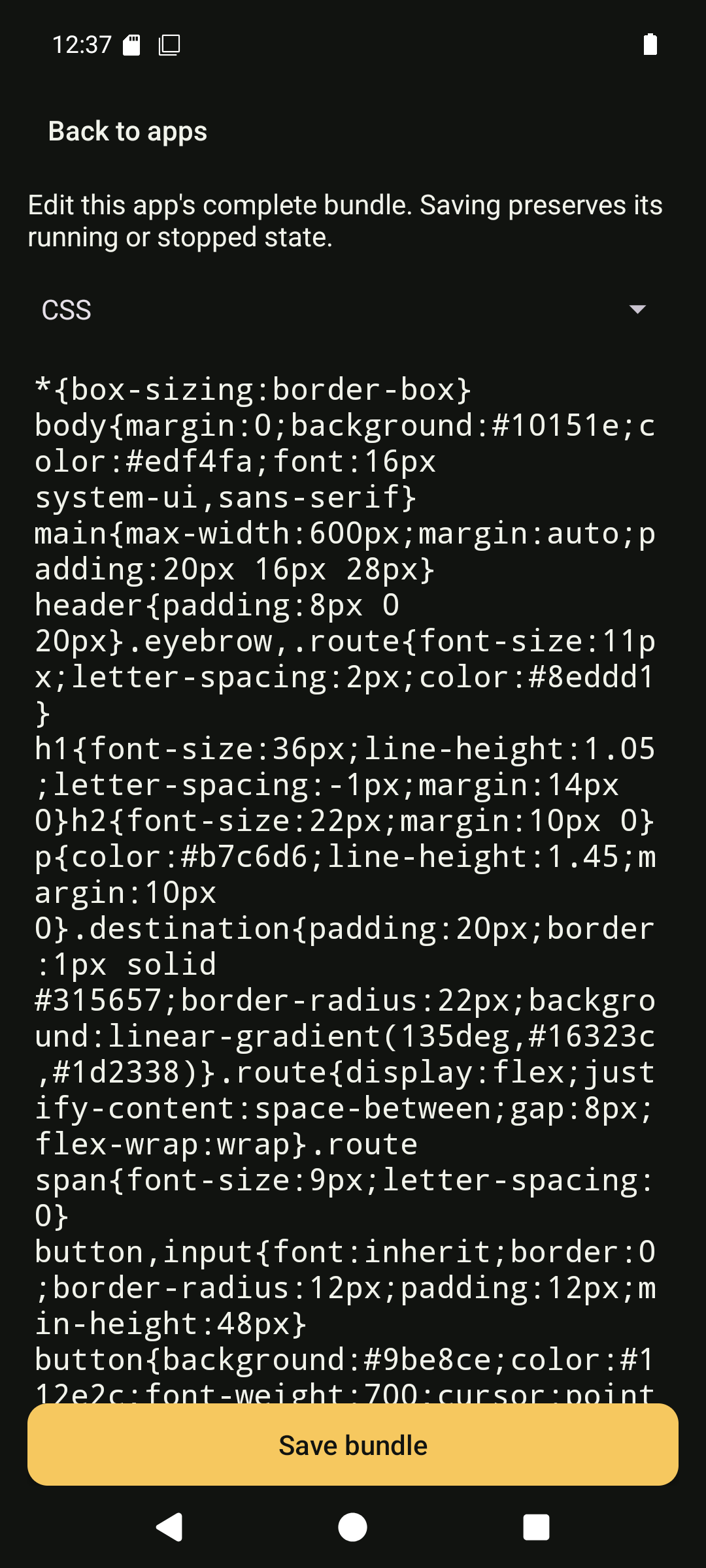
Stylesheet.
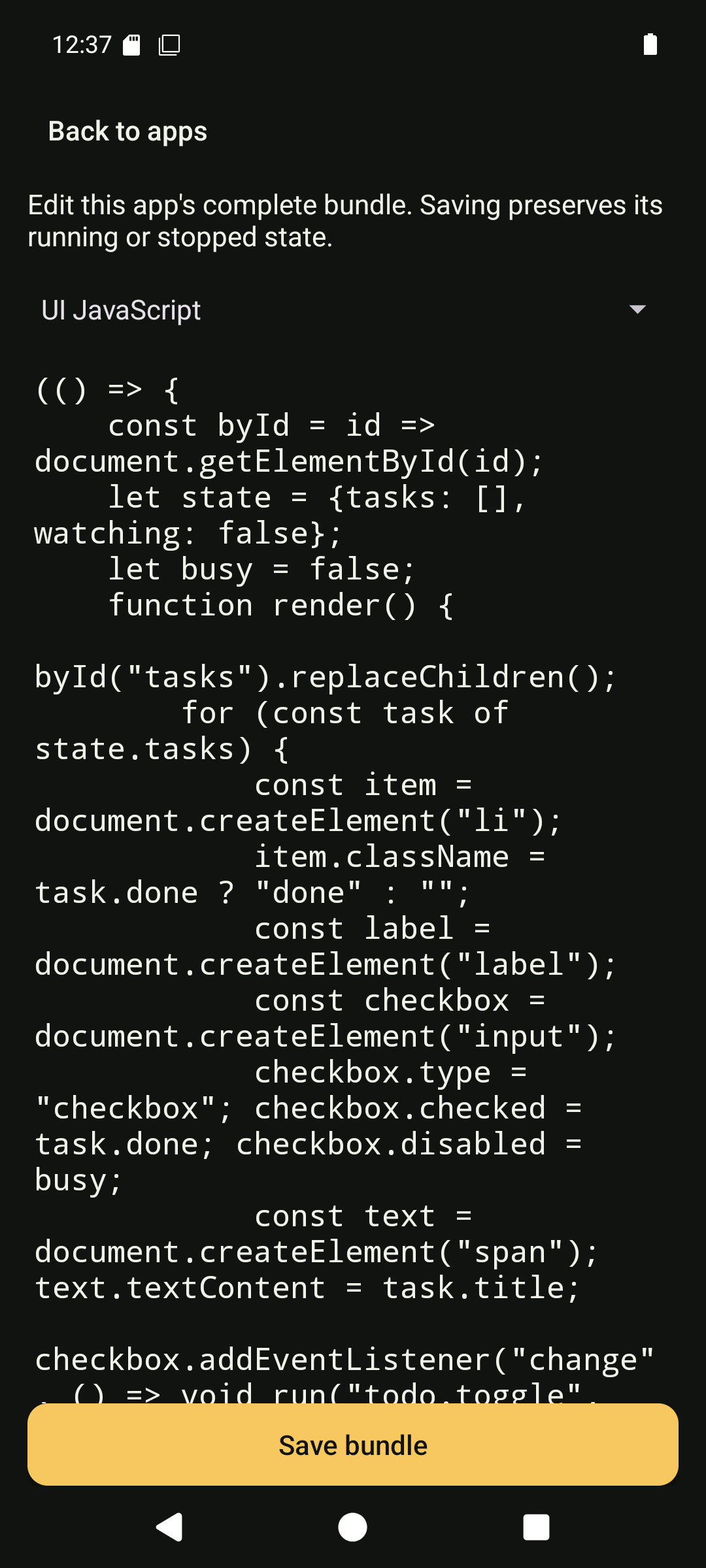
UI JavaScript.
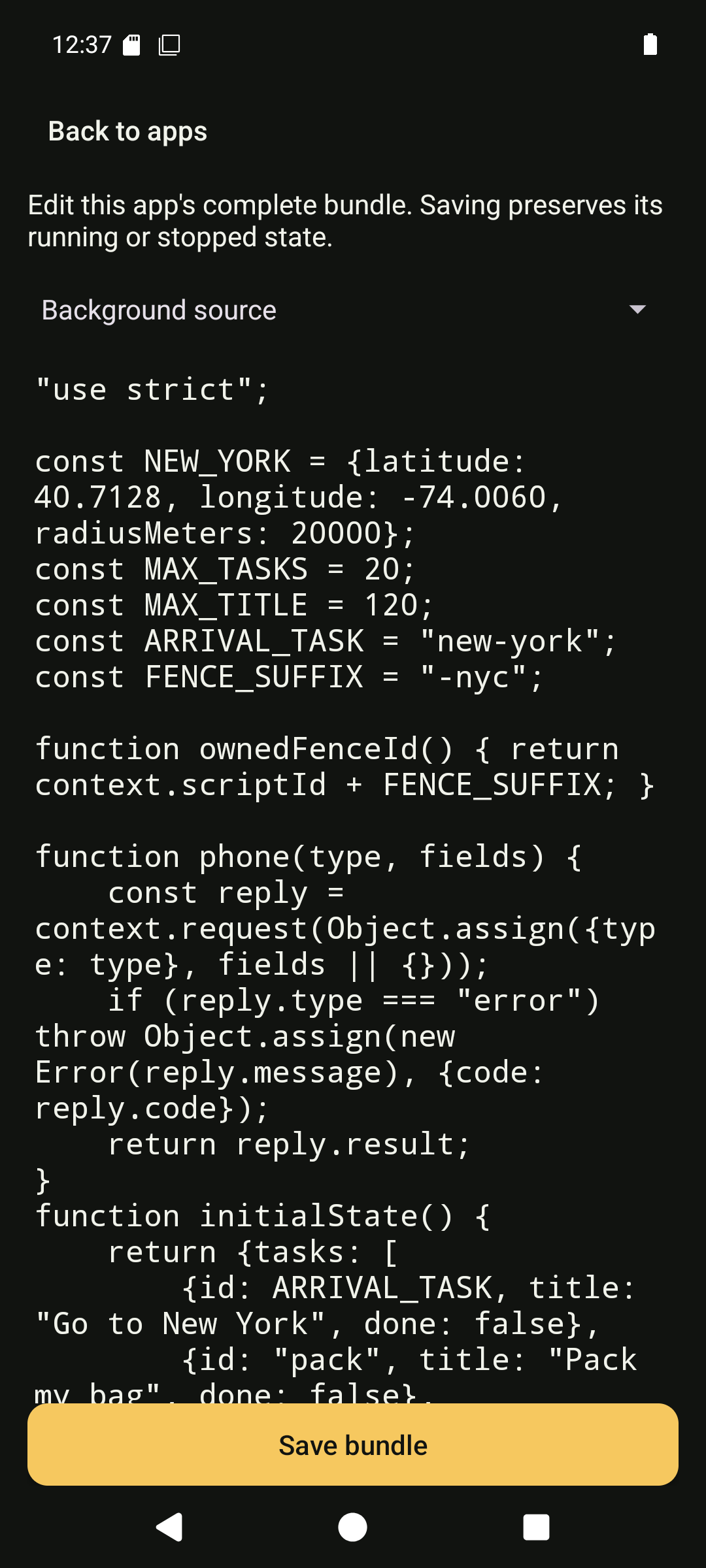
Background handler.
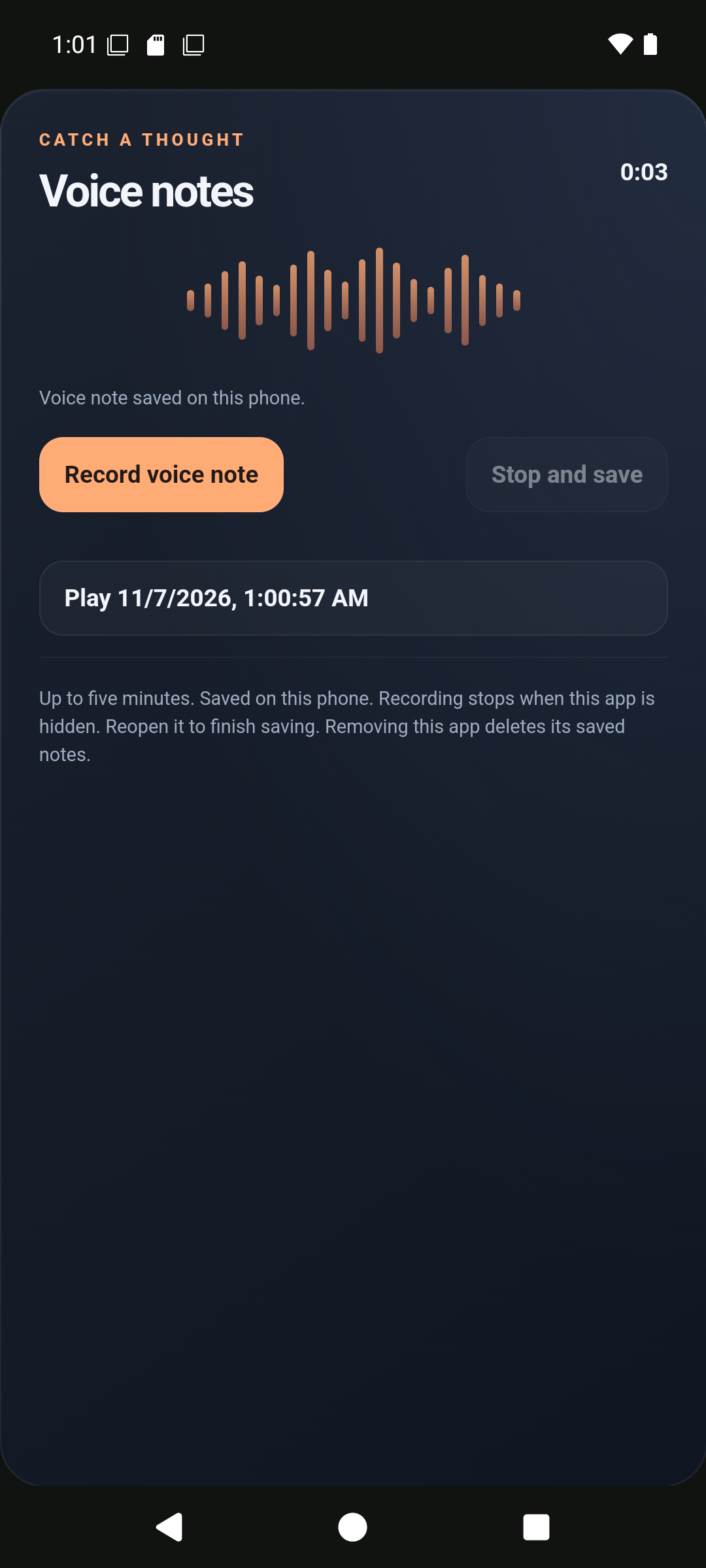
Record voice note starts microphone capture. Stop and save retains it in this app. Leaving the interface stops recording; reopening completes the pending save and exposes playback.
Assistant and conversations
Tap the cheese beside the home controls. Use the resize action for half or full height. The composer stays below the message viewport and above the keyboard. Scroll up to read earlier messages; Latest resumes following the stream. Tap the conversation title for saved conversations, Events and Manage. Manage offers Rename, Change provider, Delete and Run a routine. Deletion confirms removal of the transcript and event rules. Closing chat leaves a turn running; the working notification reopens it and Stop cancels remaining work. See embedded chat for tool execution and cancellation limits.
View the screens
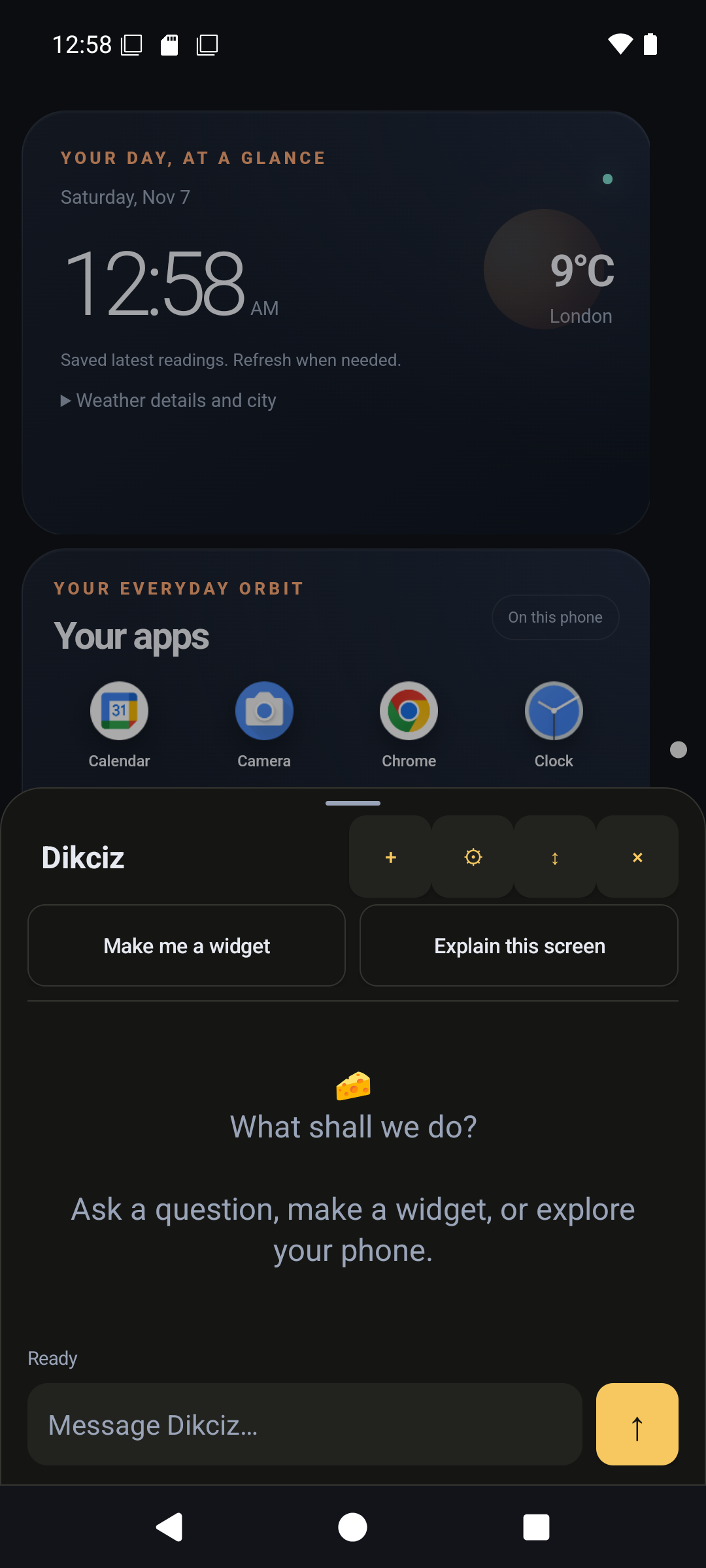
Empty assistant.
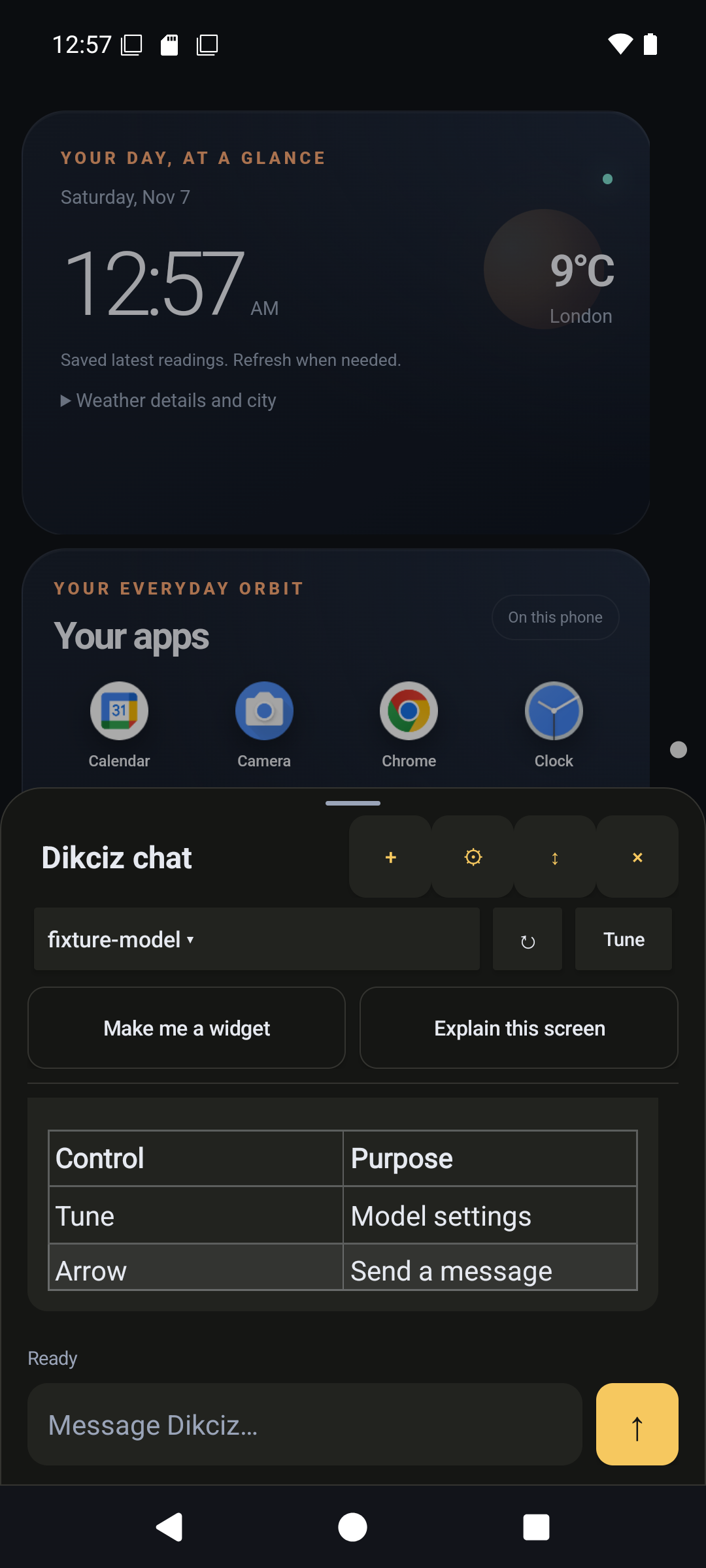
Half-height streamed Markdown.
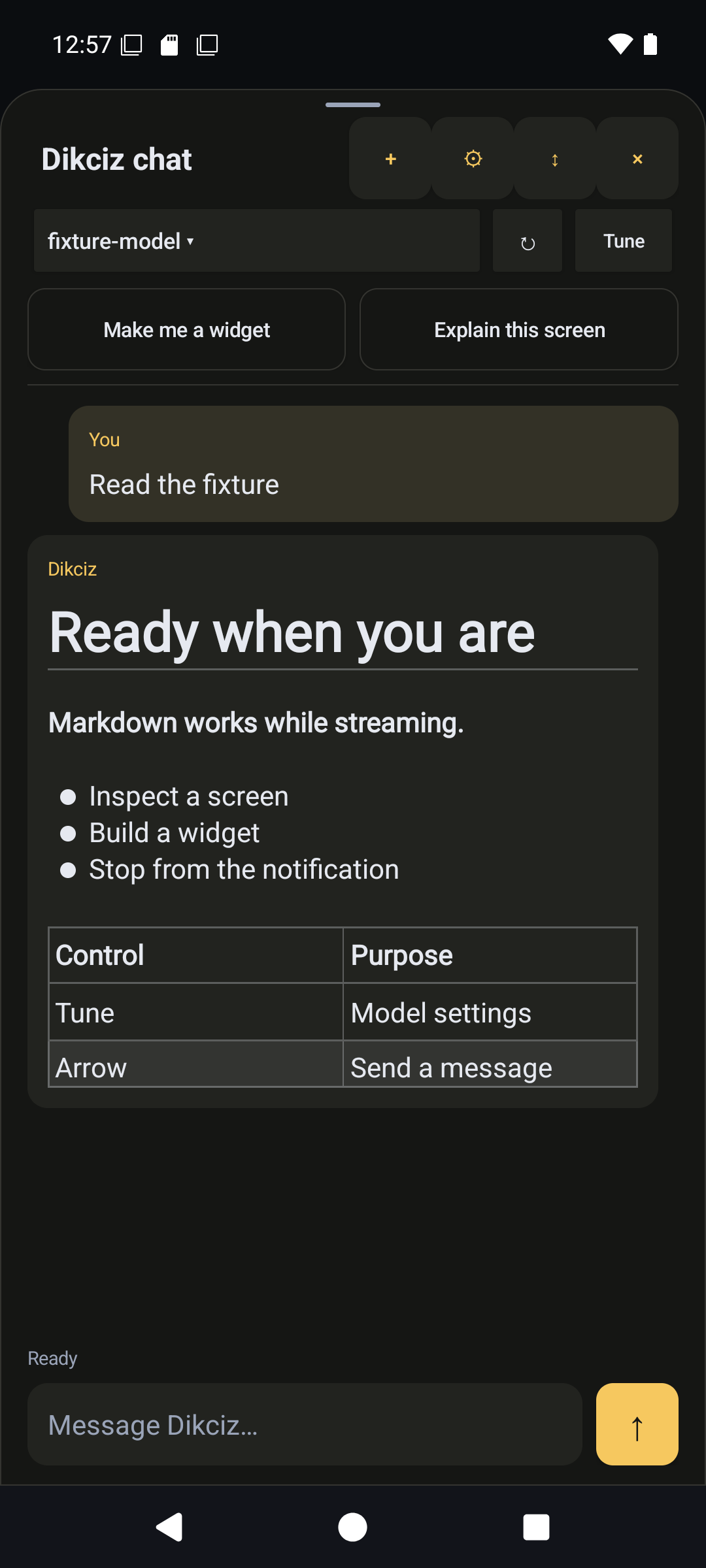
Full-height assistant.
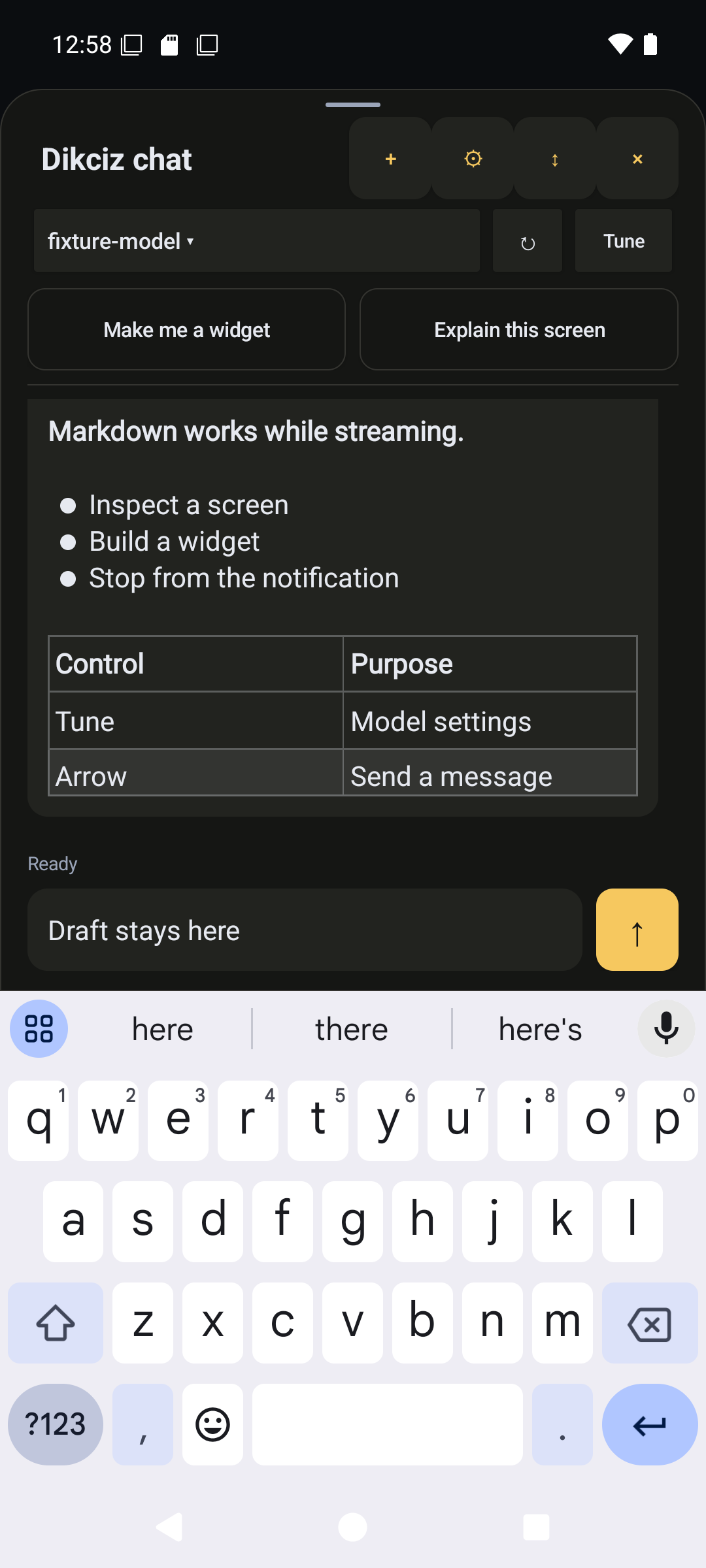
Typing with the keyboard.
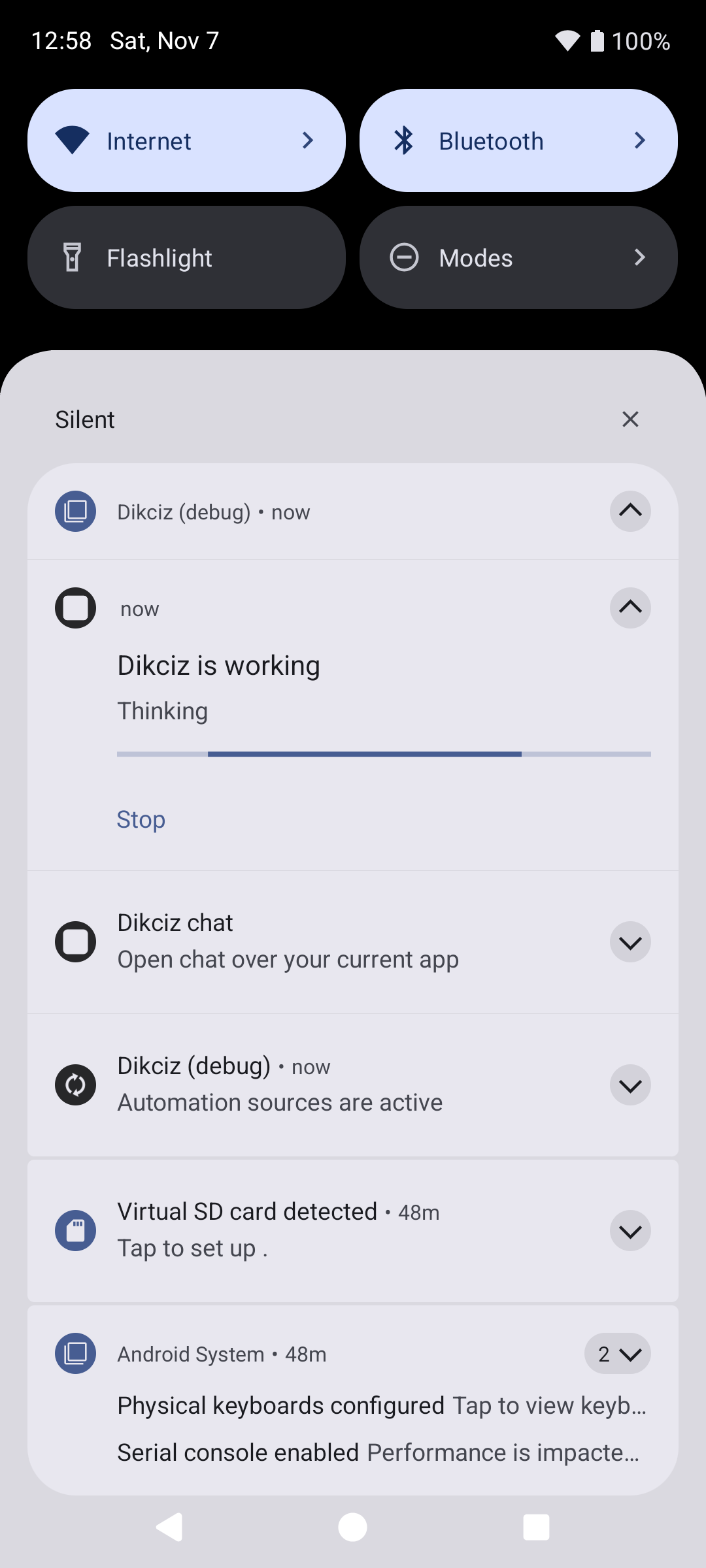
Working notification and Stop.
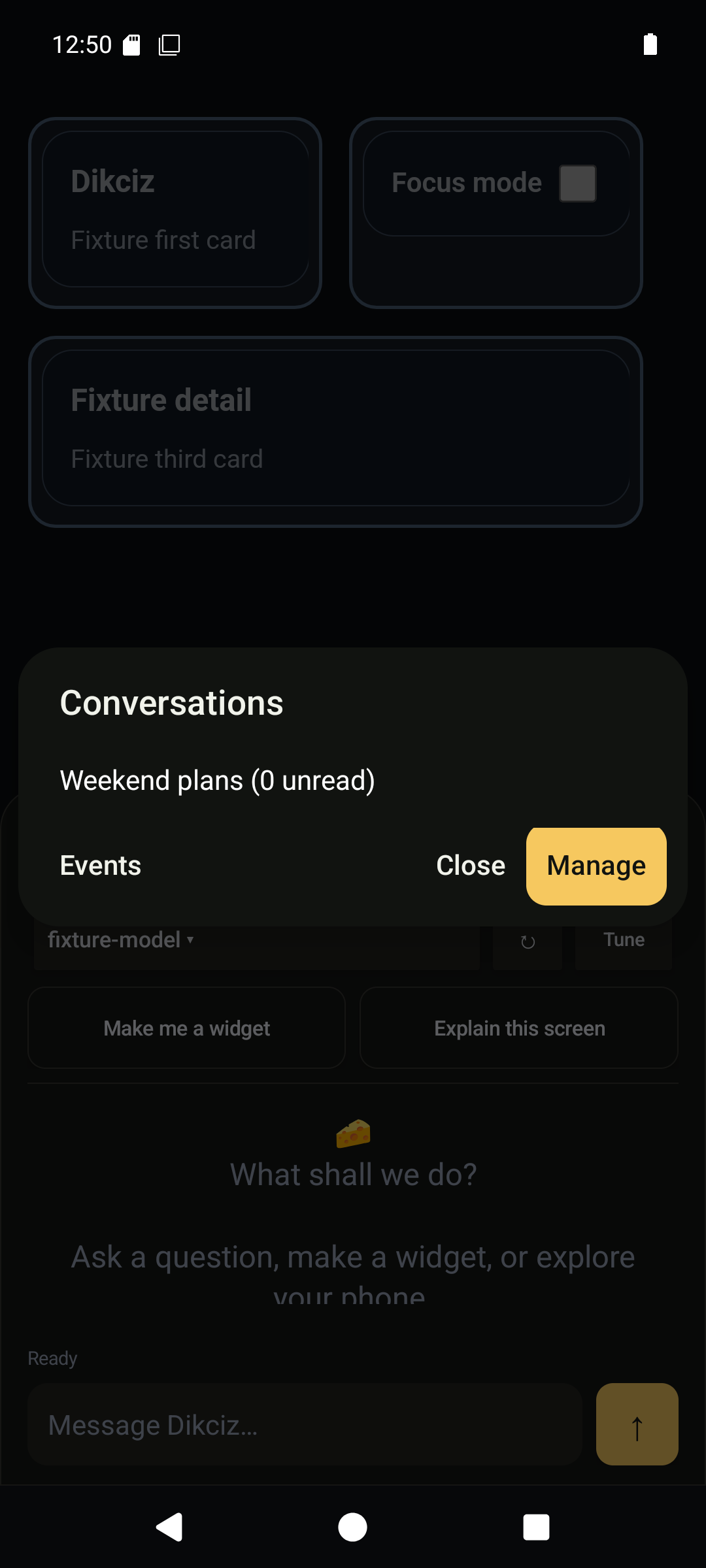
Conversation picker.
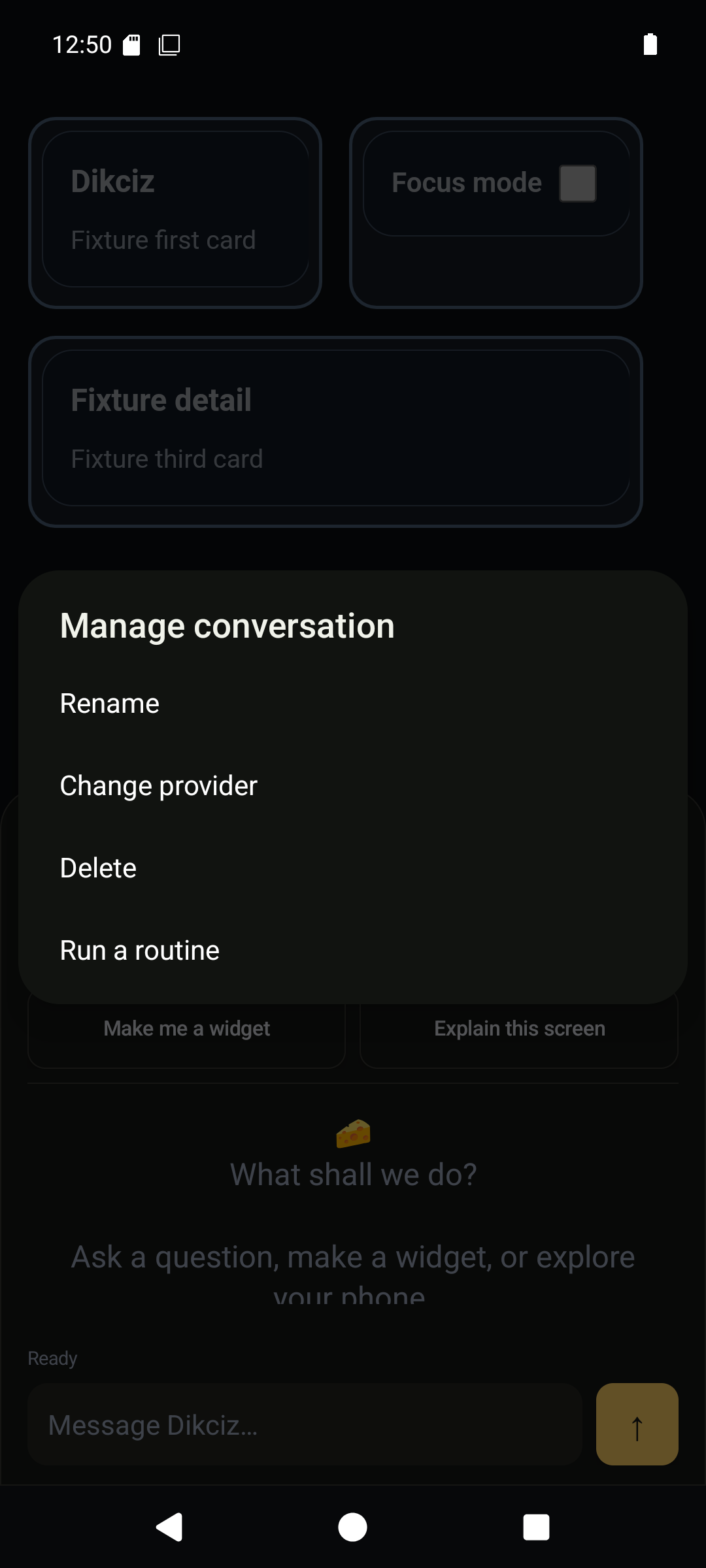
Conversation management.
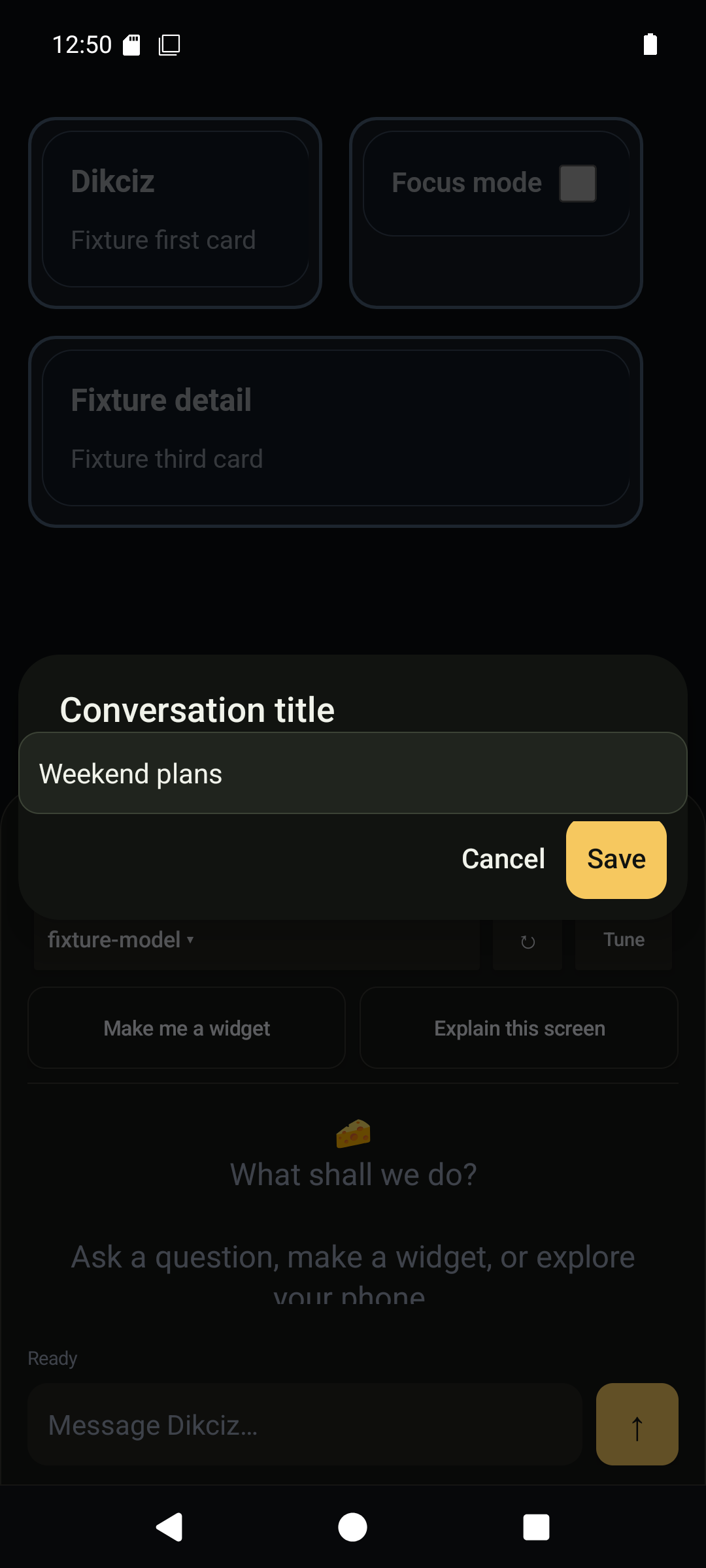
Rename a conversation.
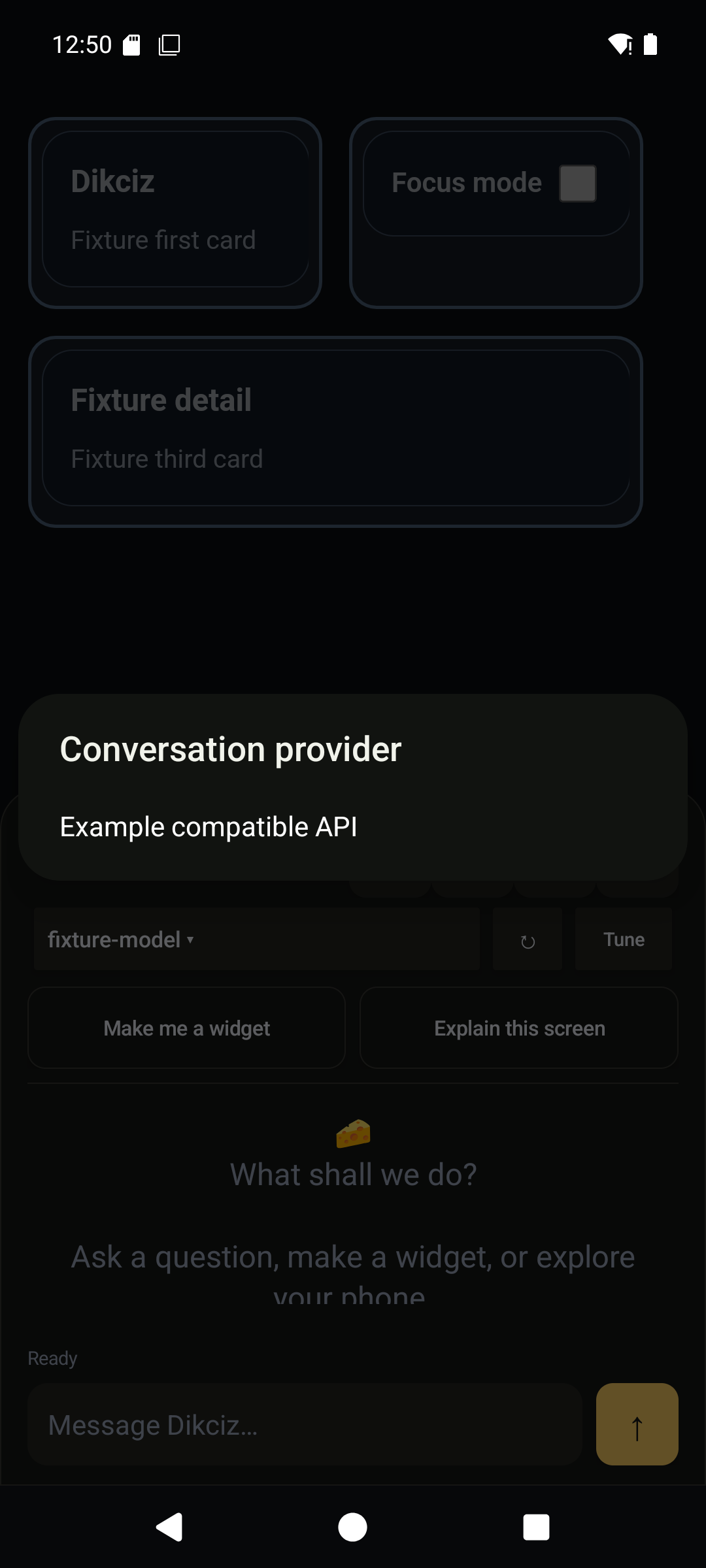
Change provider.
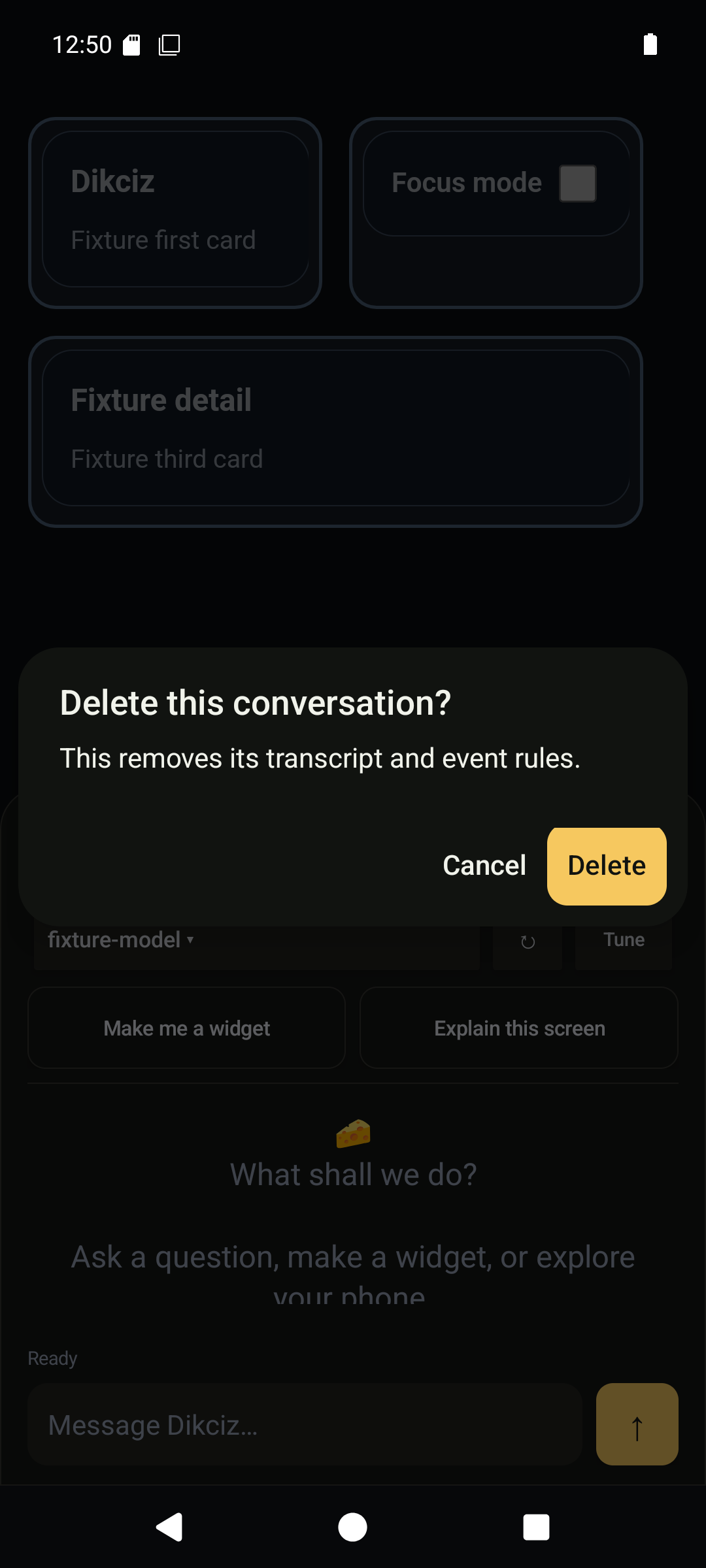
Delete confirmation.
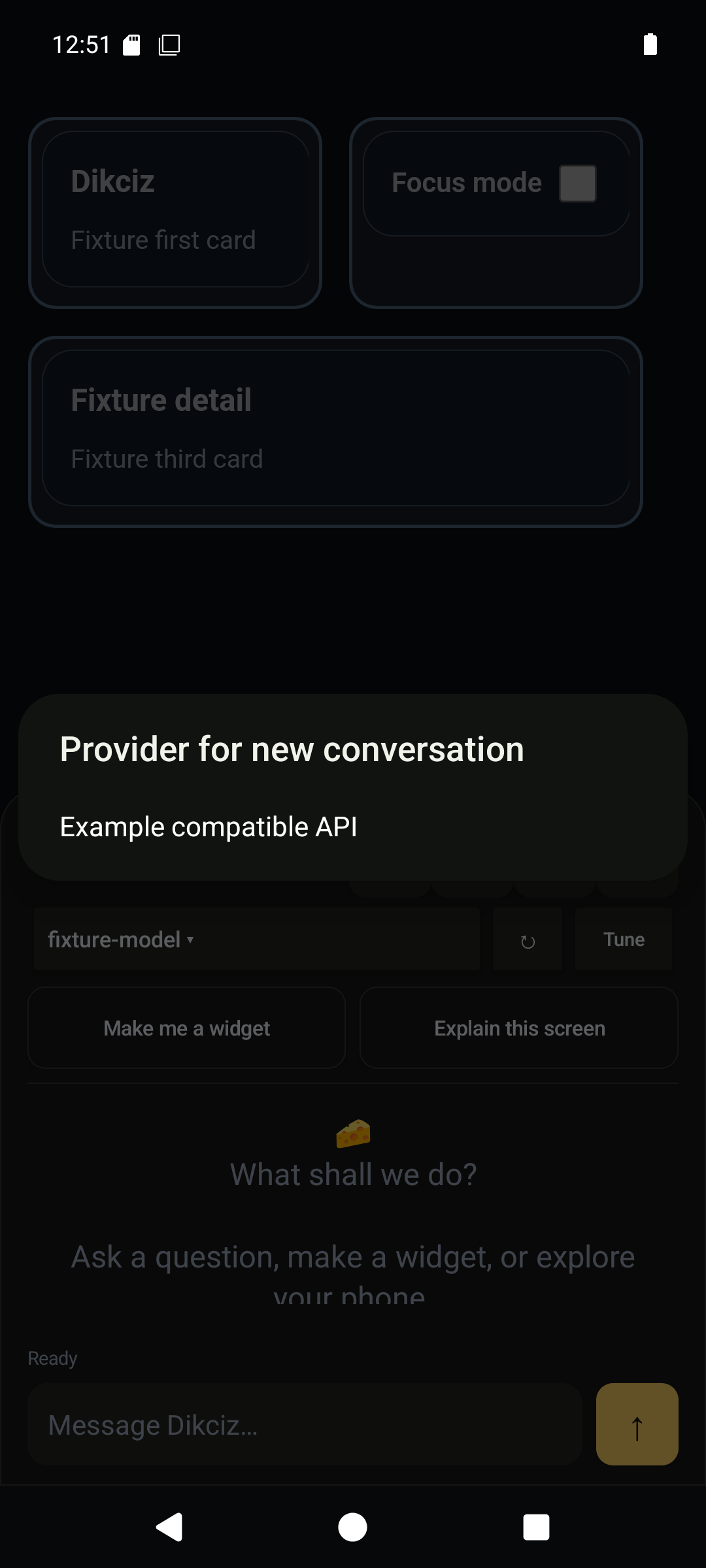
Choose a provider for a new conversation.
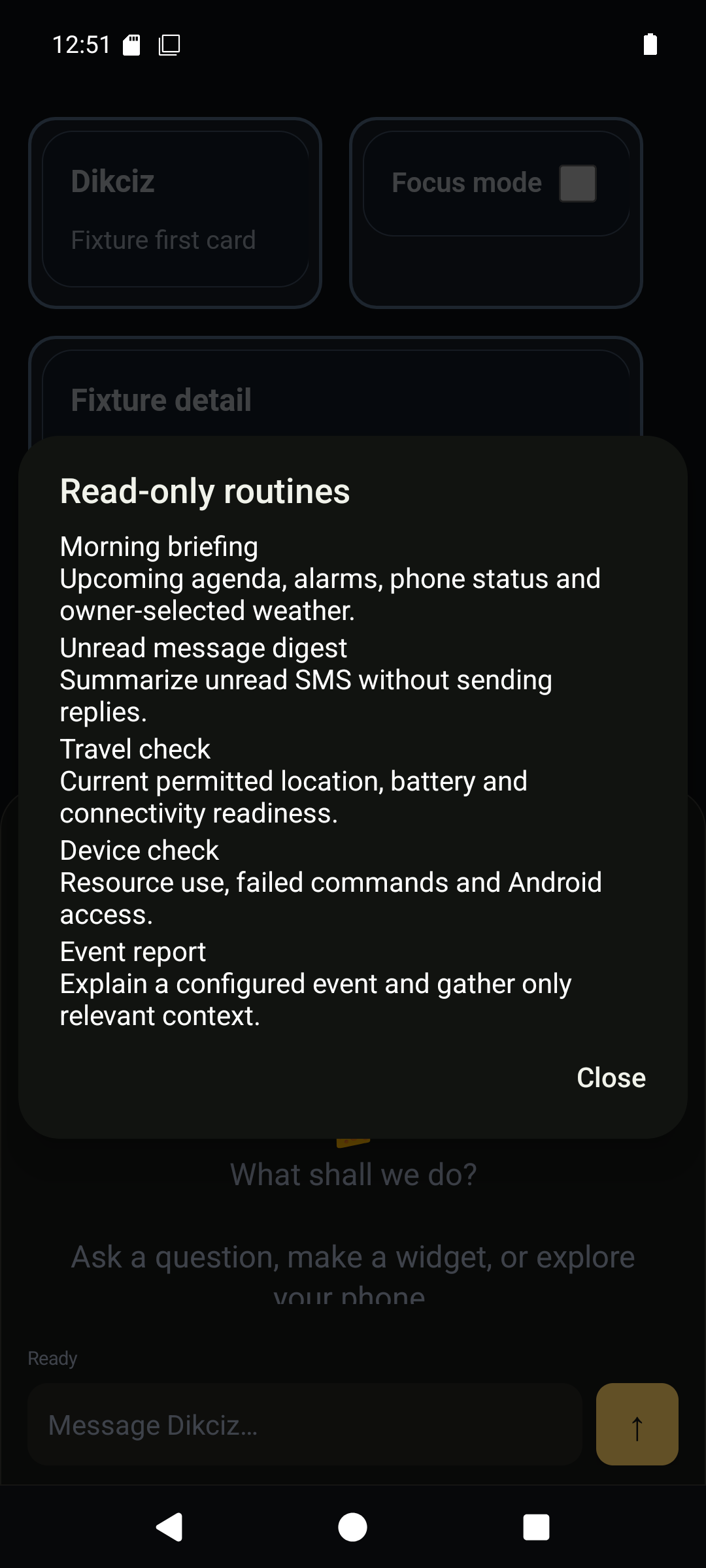
Read-only routines.
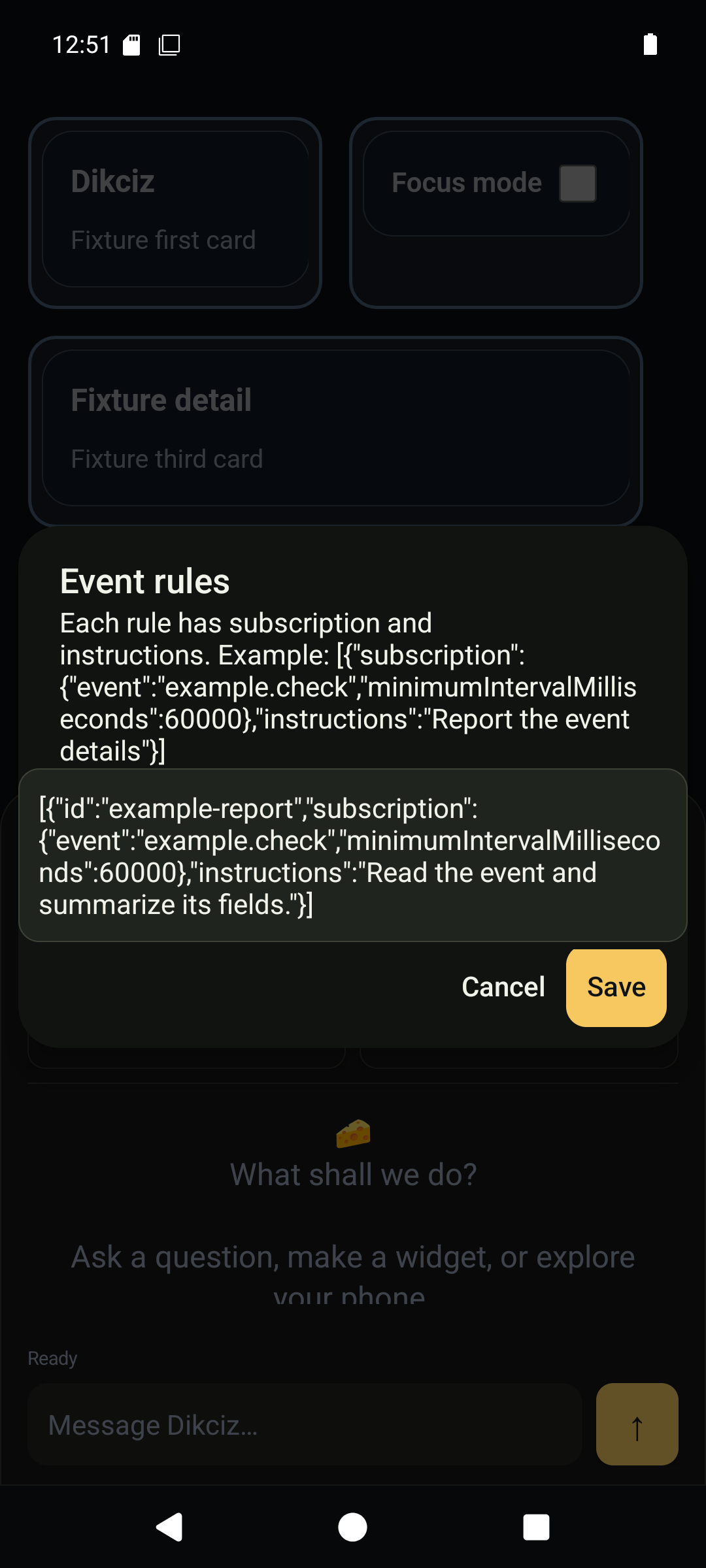
Conversation event subscriptions.
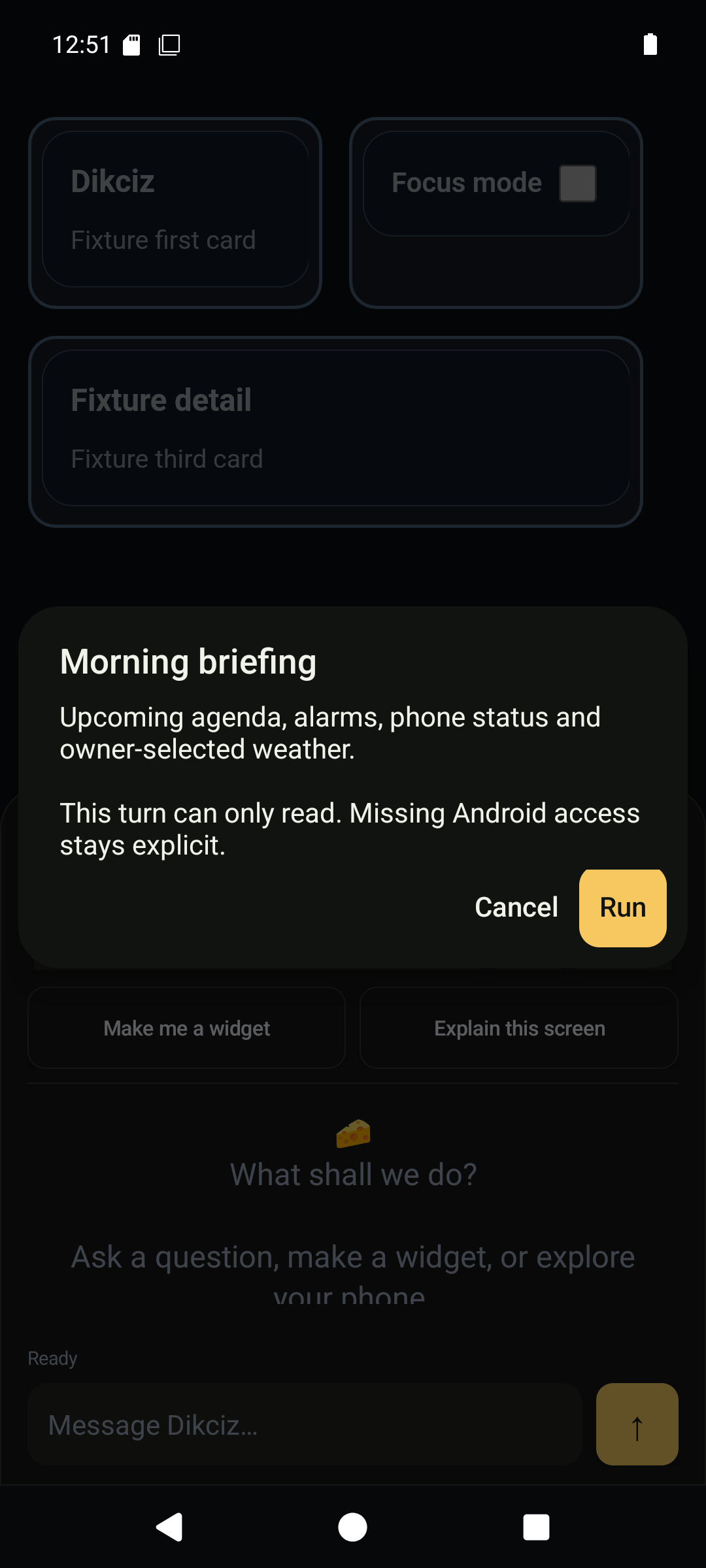
Review a routine before running it.
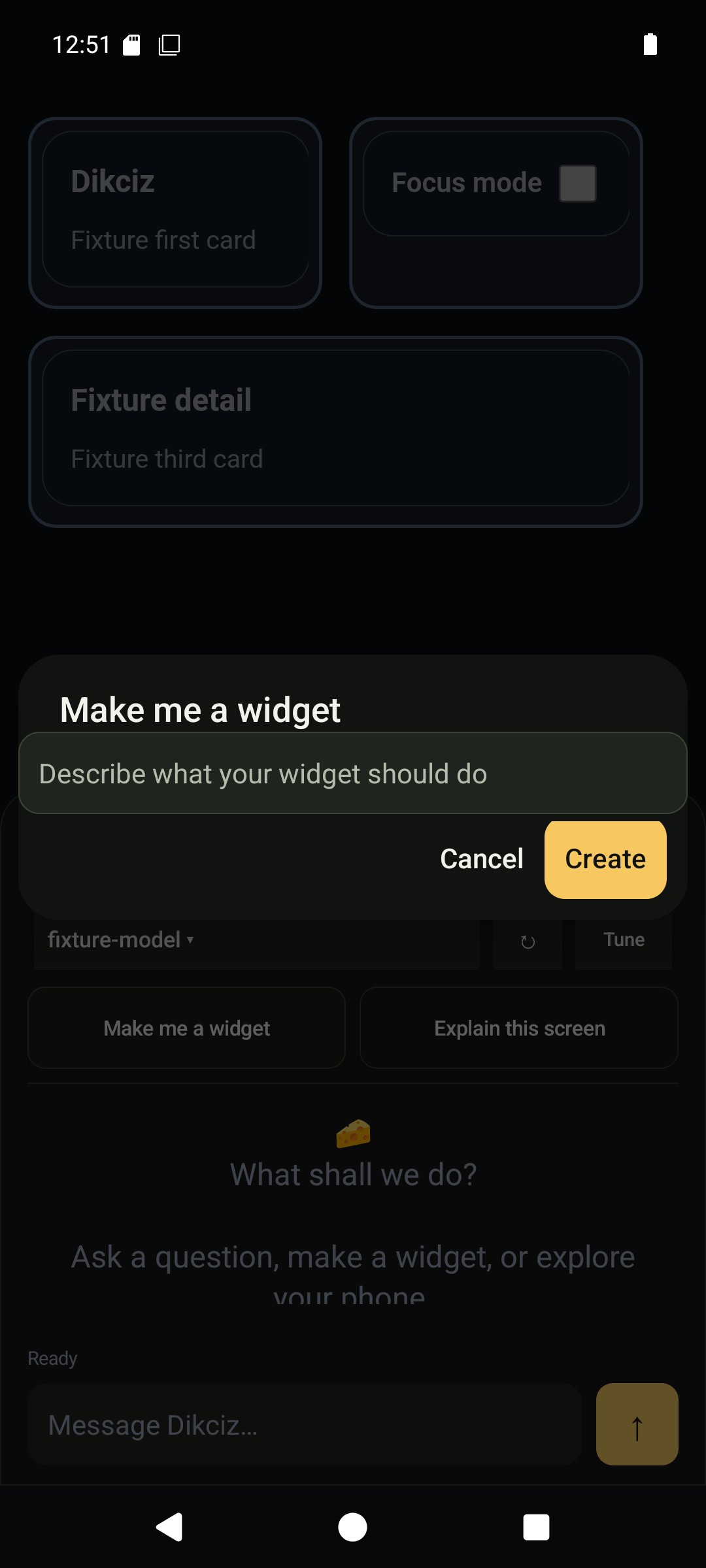
Describe a widget before creating it.
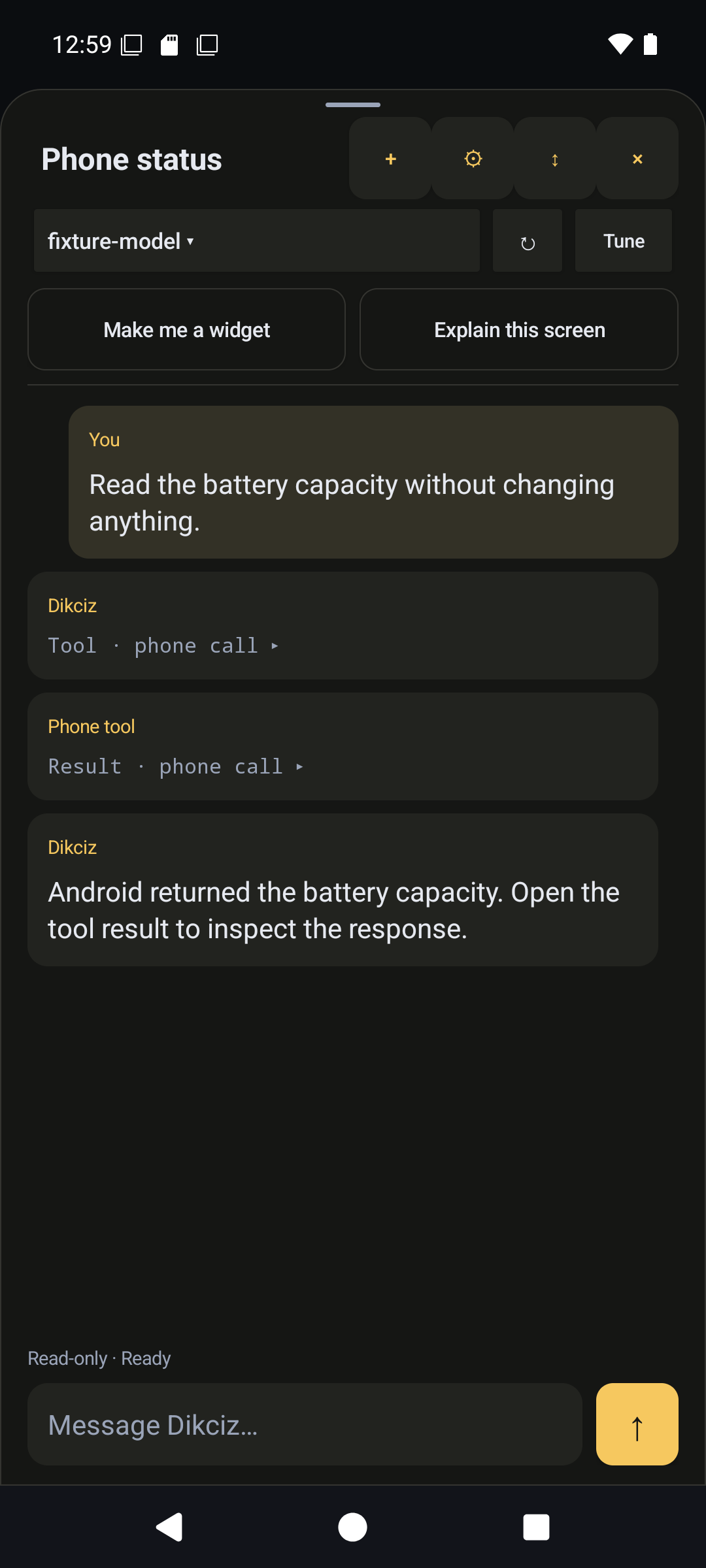
Phone tool call in the transcript. The provider is a demonstration endpoint; the tool reads the emulator's actual Android SDK result.
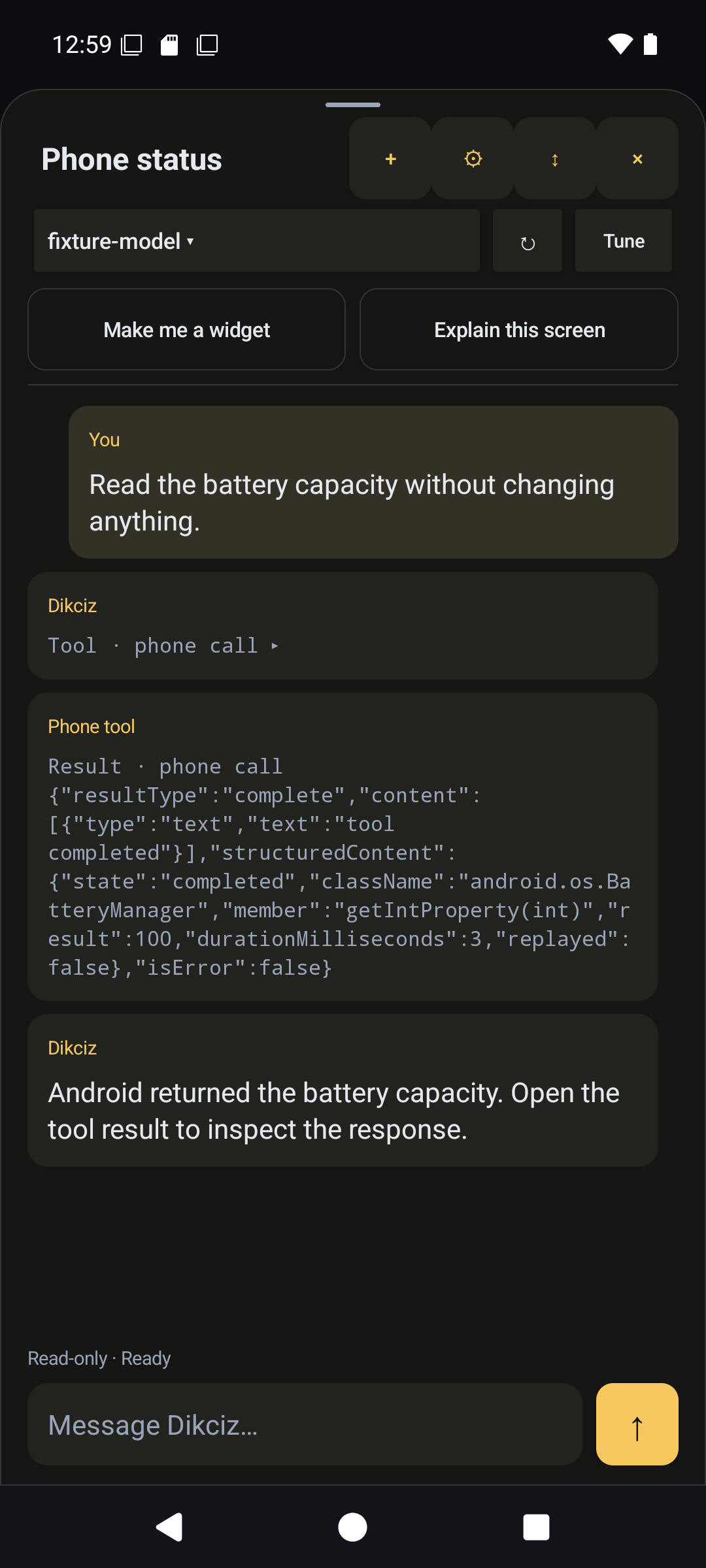
Expanded tool result. The provider is a demonstration endpoint; the tool reads the emulator's actual Android SDK result.
Providers, models and access
Open the chat settings icon and choose Add provider. OpenAI and Anthropic templates fill the protocol and base URL; Custom accepts your compatible host. Enter your own API key and save the connection. Select a model from the model menu, then use Tune for that conversation's context/output limits, compaction and reasoning settings. Read-only access hides write tools and blocks direct execution of writes. Context size includes the reserved output budget. Provider defaults and per-conversation overrides are separate; see provider setup.
View the screens
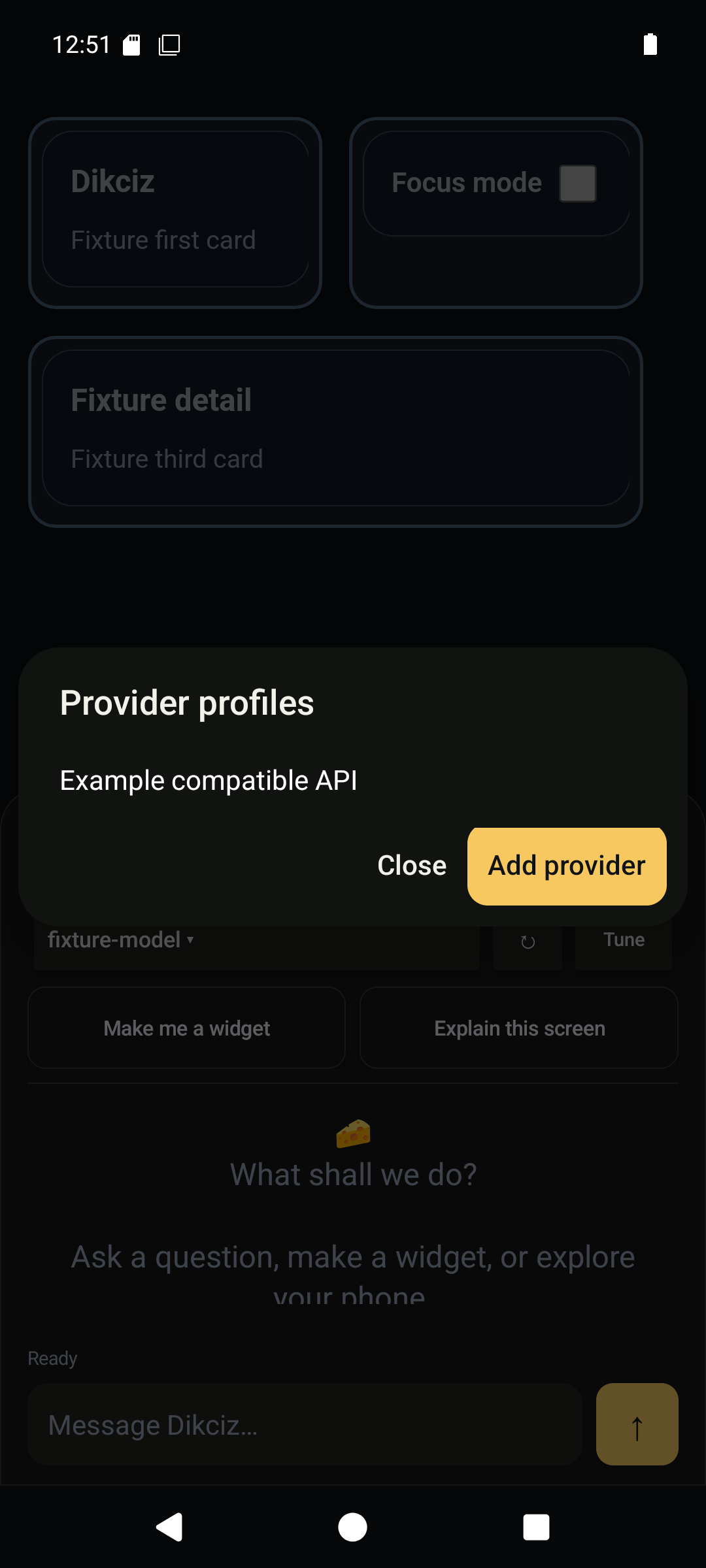
Saved provider connections.
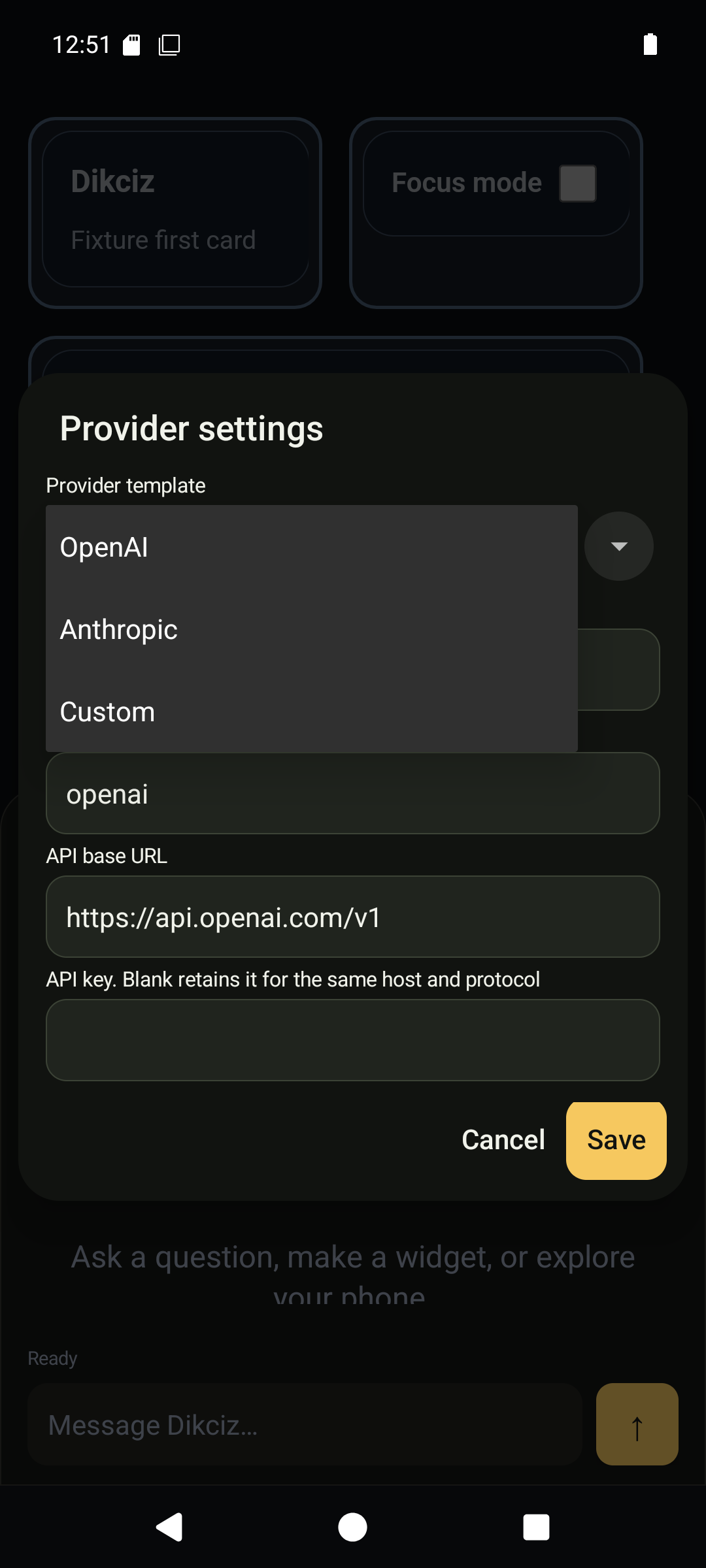
Provider template picker.
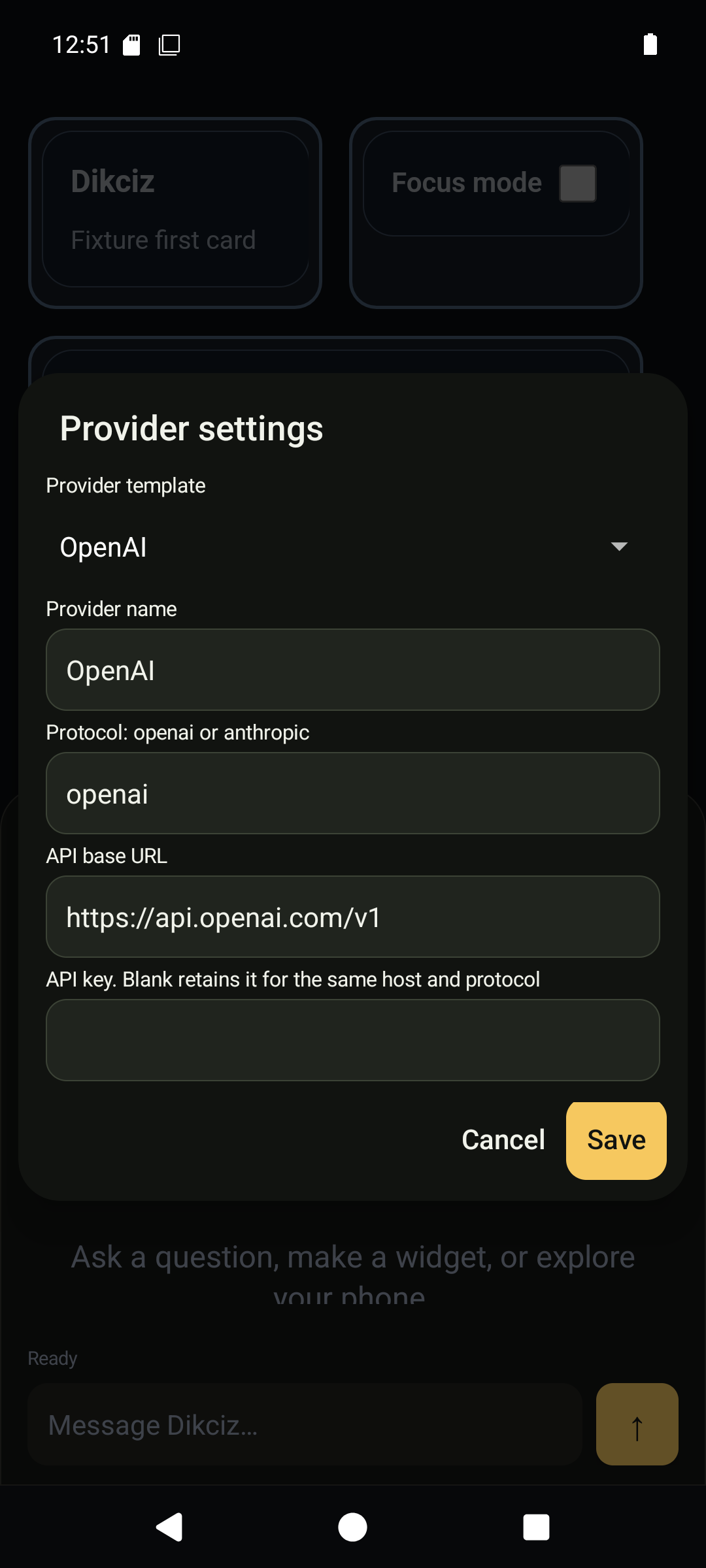
OpenAI connection.
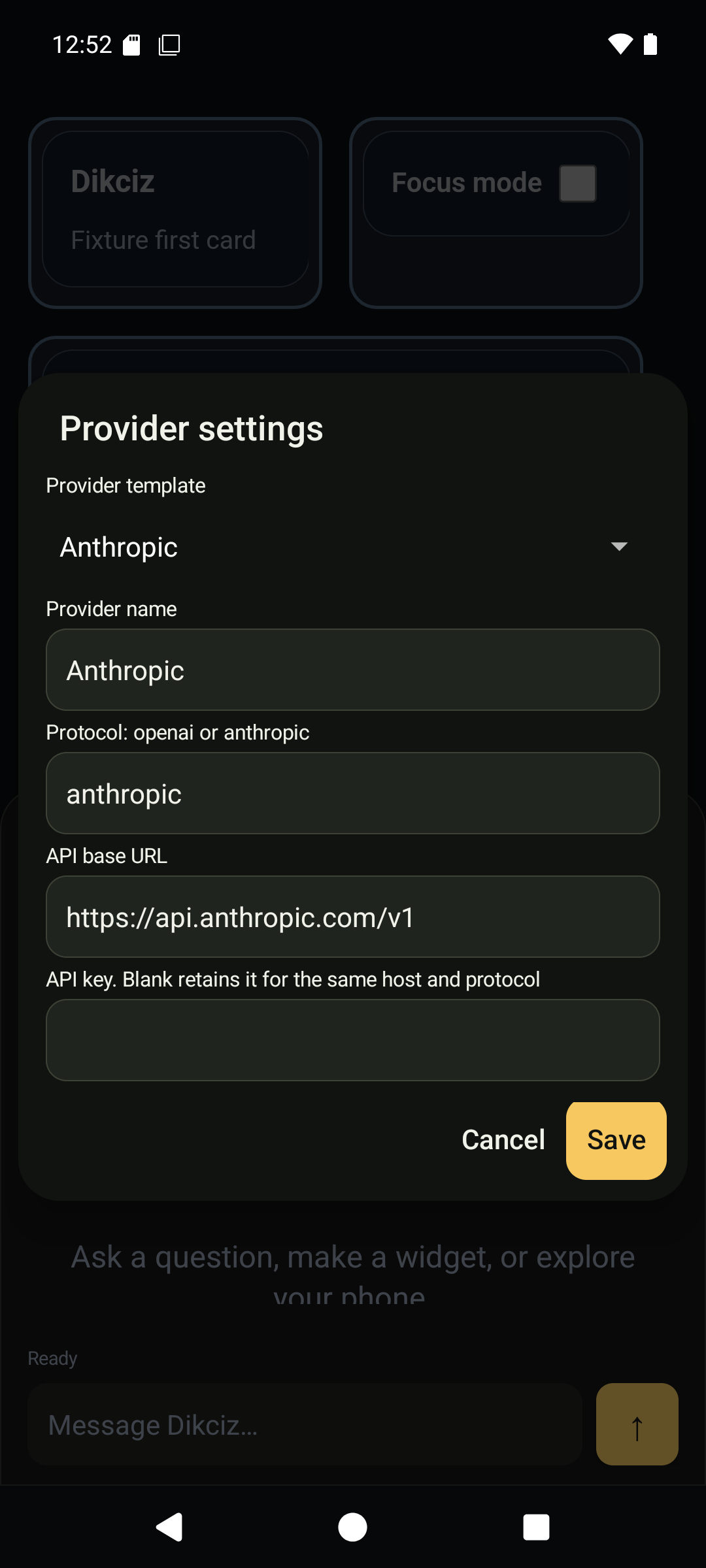
Anthropic connection.
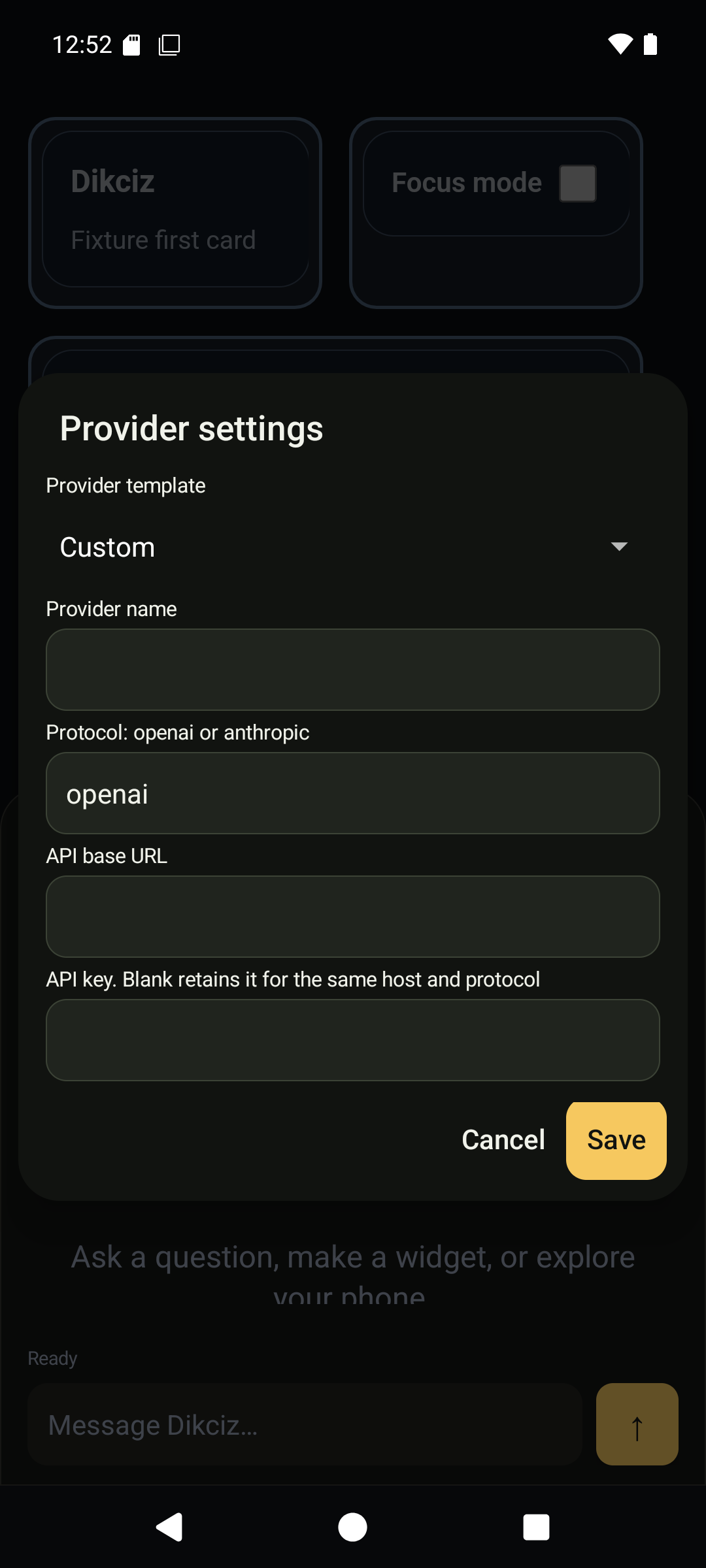
Custom API connection.
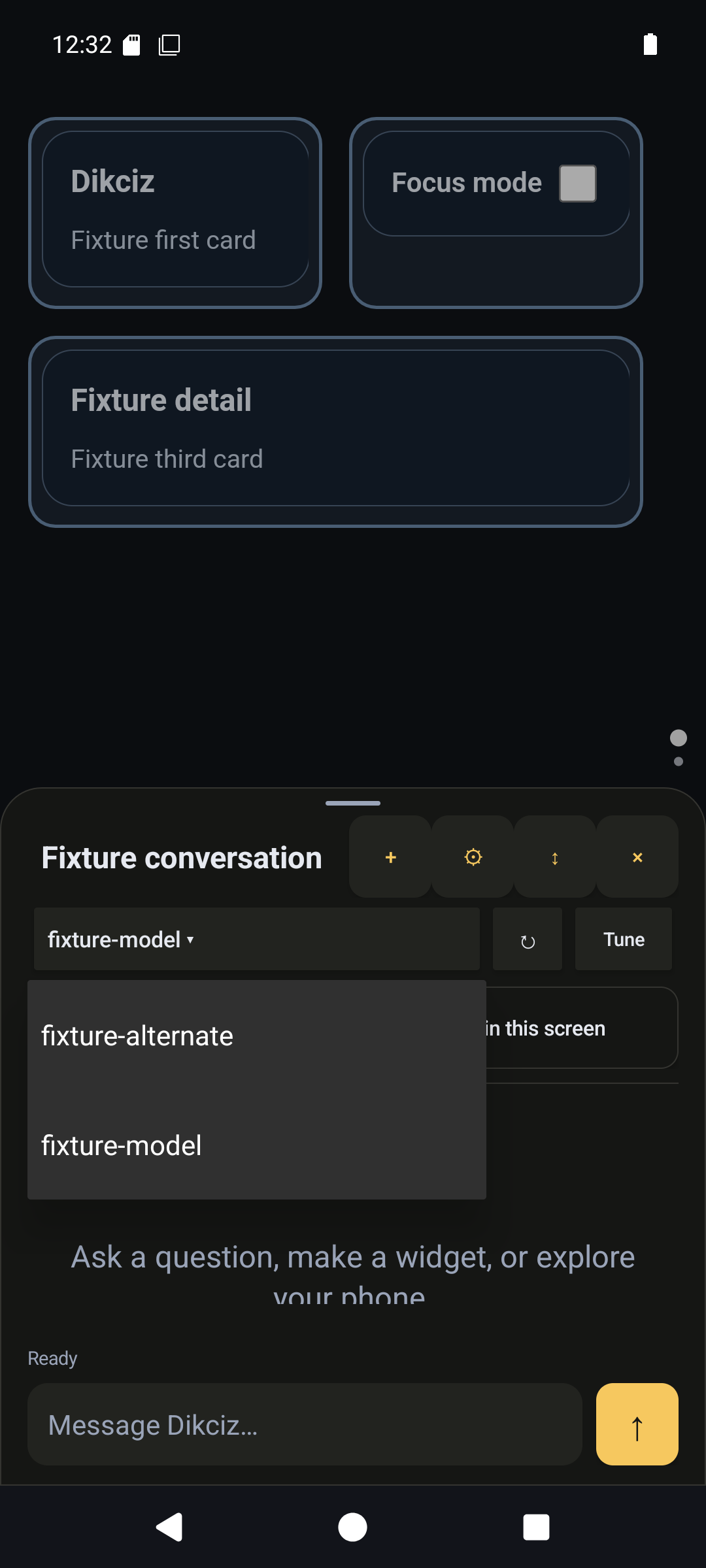
Model discovery and selection.
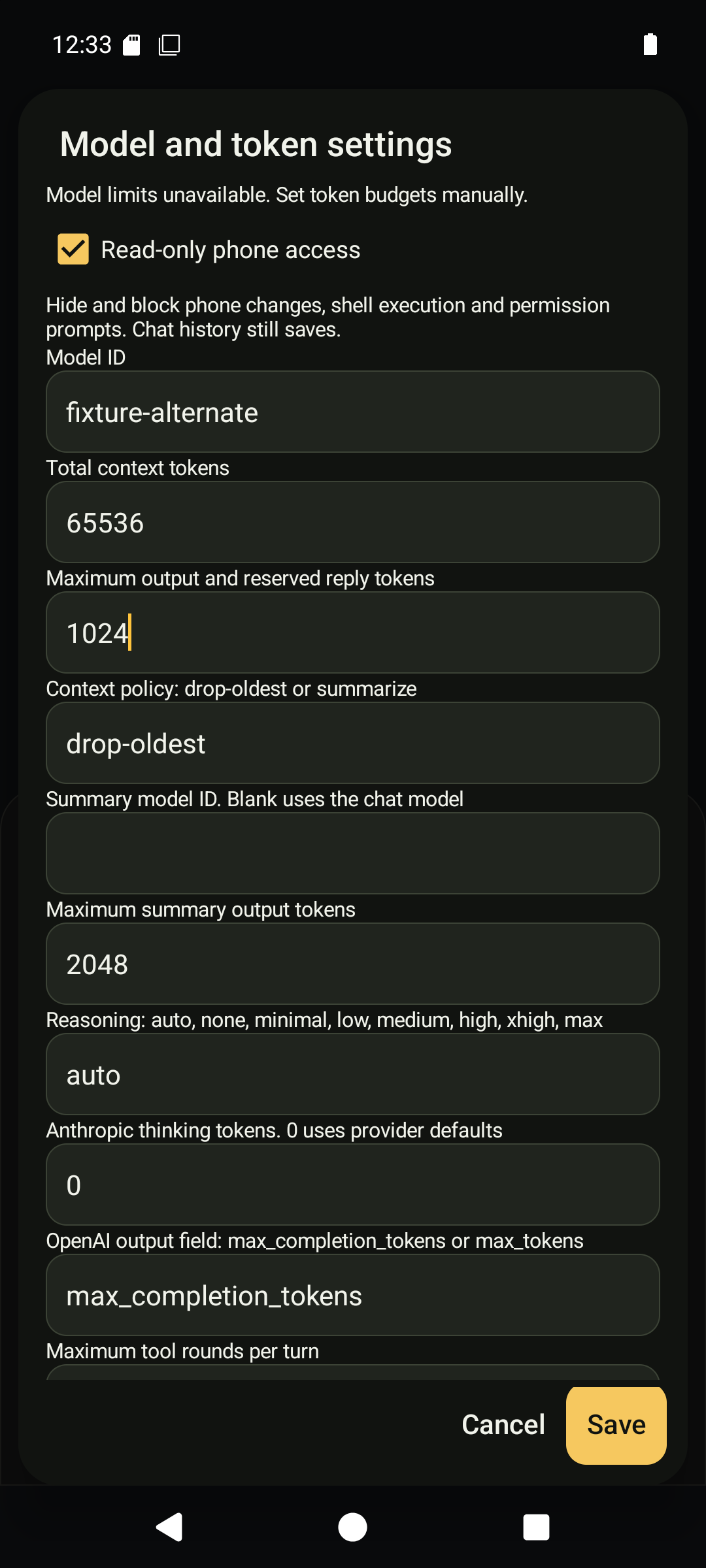
Context, output and read-only settings.
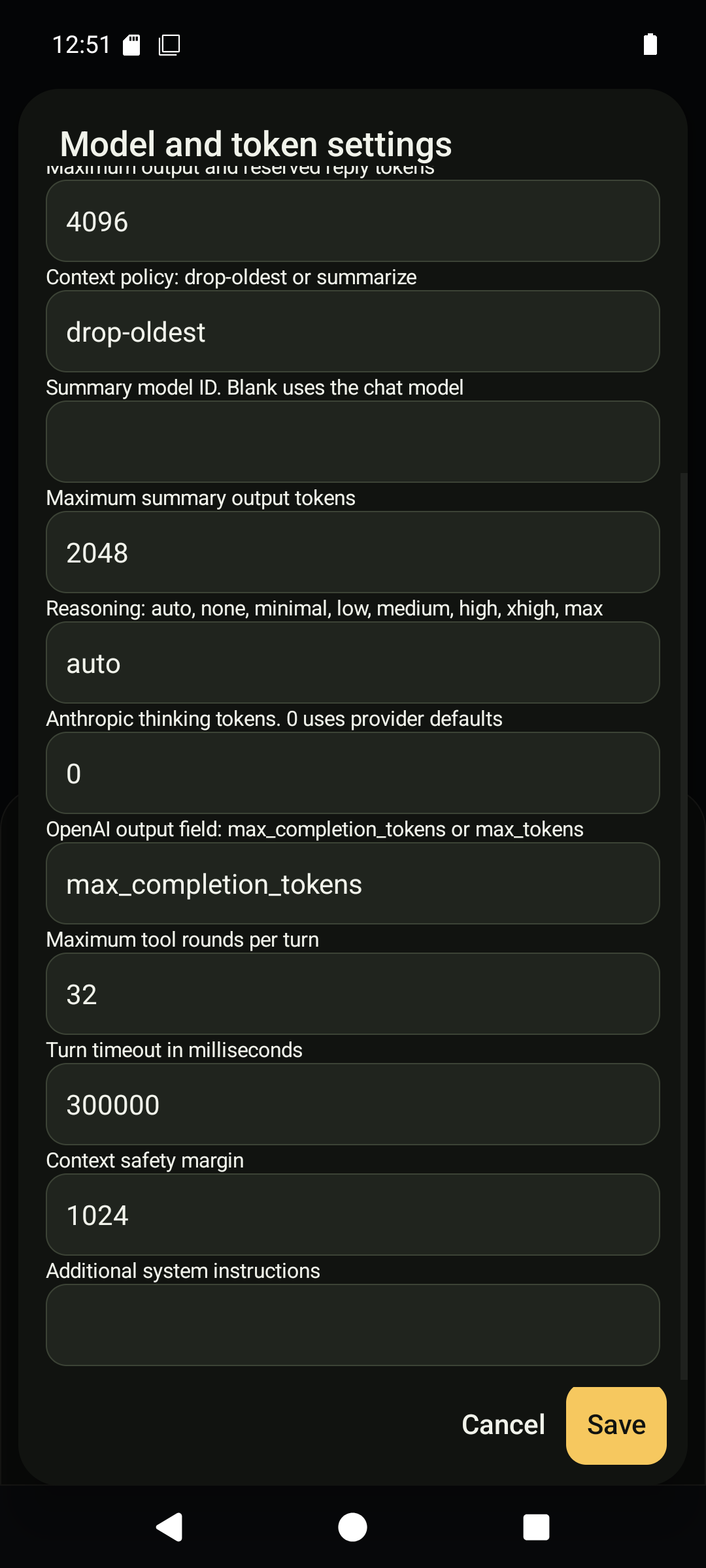
Scroll the model form for tool rounds, turn timeout, context safety margin and additional system instructions.
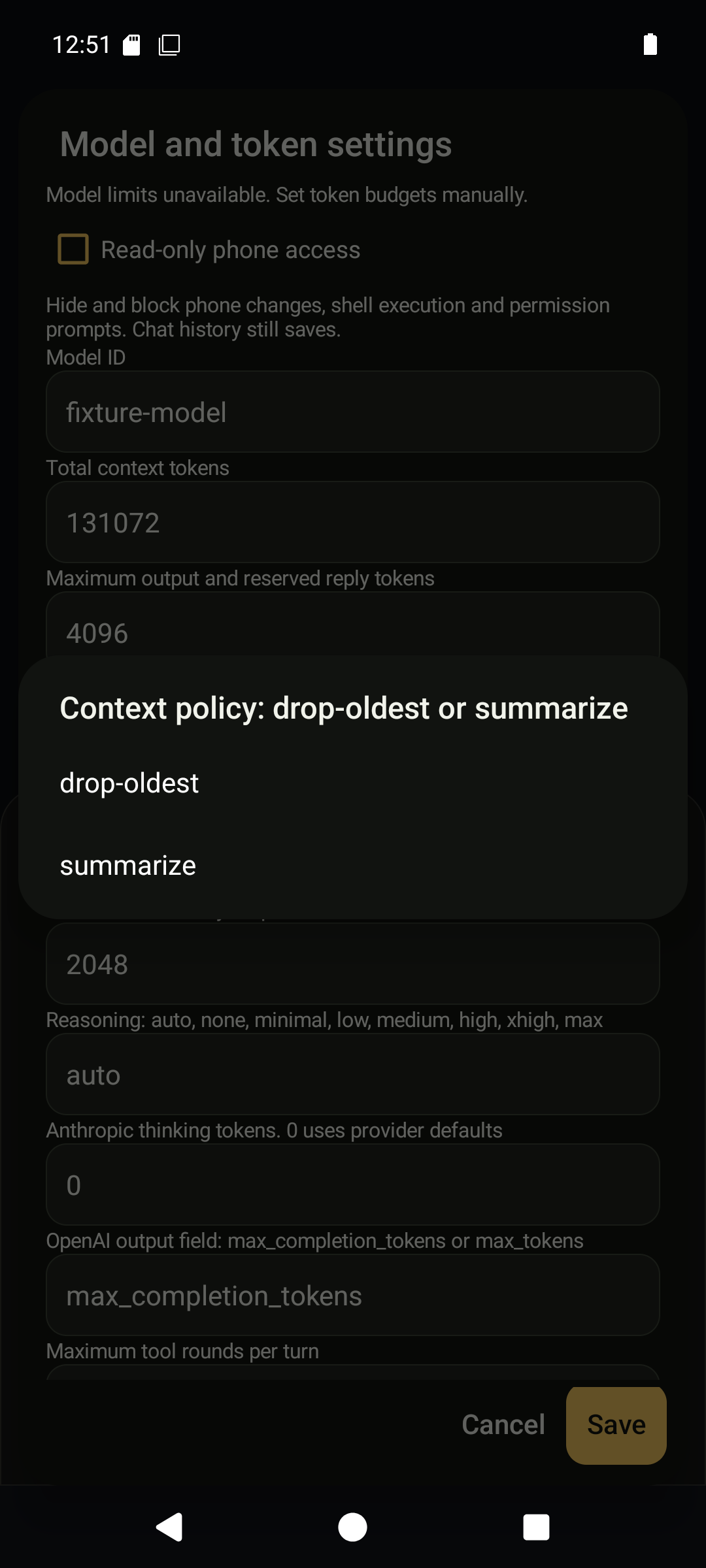
Choose drop-oldest to discard earlier messages or summarize to retain a summary within the configured budget.
Remote access tokens
Open Settings, Automation, Configure remote bearer authentication, then Access tokens. Create a named token with only the grants the client needs. Review expiry, request limits and optional SMS address restrictions. Copy the secret once into the client. Manage reveals editing, enable/disable, rotation and revocation. Rotation replaces the secret; revocation is permanent. Secrets are intentionally excluded from this gallery. The token guide explains transport authentication and grant boundaries.
View the screens
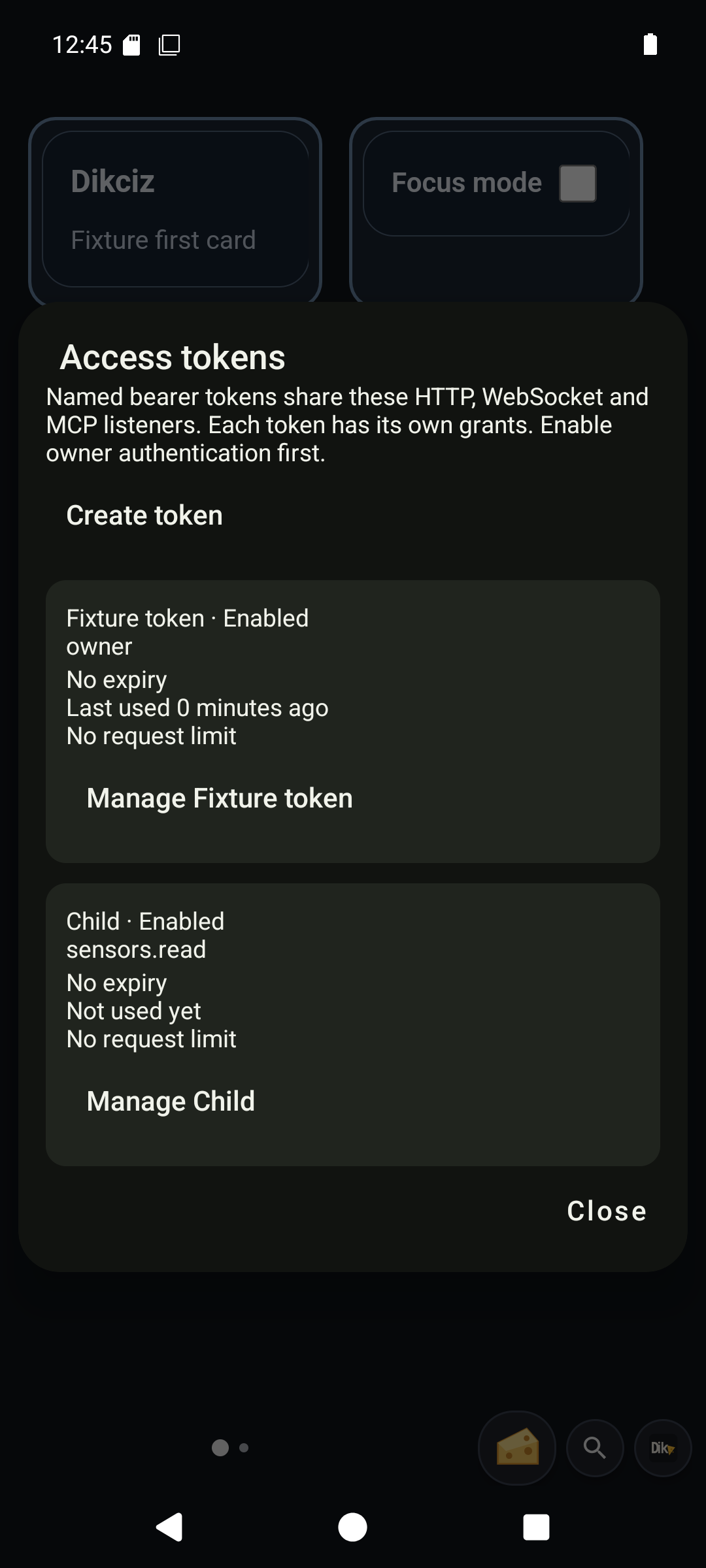
Token identities and grants.
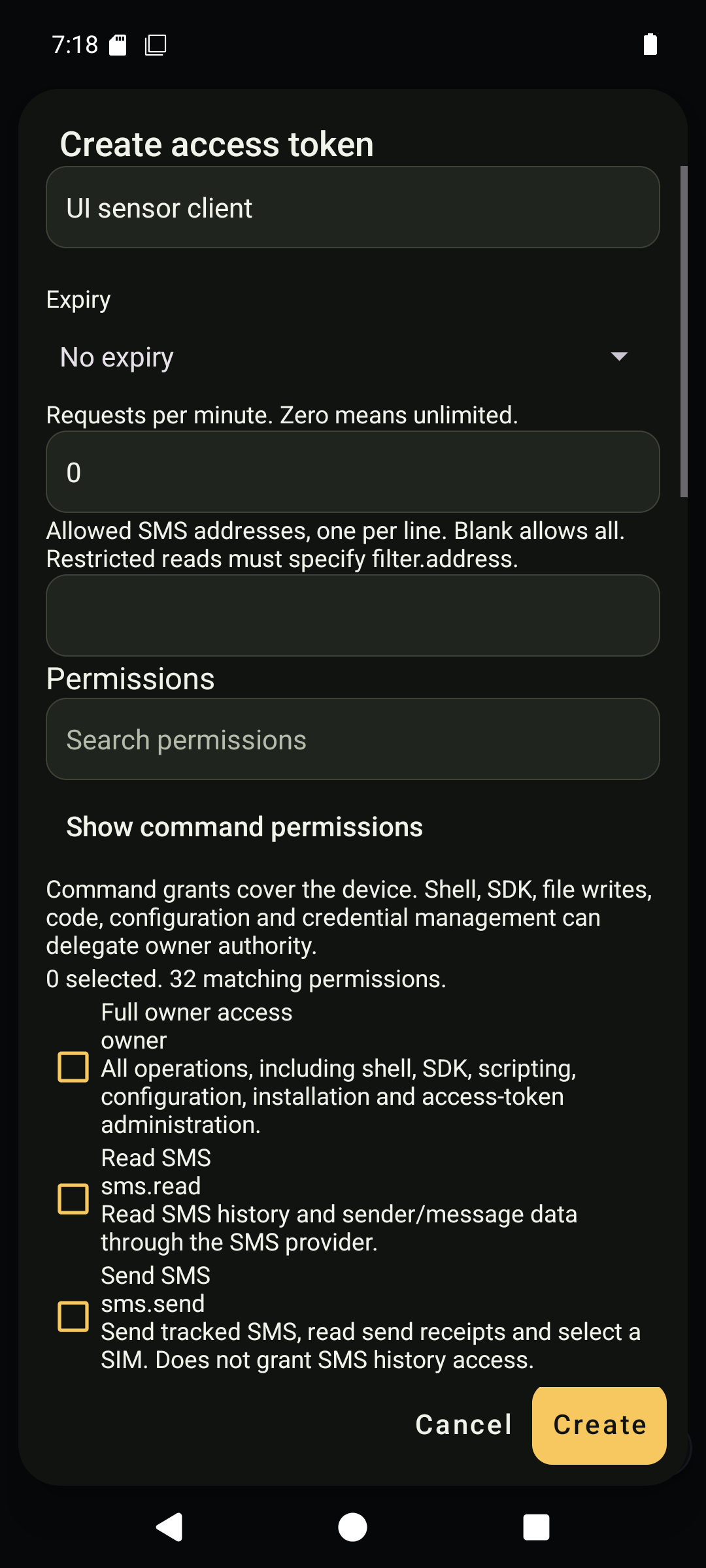
Create a scoped token.
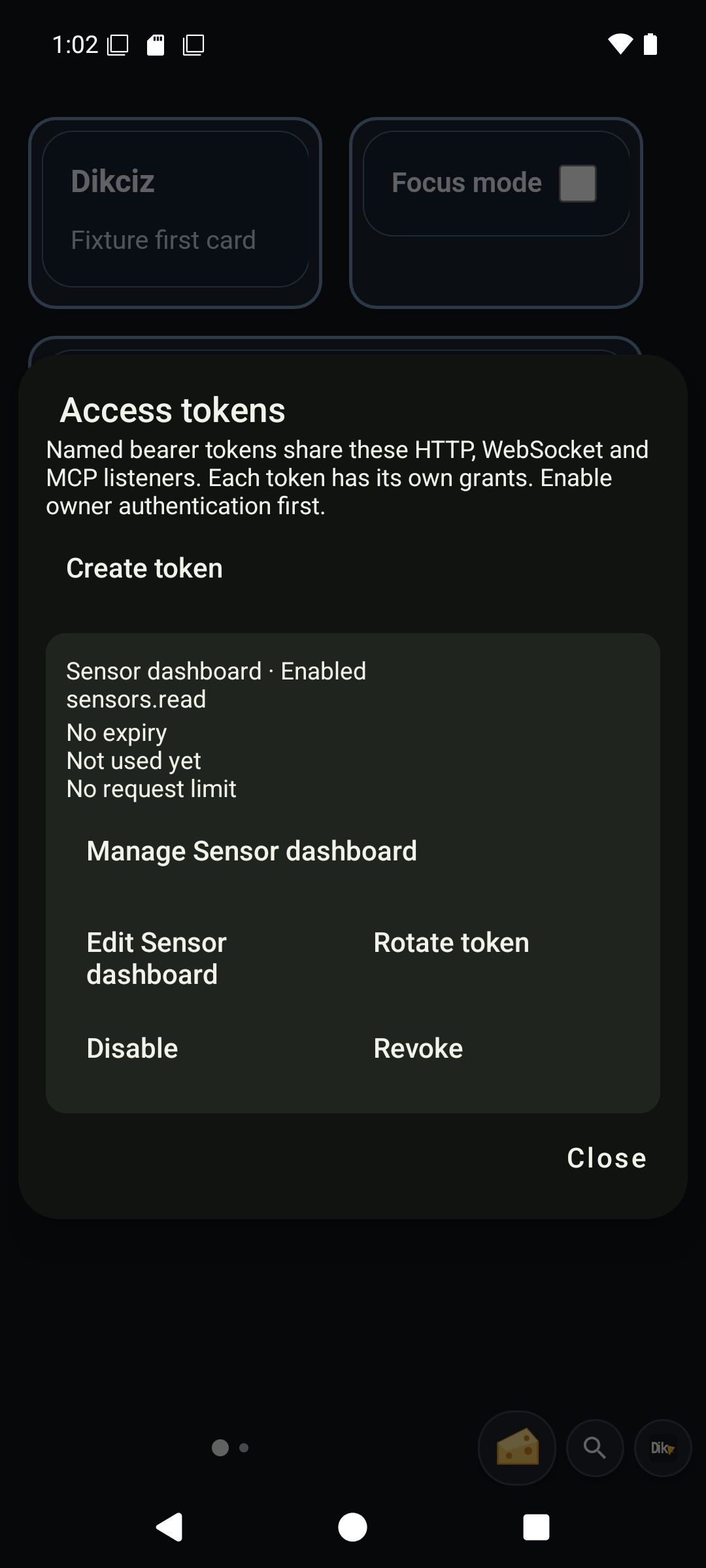
Manage a token.
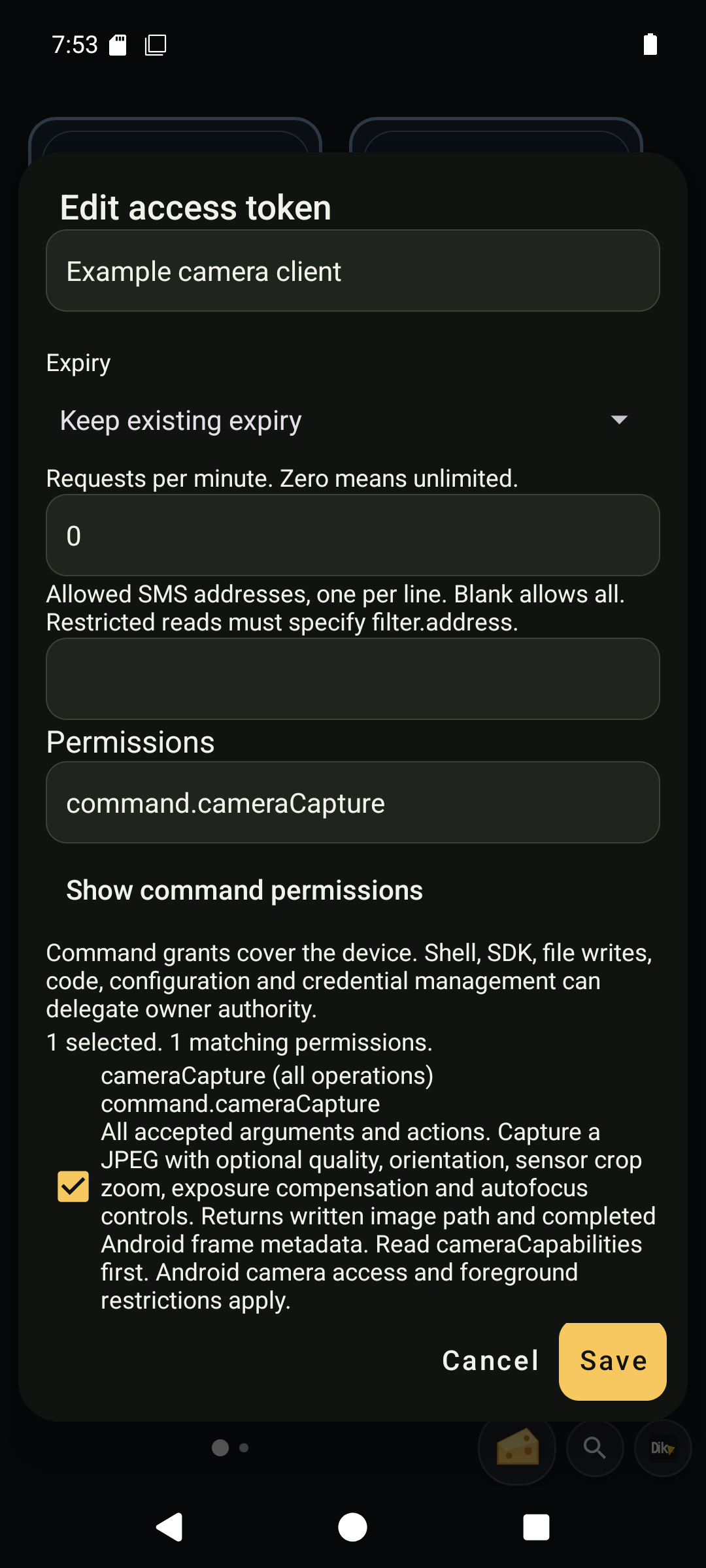
Edit grants and restrictions.
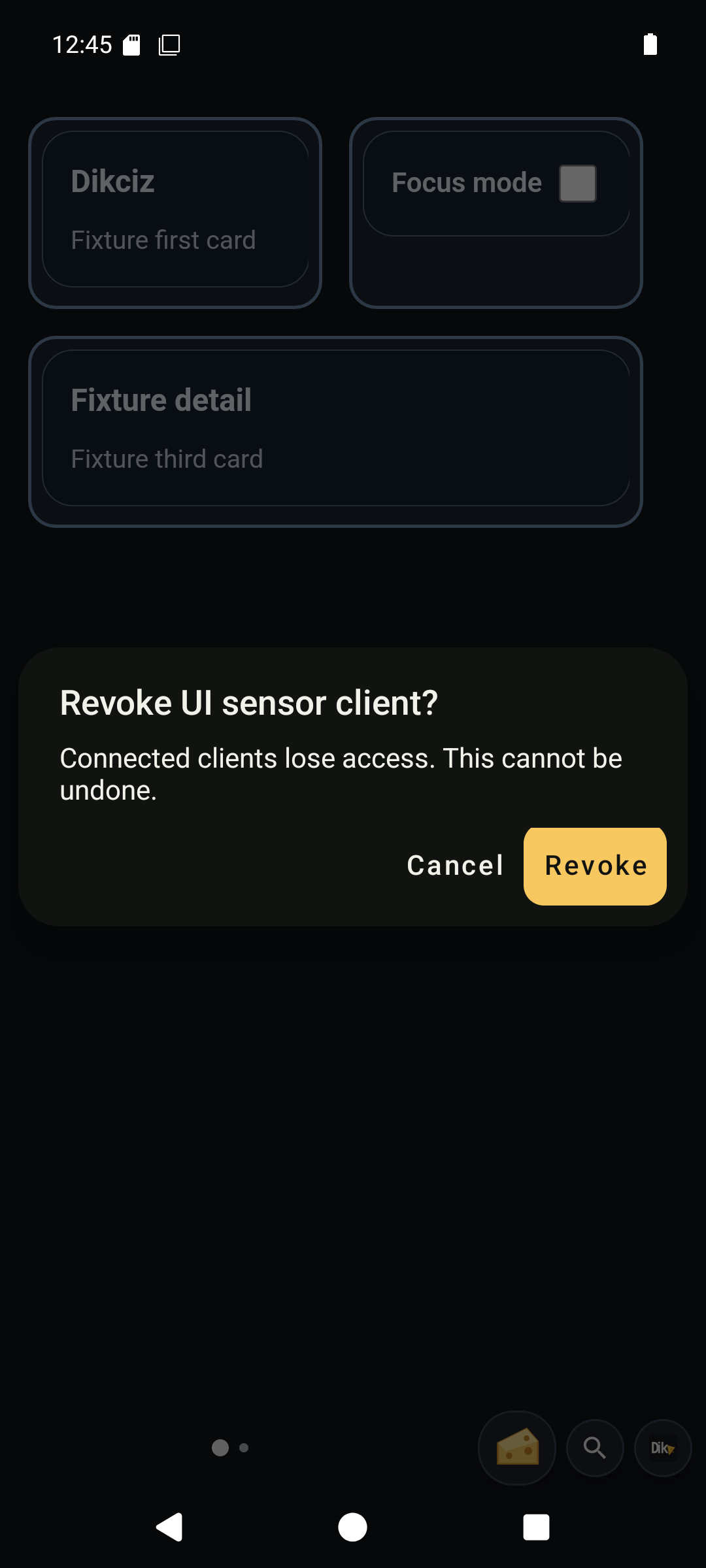
Revoke confirmation.
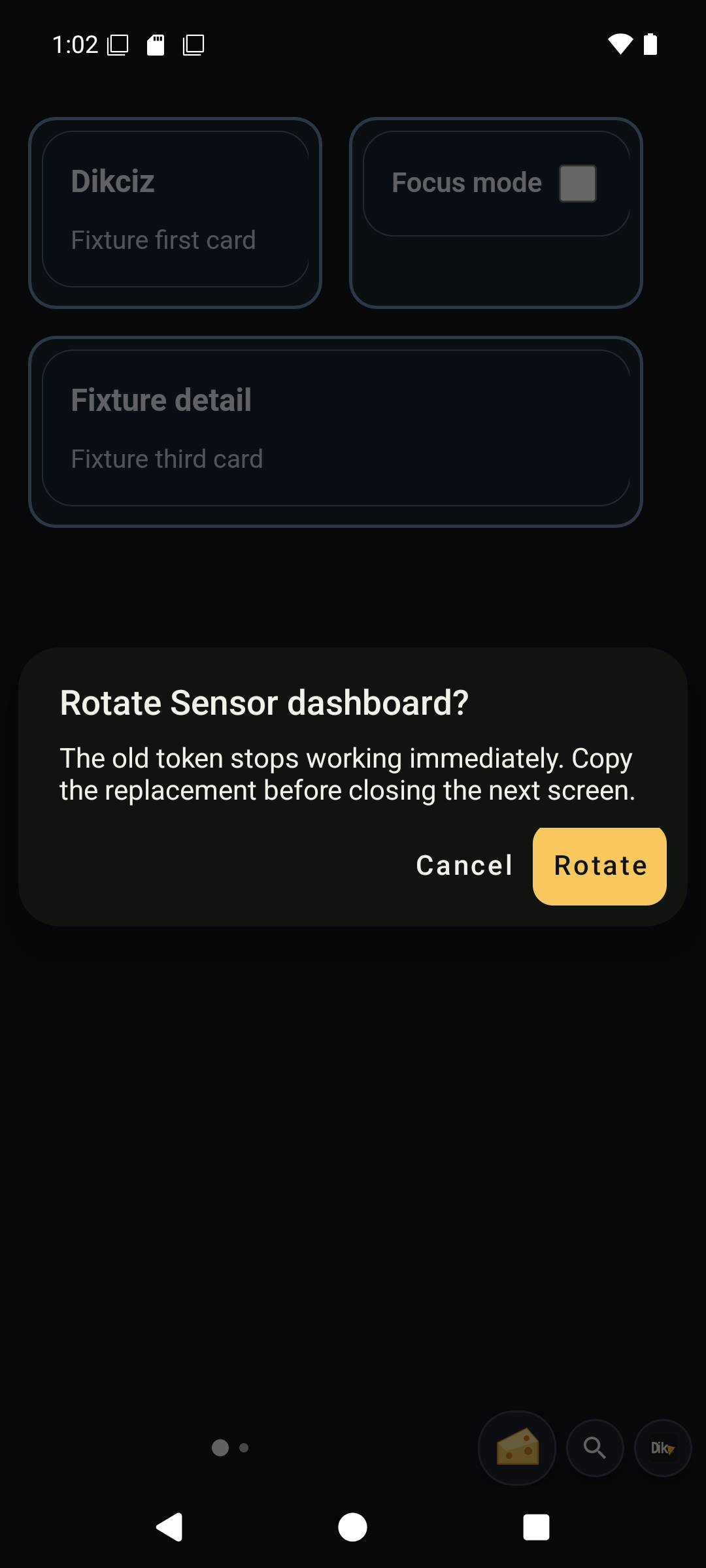
Rotate confirmation. Cancel keeps the current credential.
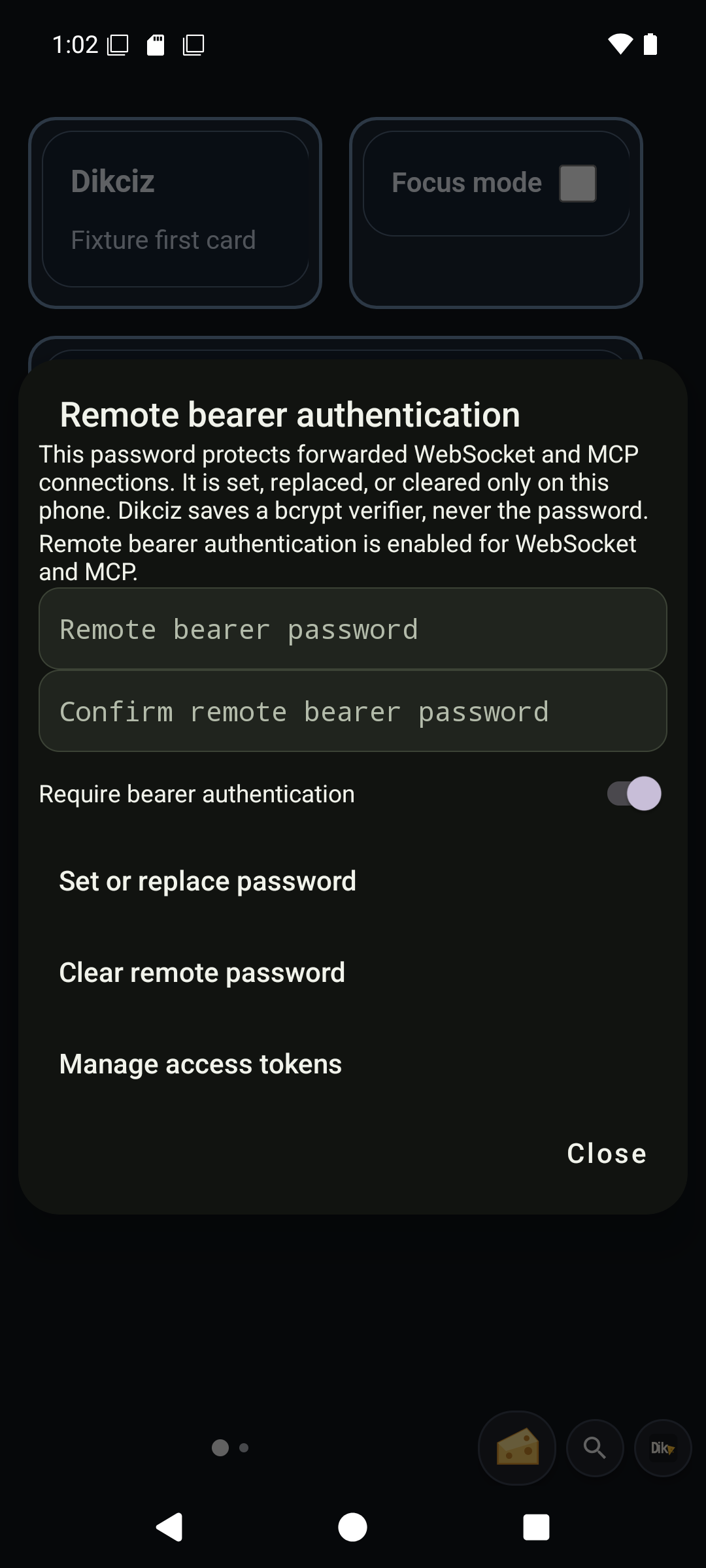
Set or replace the owner password on the phone. Enable authentication before exposing a listener beyond loopback, then create scoped tokens for clients. The password fields remain masked.
Activity, resources and rules
Open Settings, Activity & resources. Choose the activity filter to inspect completed work as well as problems. A result records what the command reported; check the operation's own observed outcome when needed. Resources shows measured process usage and supported work that can be paused. Review the exact target before confirming. Open Settings, Automation rules to create a trigger, condition and action, preview its result, then save it. See operations for measurement scope and rule behavior.
View the screens
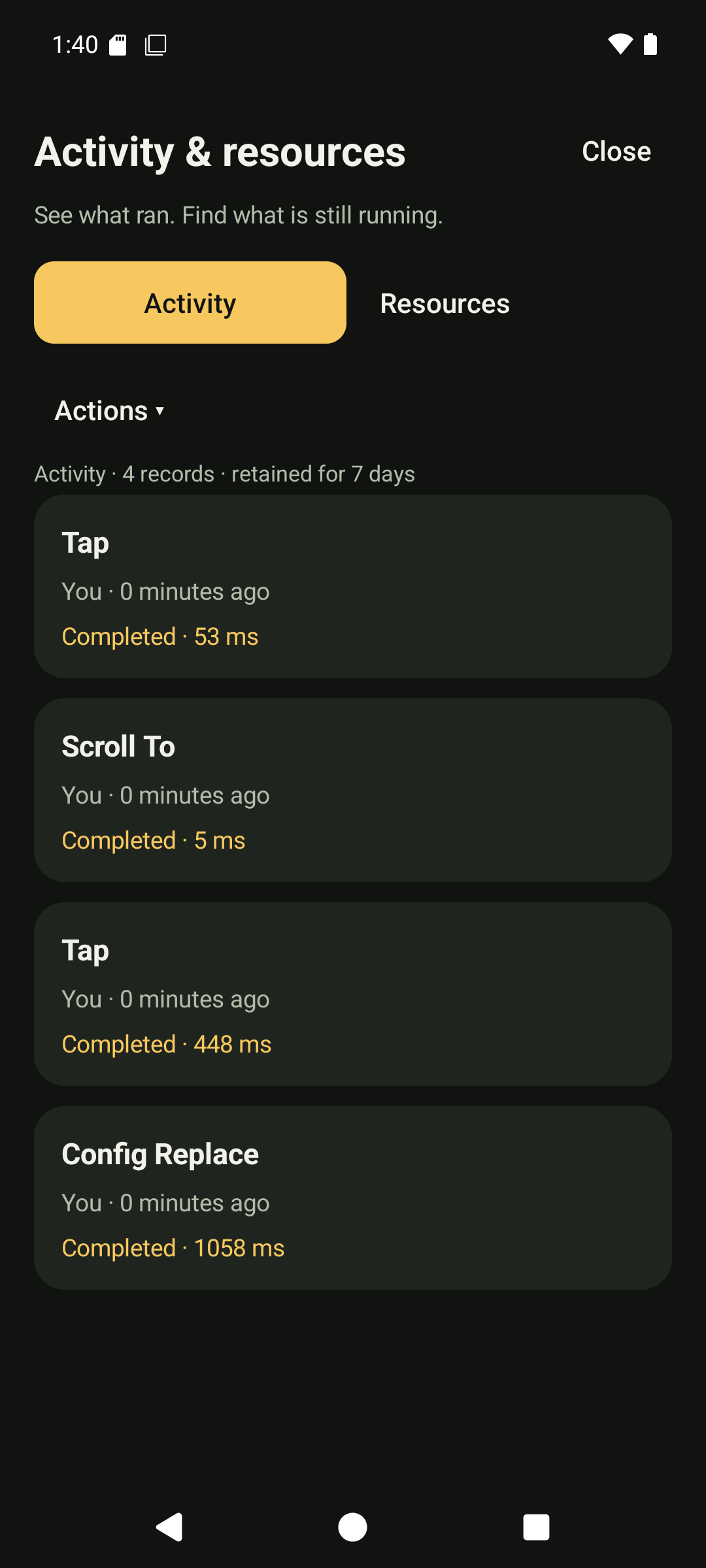
Activity history.
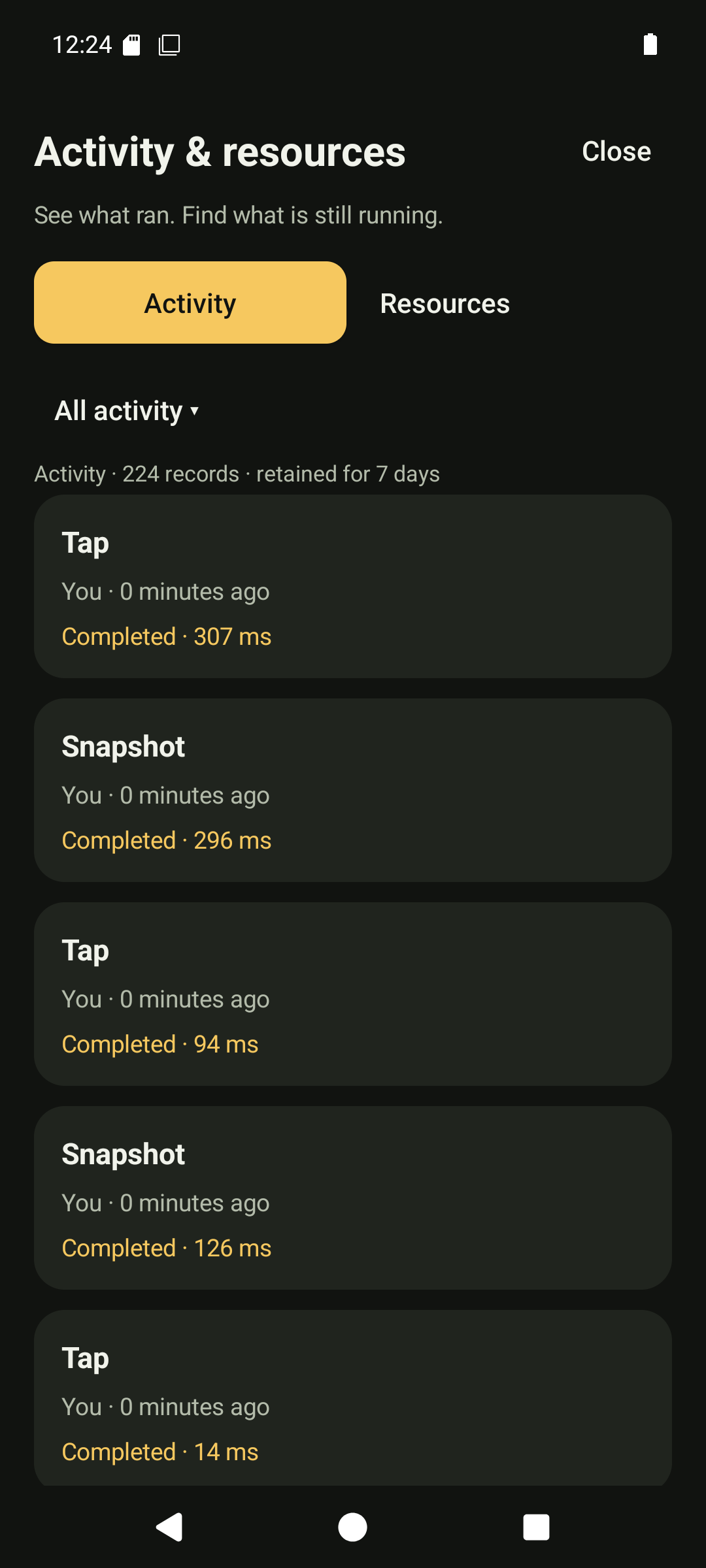
Activity with the all-outcomes filter.
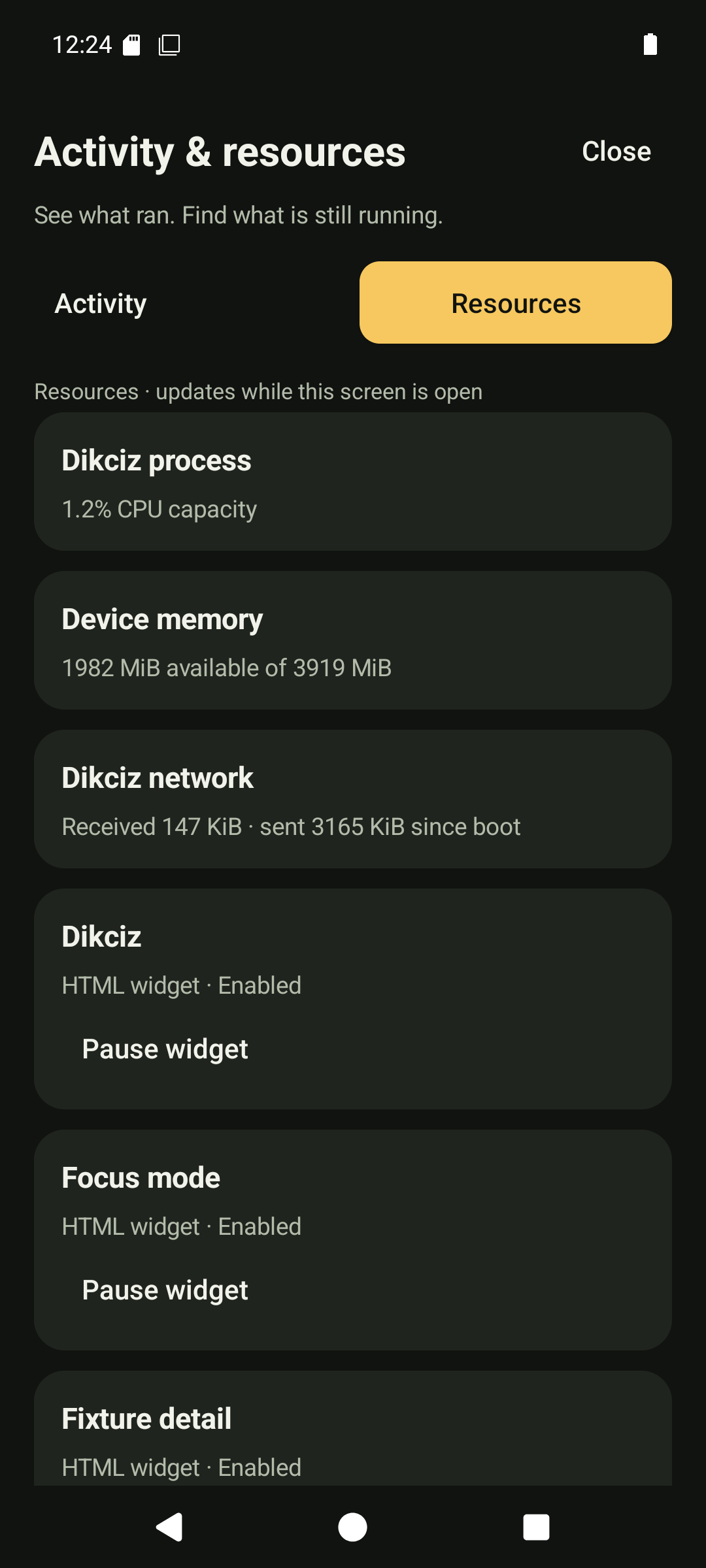
Resource measurements.
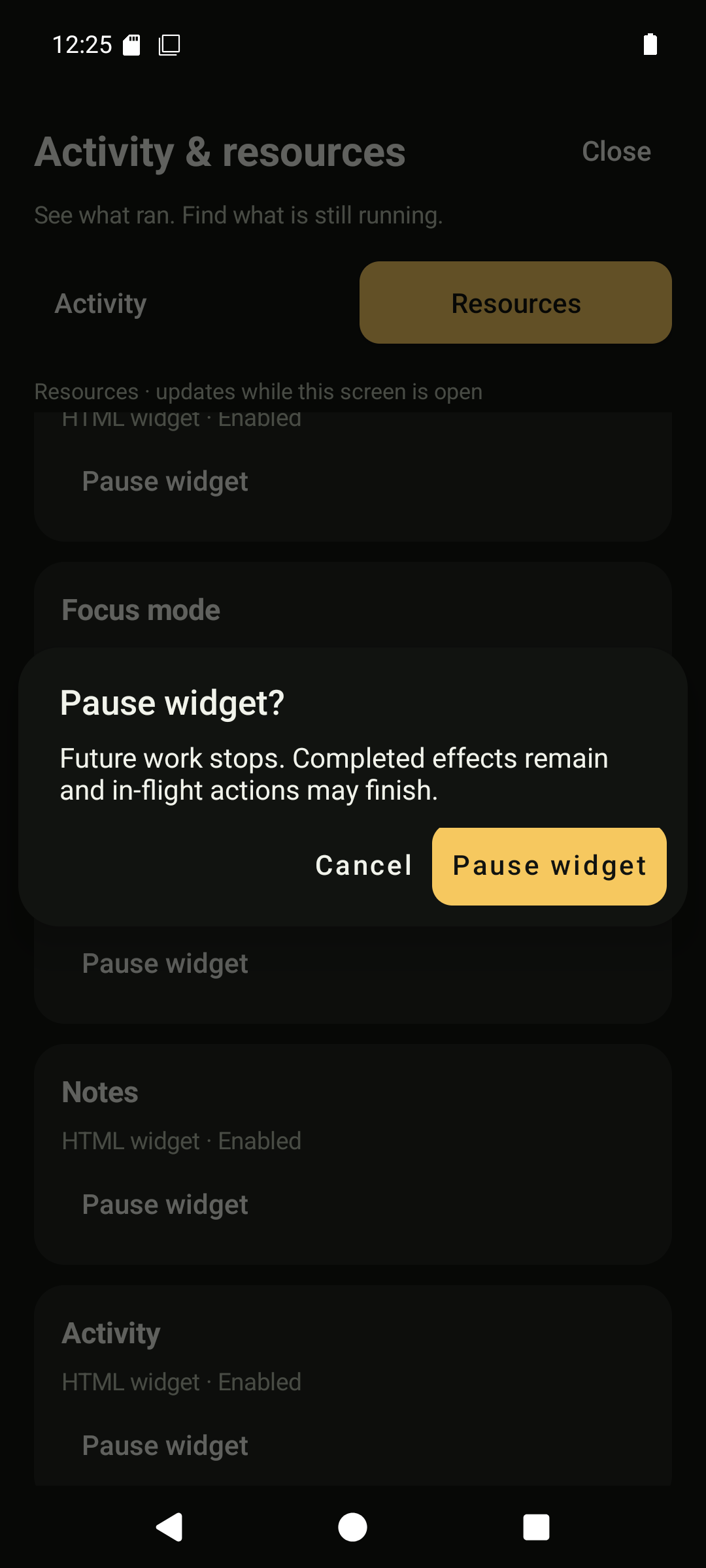
Pause confirmation.
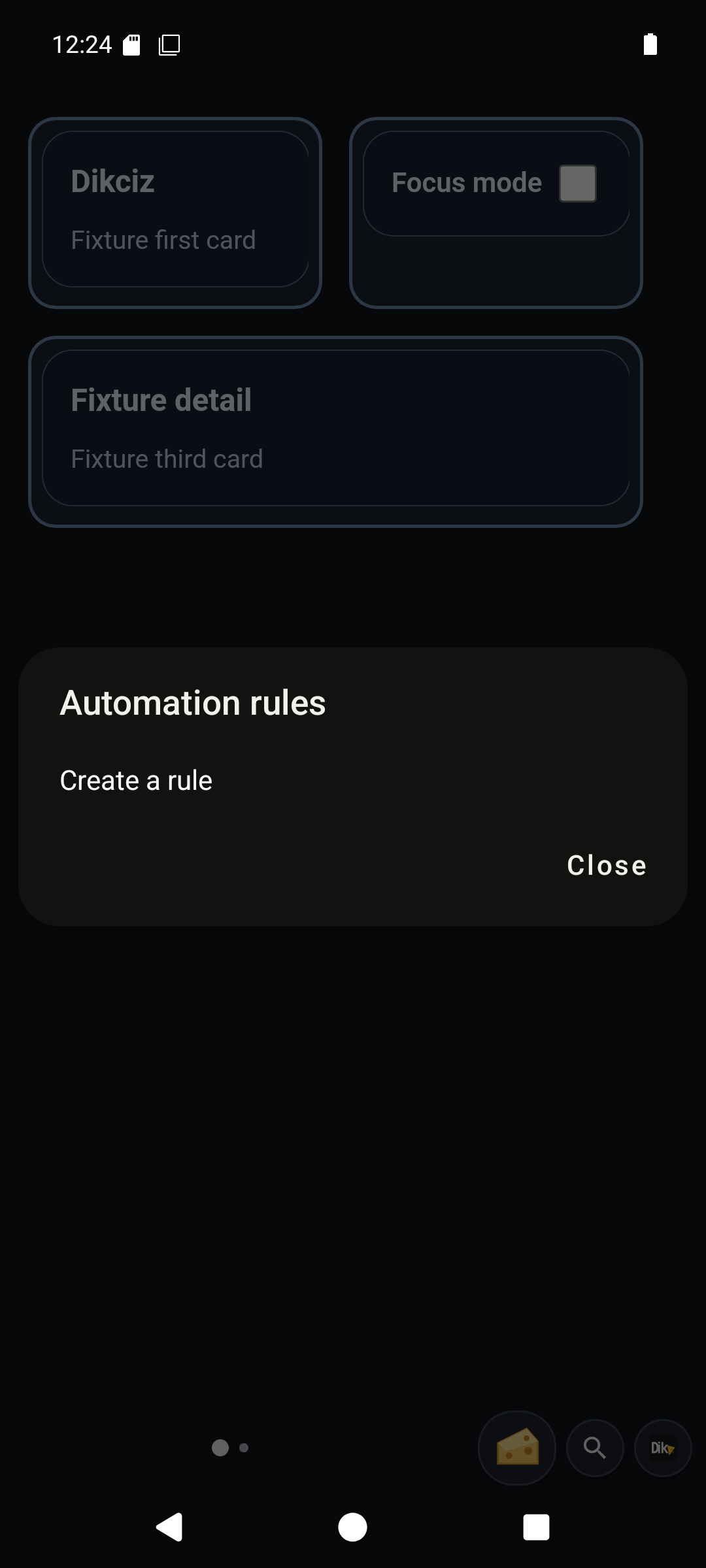
Saved visual rules.
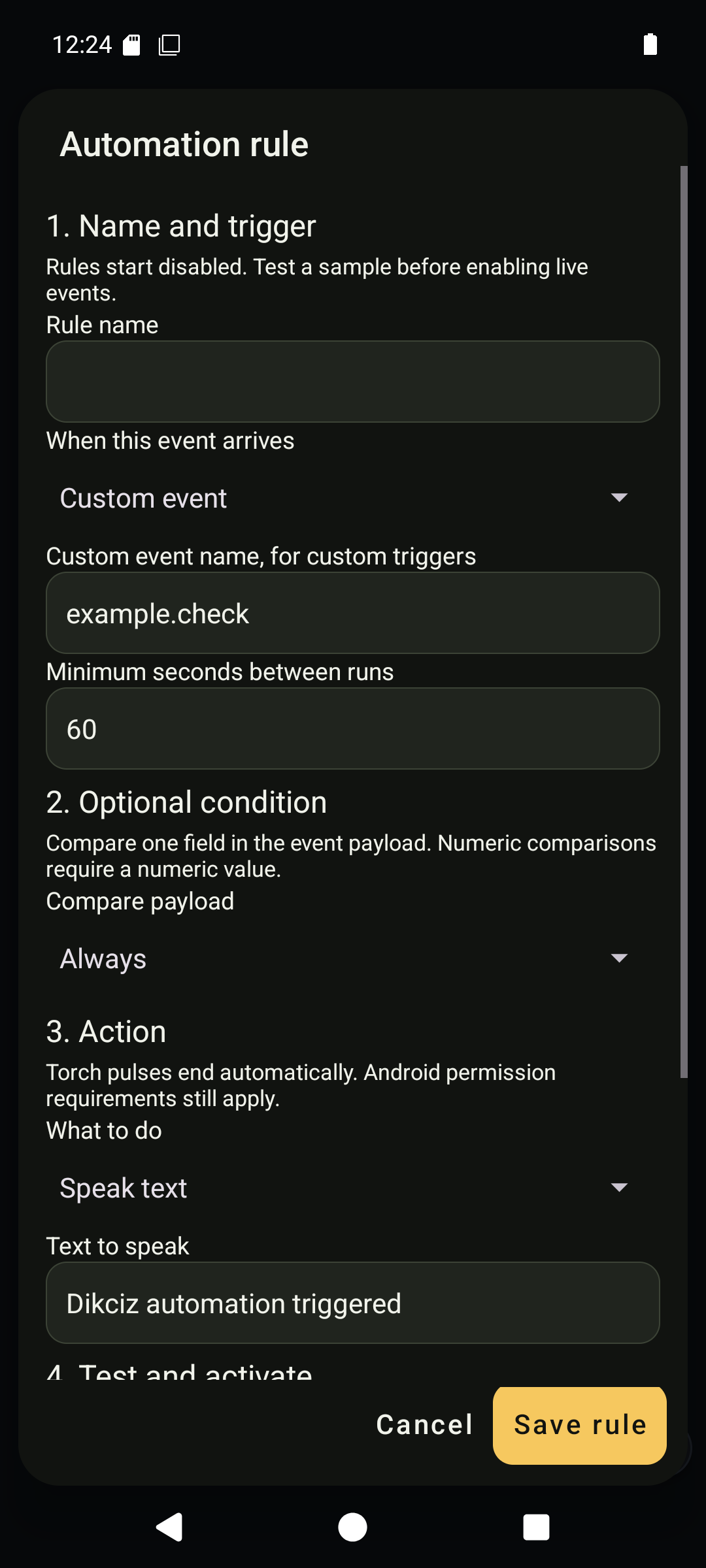
Rule trigger and condition.
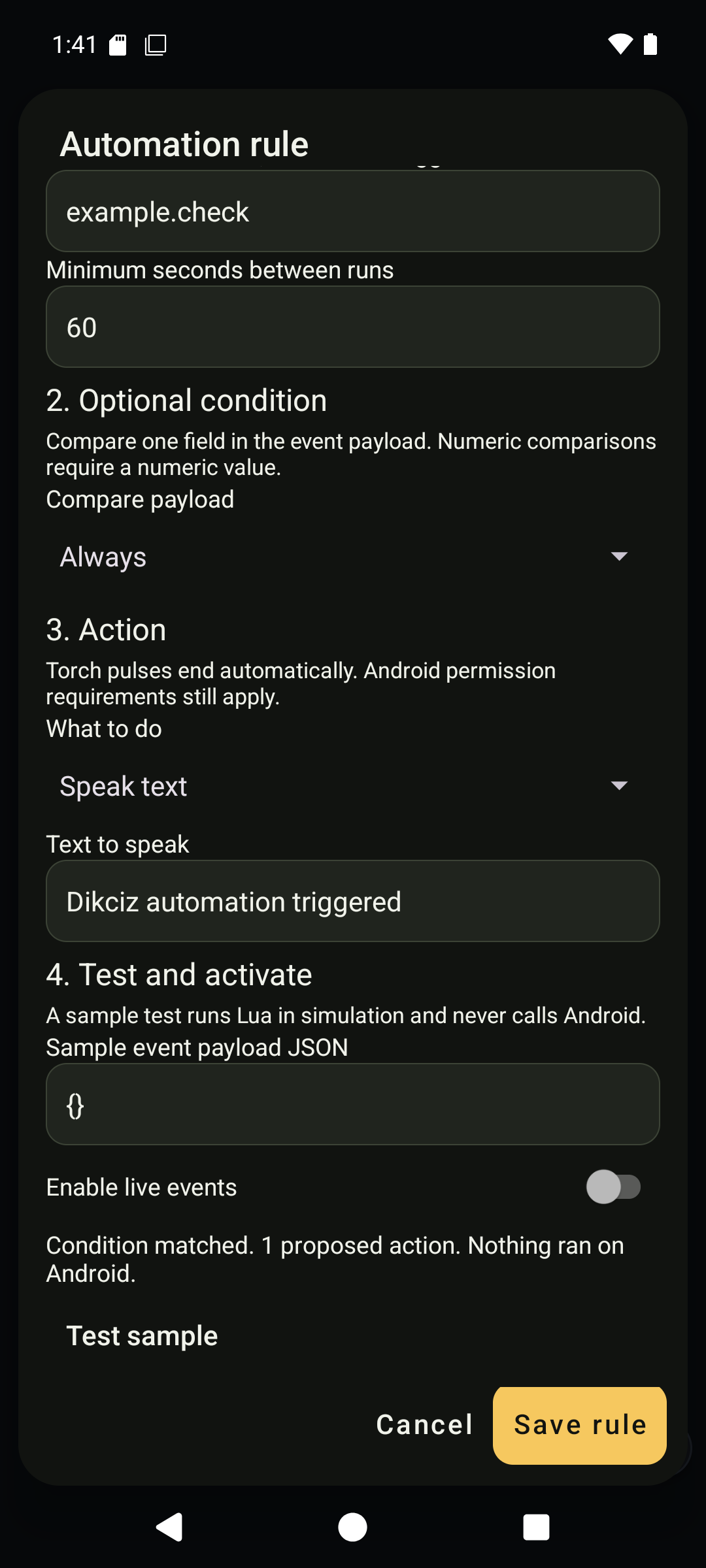
Rule preview.
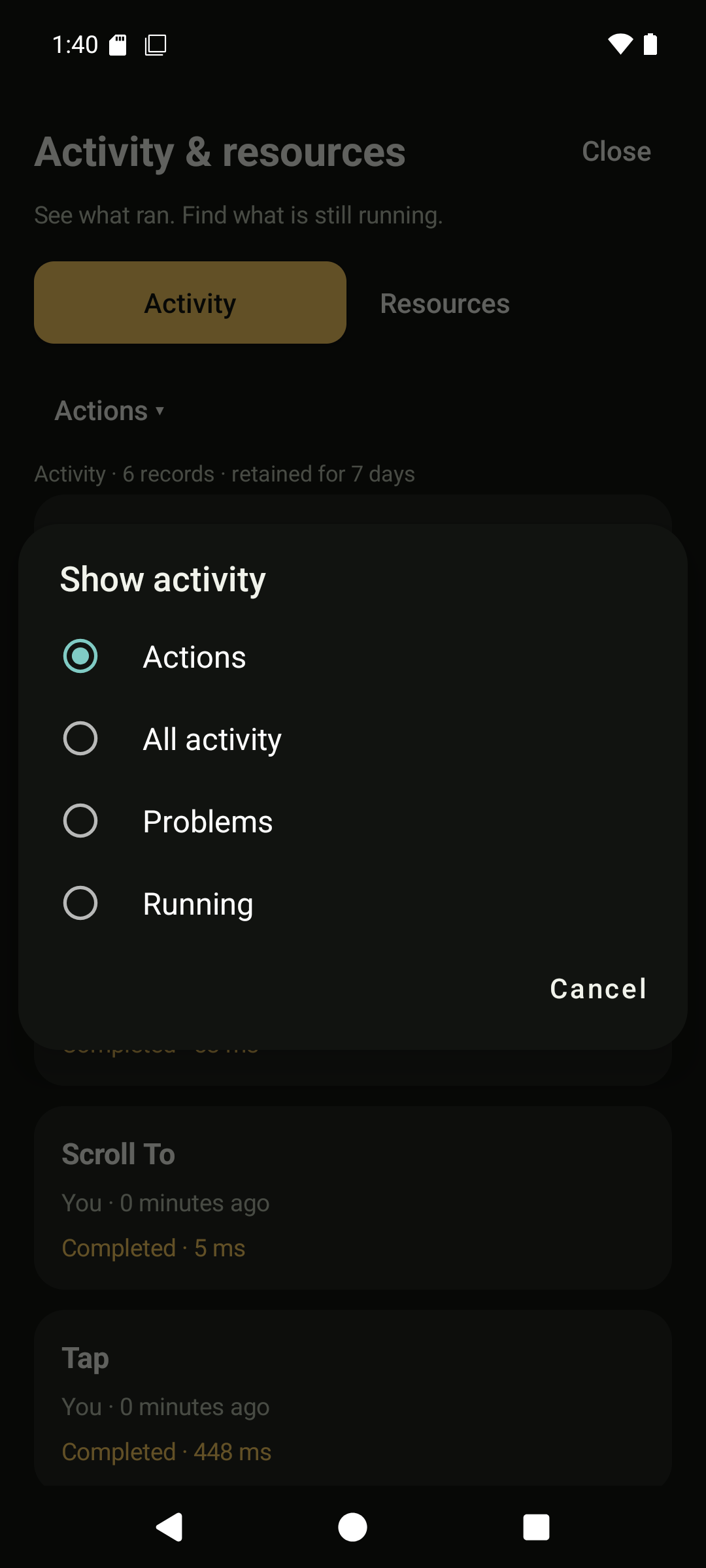
Activity outcome filters.
Backups and recovery
Open Settings, Backup and restore. Enter a passphrase of at least 12 characters, choose whether encrypted provider keys should be included, and create the archive. Preserve both archive and passphrase. To restore, choose the archive, enter its passphrase and preview it. Inspect the counts before confirming replacement. Cancel leaves the current setup intact. Scripts and event rules remain disabled unless explicitly activated. Custom app data and remote credentials are excluded; see backup scope.
View the screens
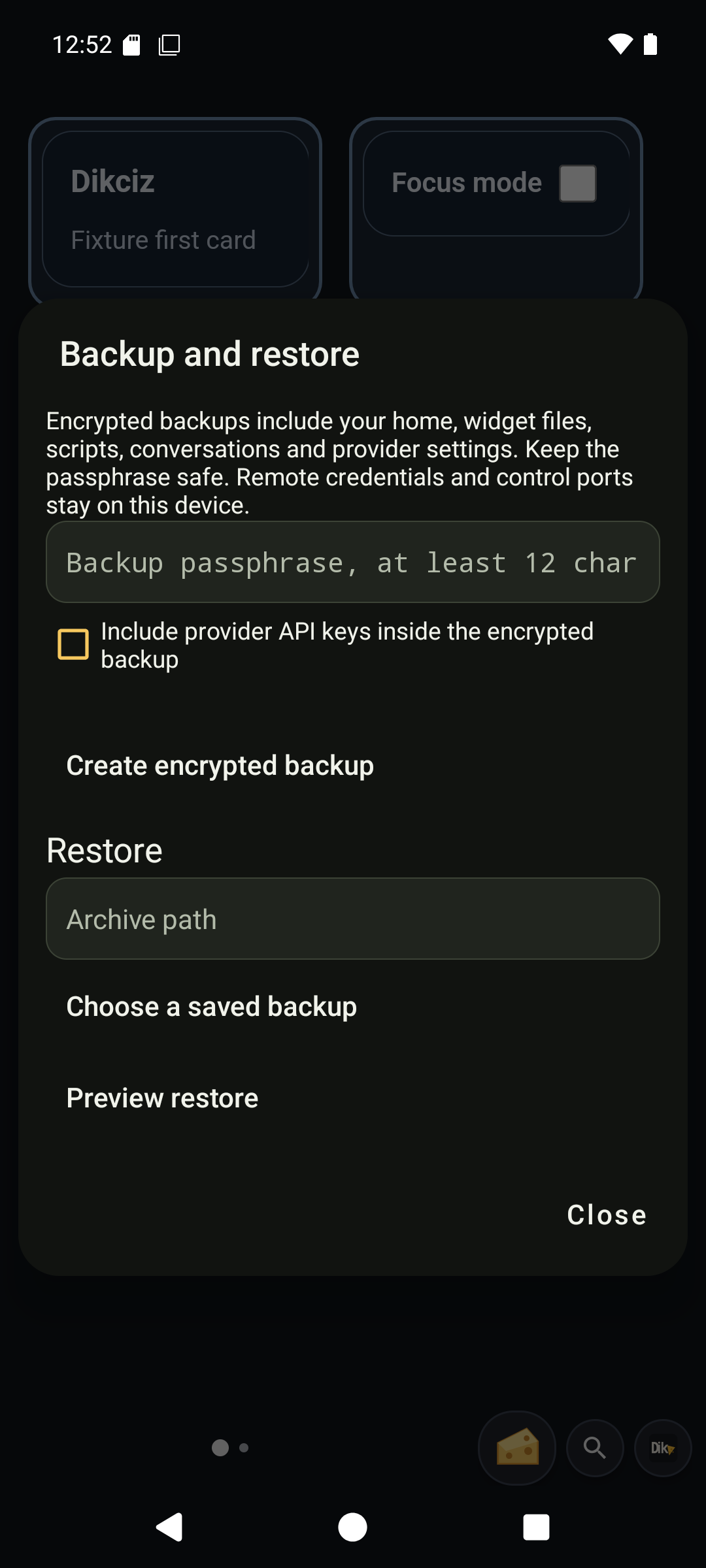
Create or select an encrypted backup.
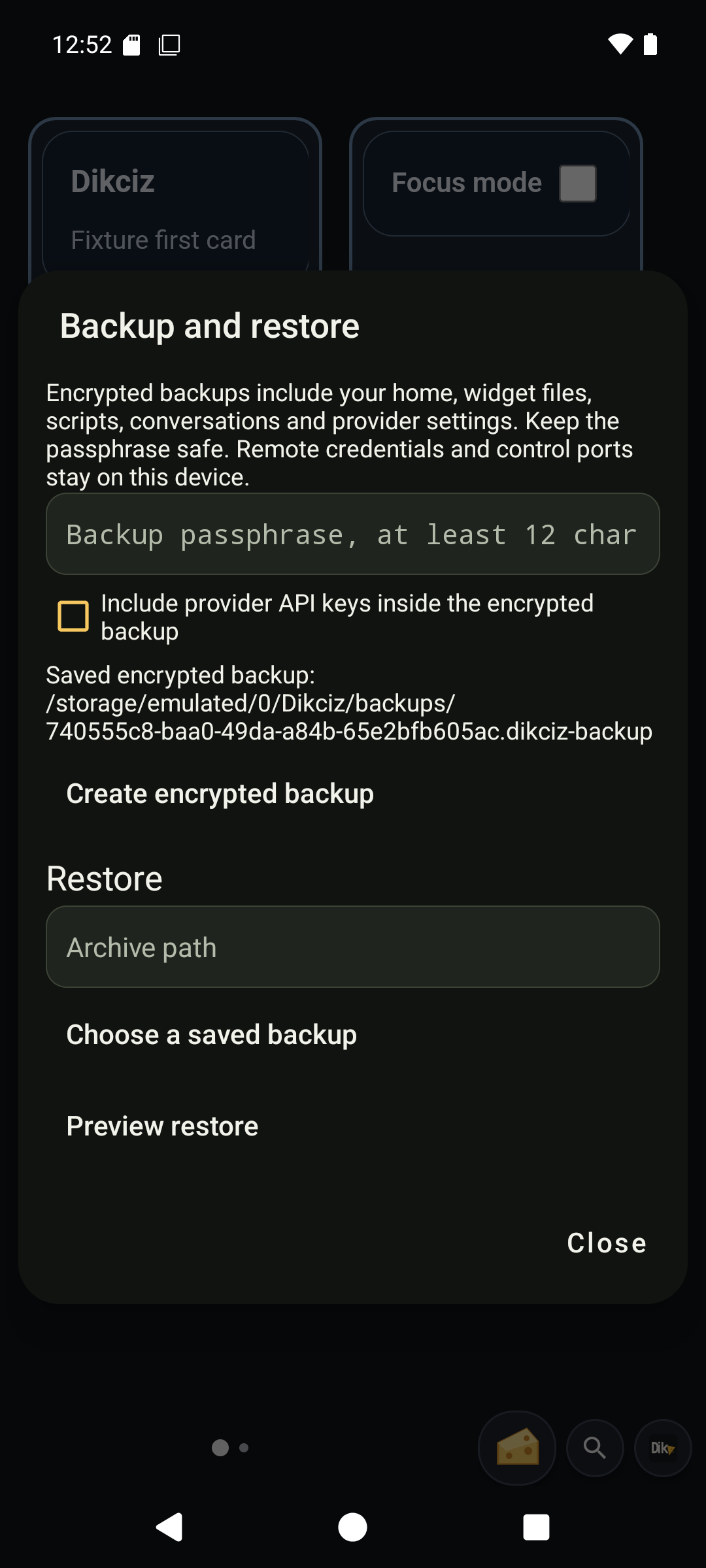
Saved archive.
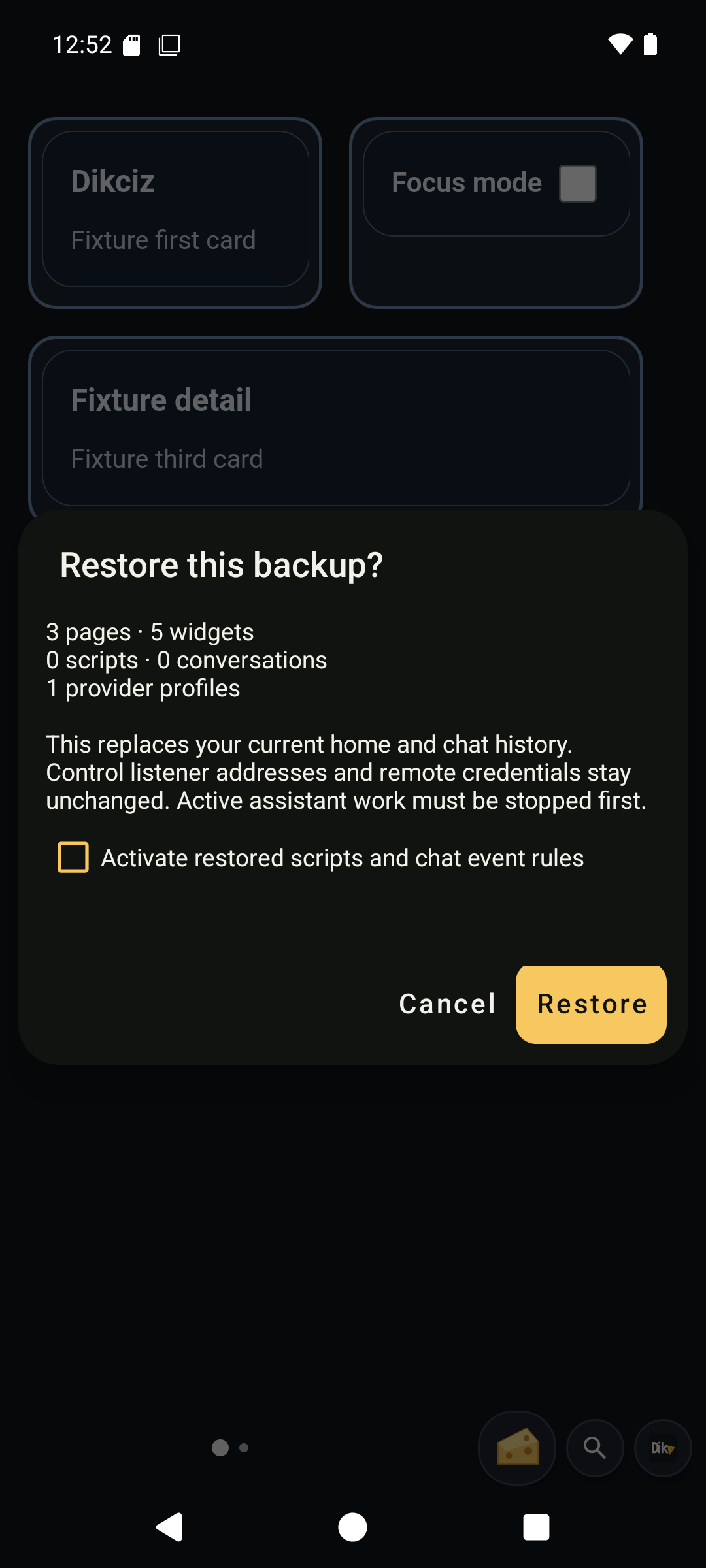
Validated restore preview.
Places, trips and device connections
Open Settings, Safety, journeys and devices. Safety opens the editable SOS app. Places creates a location boundary with radius and optional dwell time; enable it only when location events are wanted. Trips starts route recording and exposes retained routes. Devices opens a connection form for RFCOMM, GATT, USB or NFC. Each kind has different required fields. A form is configuration, not proof that hardware connected. Scan hosts image/document recognition; Health hosts Health Connect selection. Wi-Fi asks Android to save or approve a network. See companion workflows for the Android handoffs and supported hardware.
View the screens
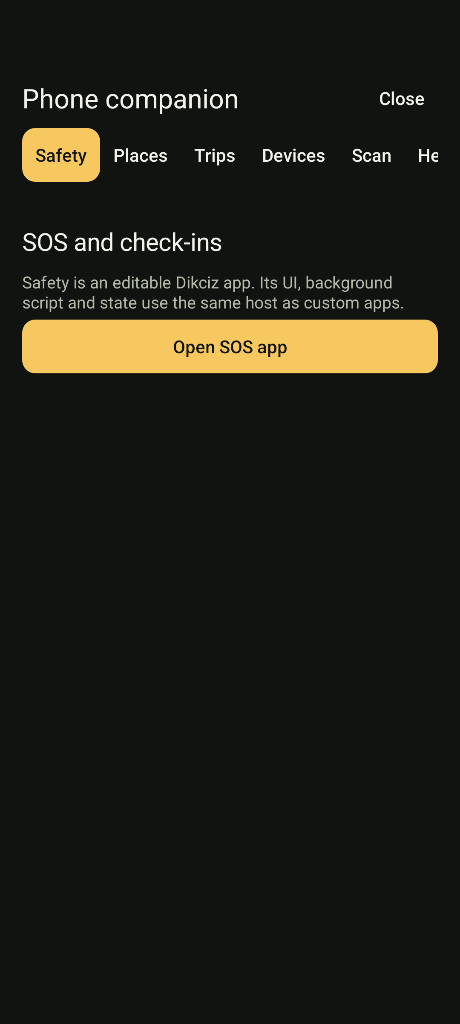
Safety entry point.
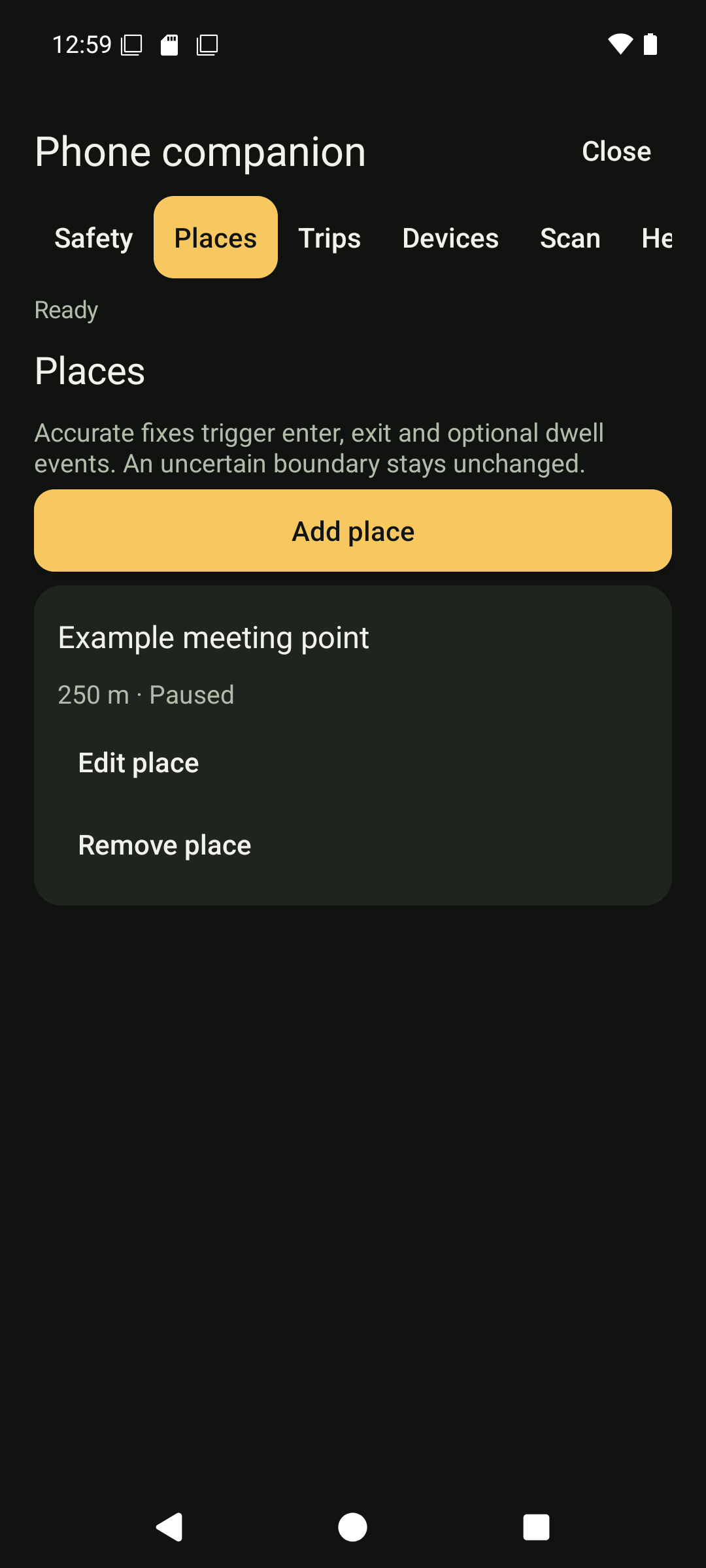
Saved places.
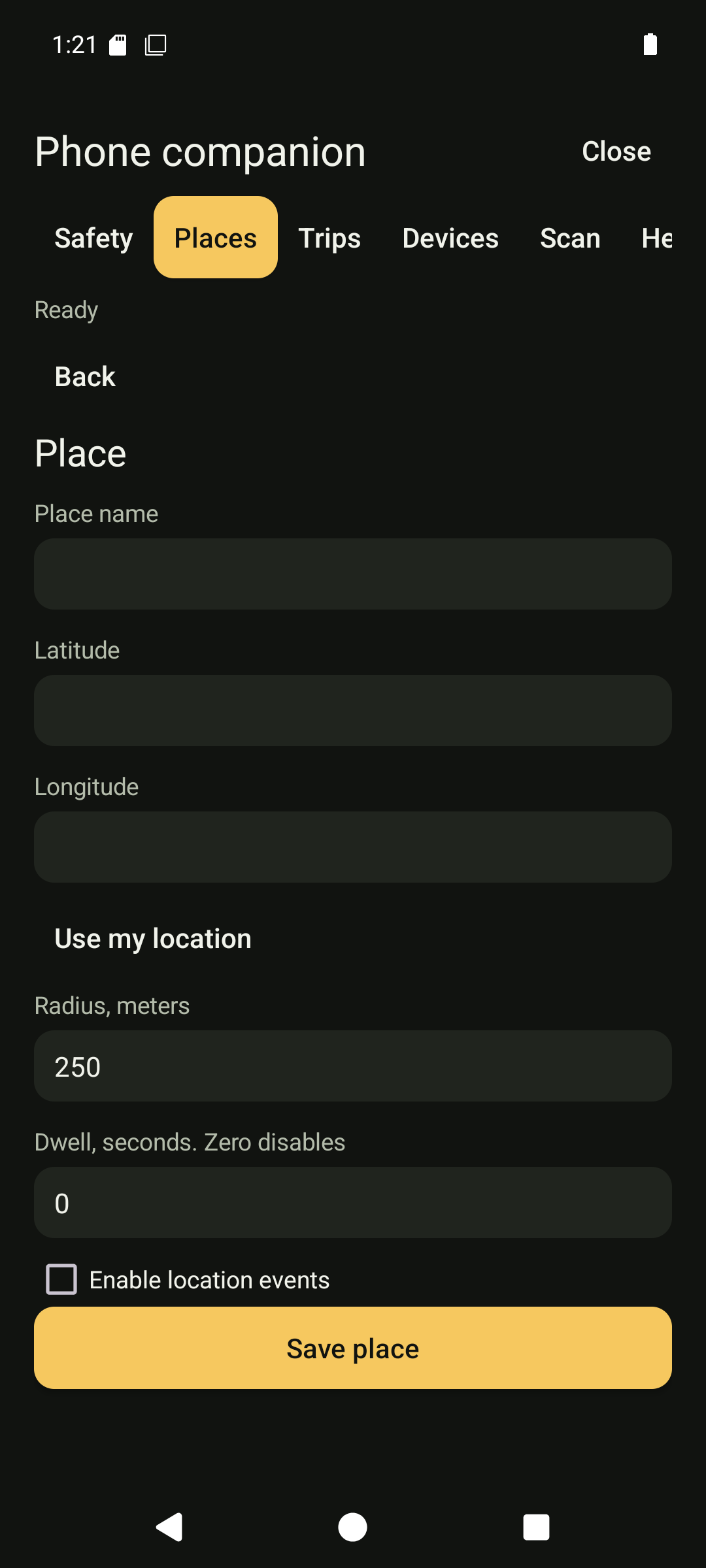
Place coordinates, radius and dwell.
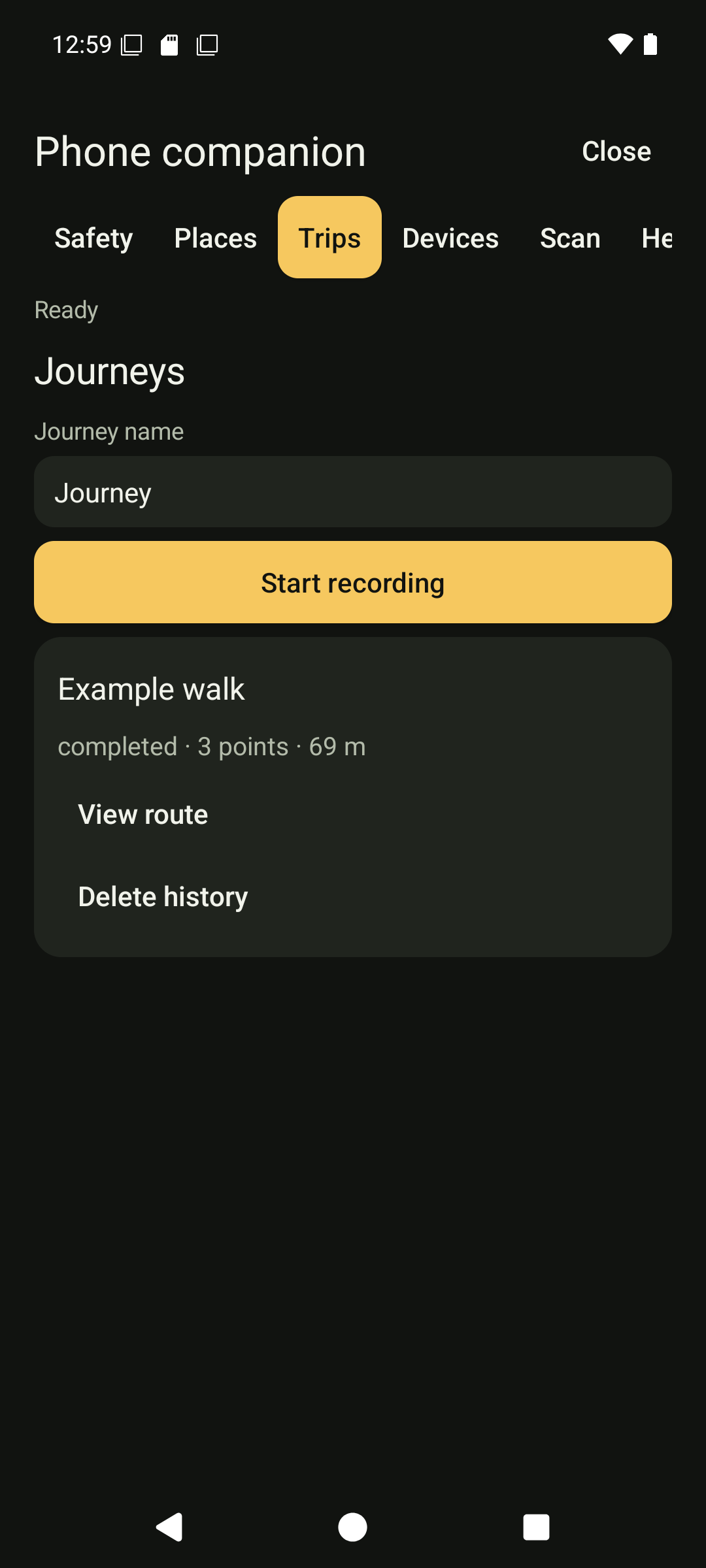
Recorded trips.
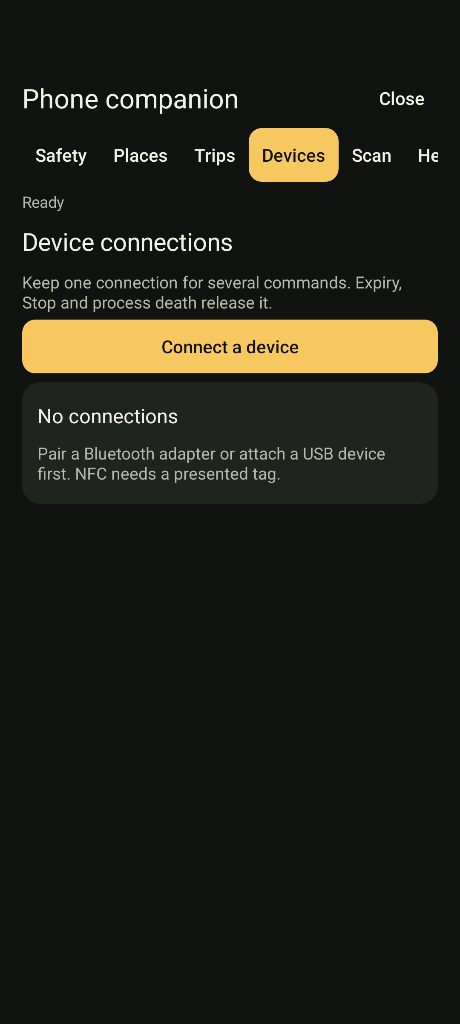
Device connections.
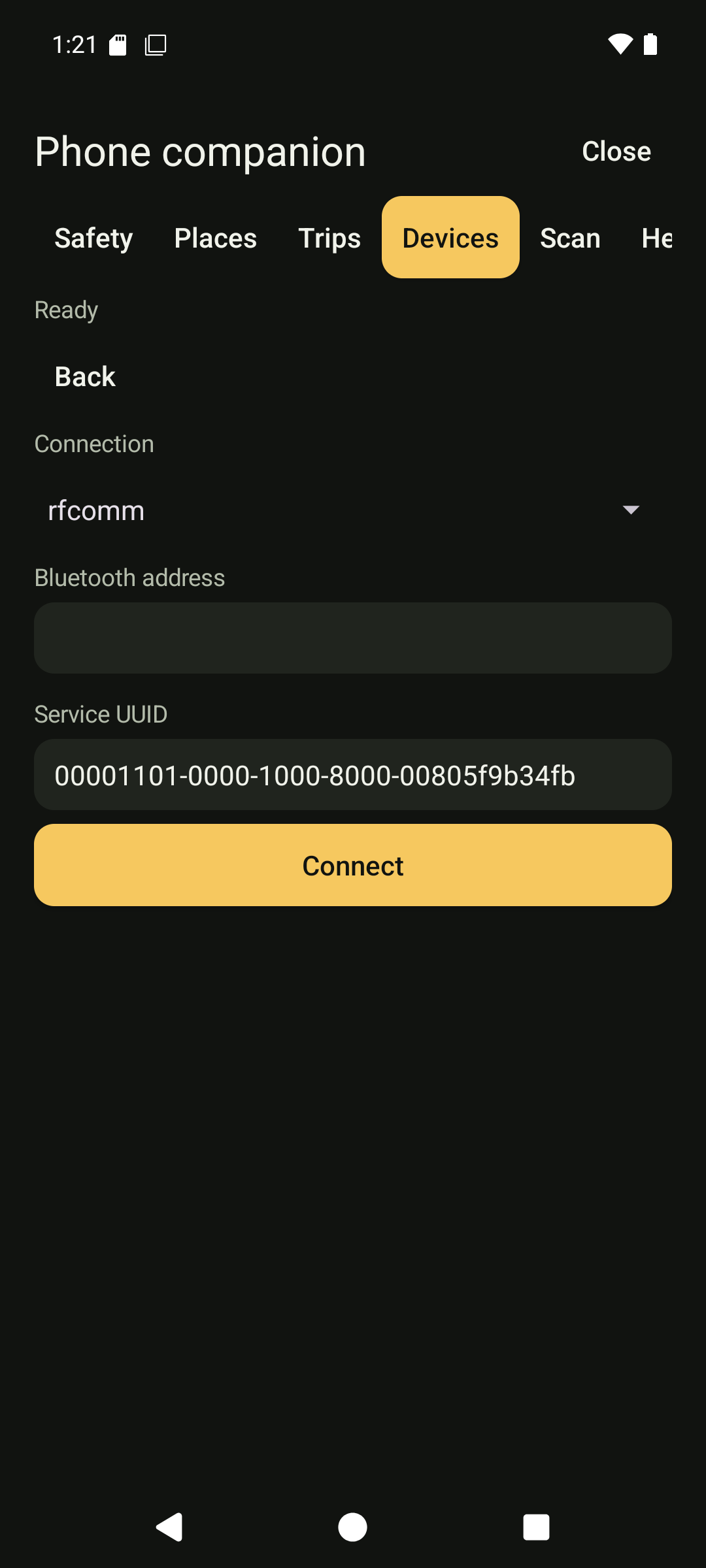
Bluetooth RFCOMM form.
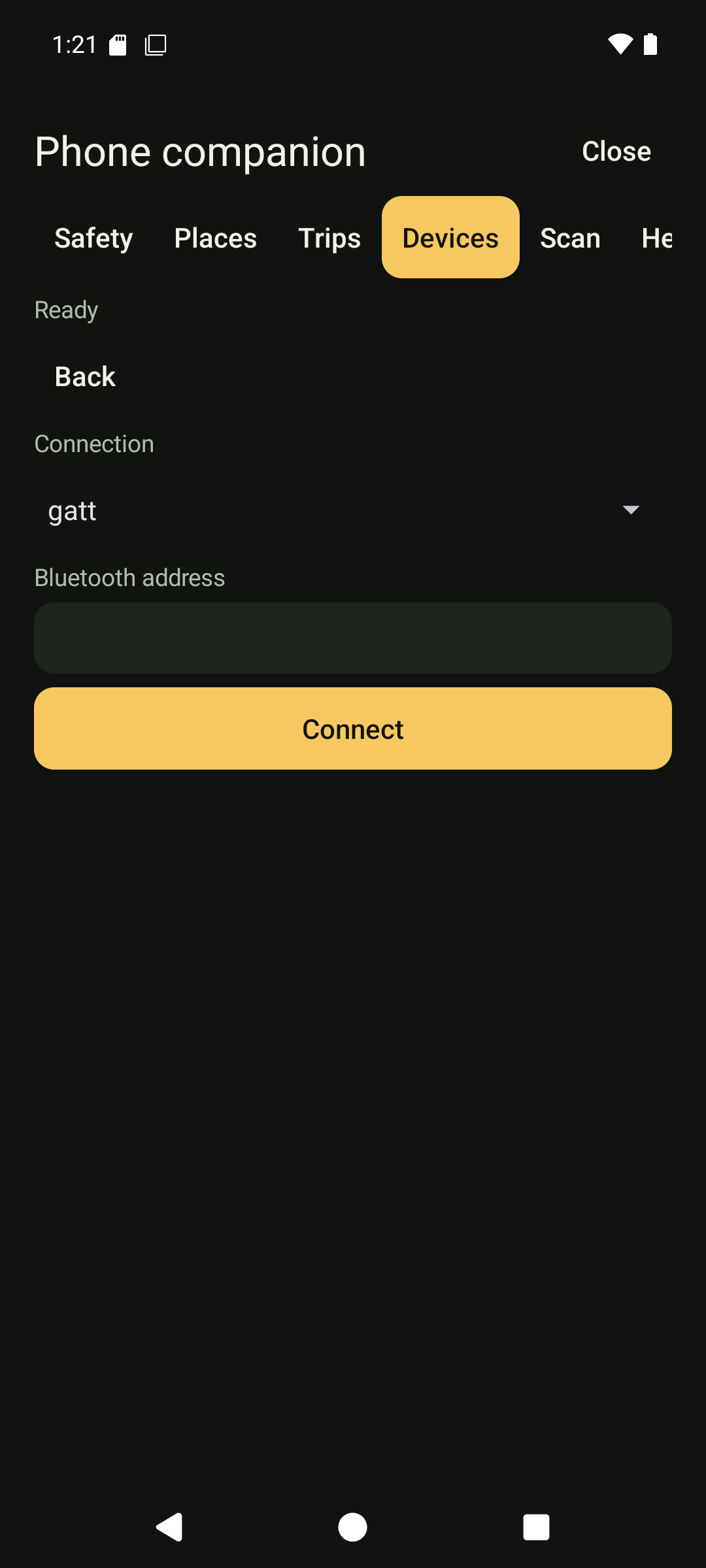
Bluetooth GATT form.
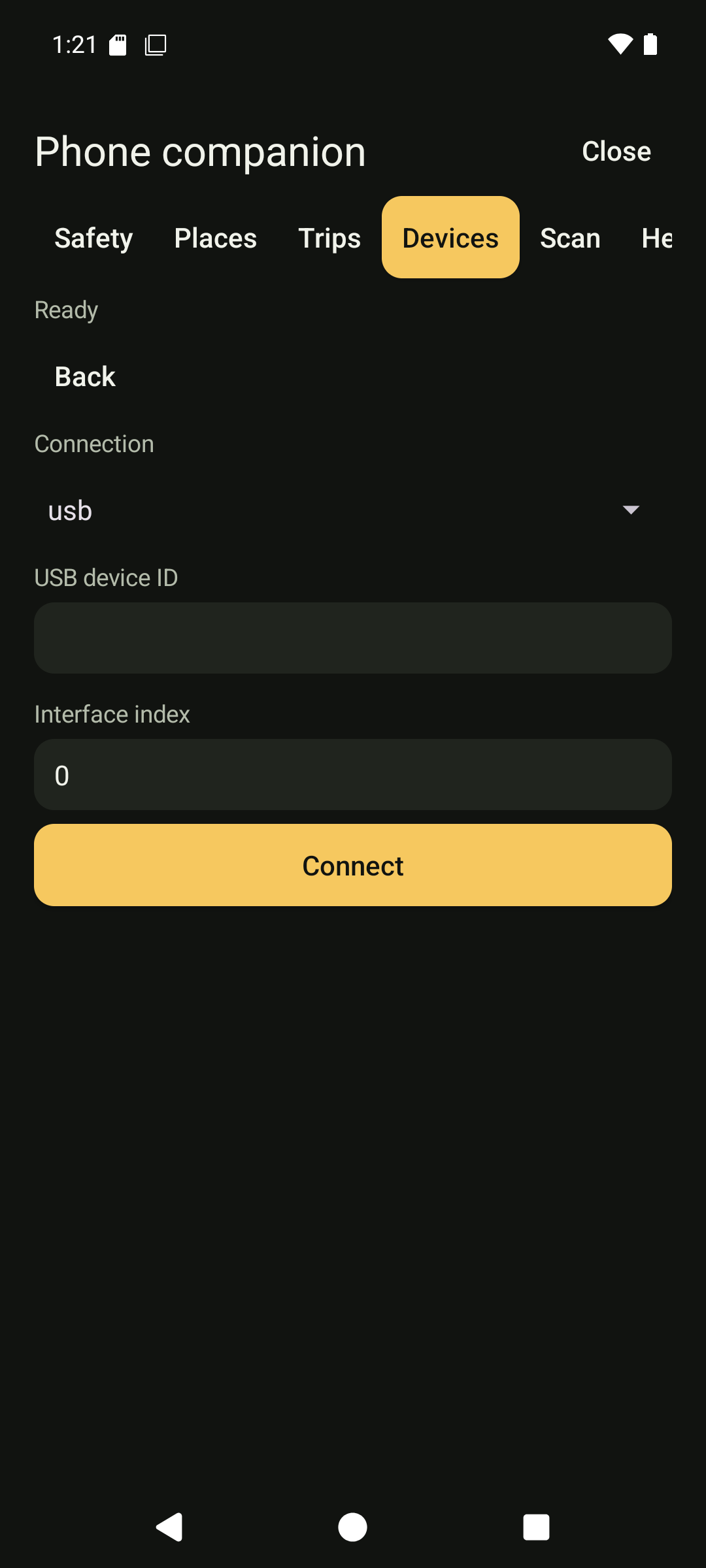
USB interface form.
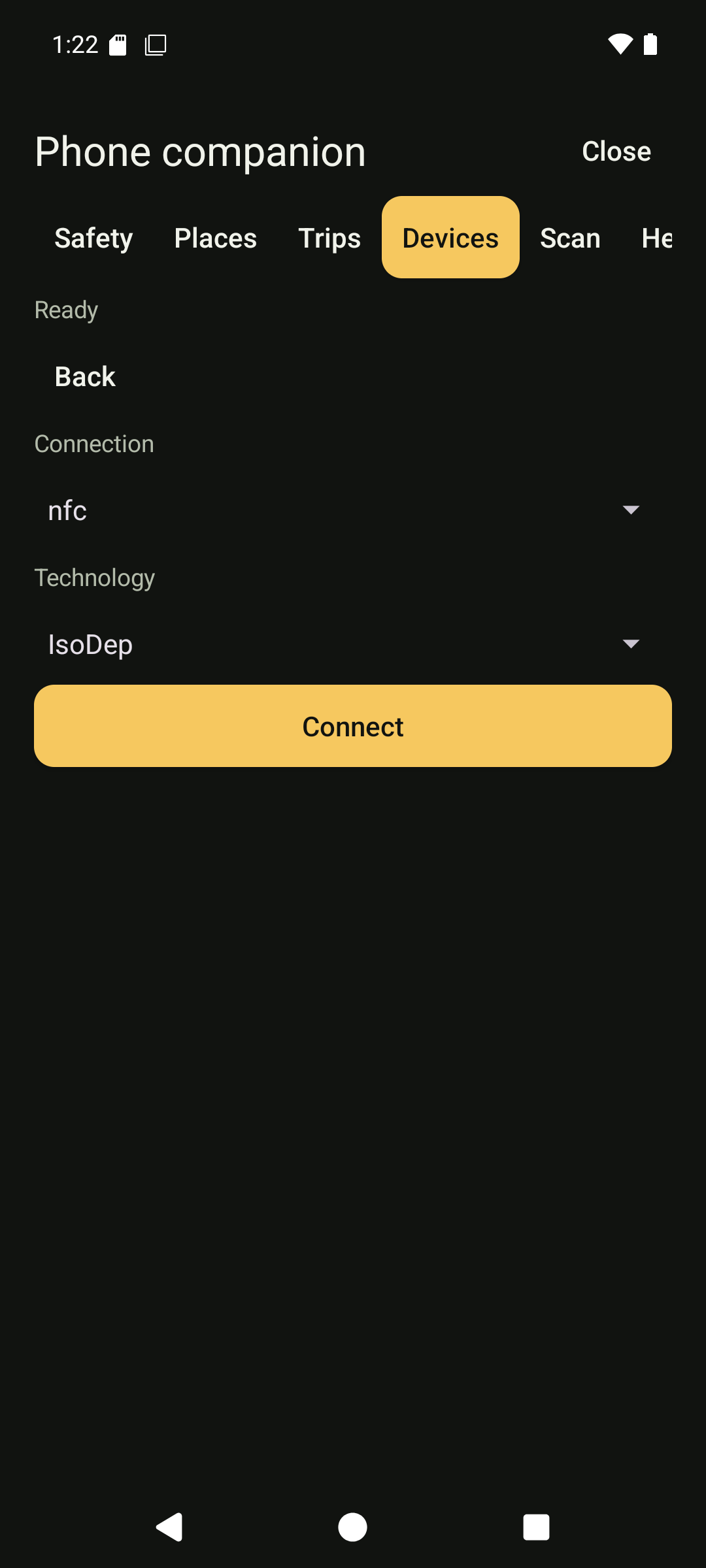
NFC technology form.
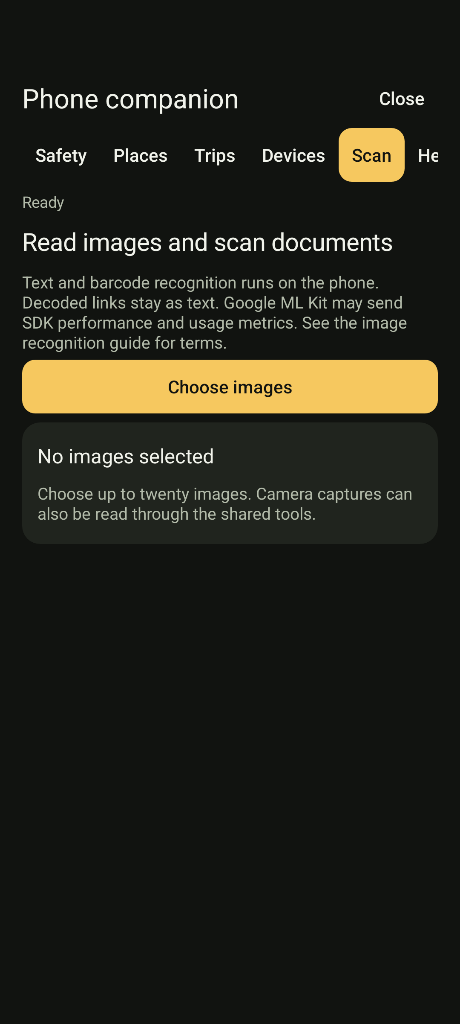
Image and document recognition.
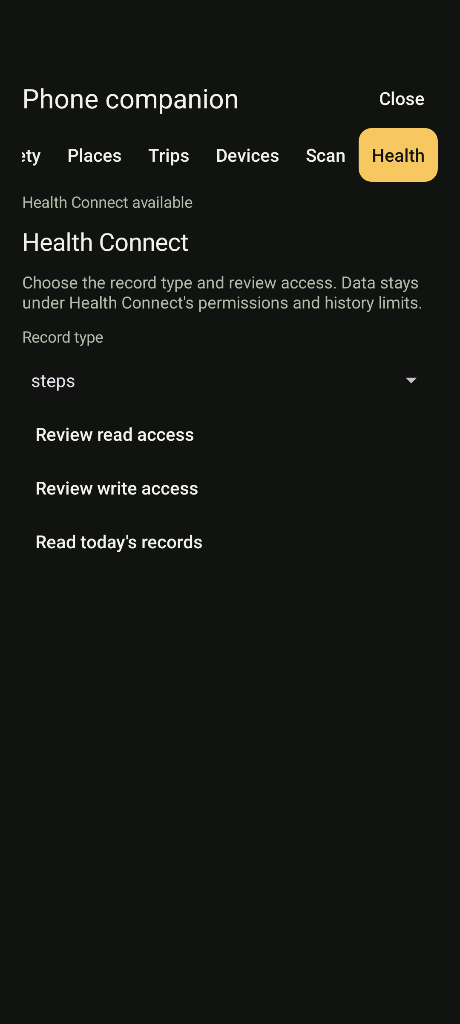
Health Connect controls.
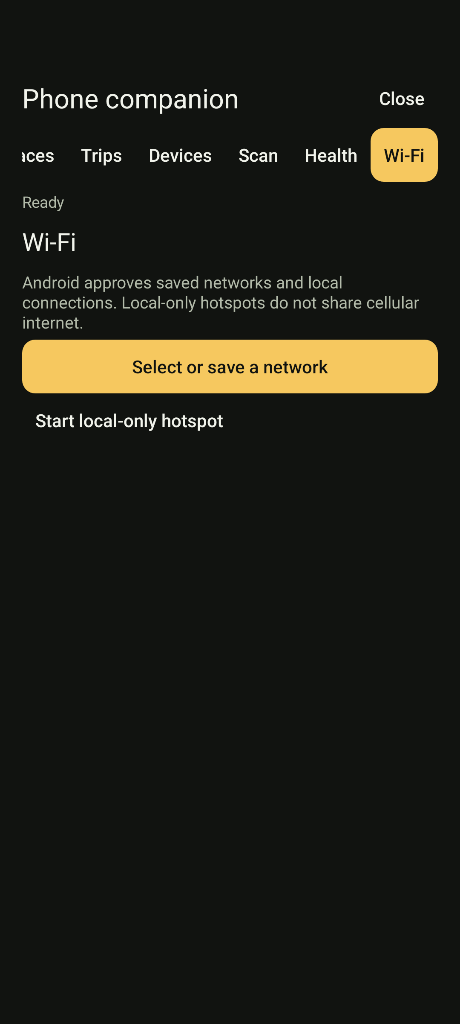
Wi-Fi controls.
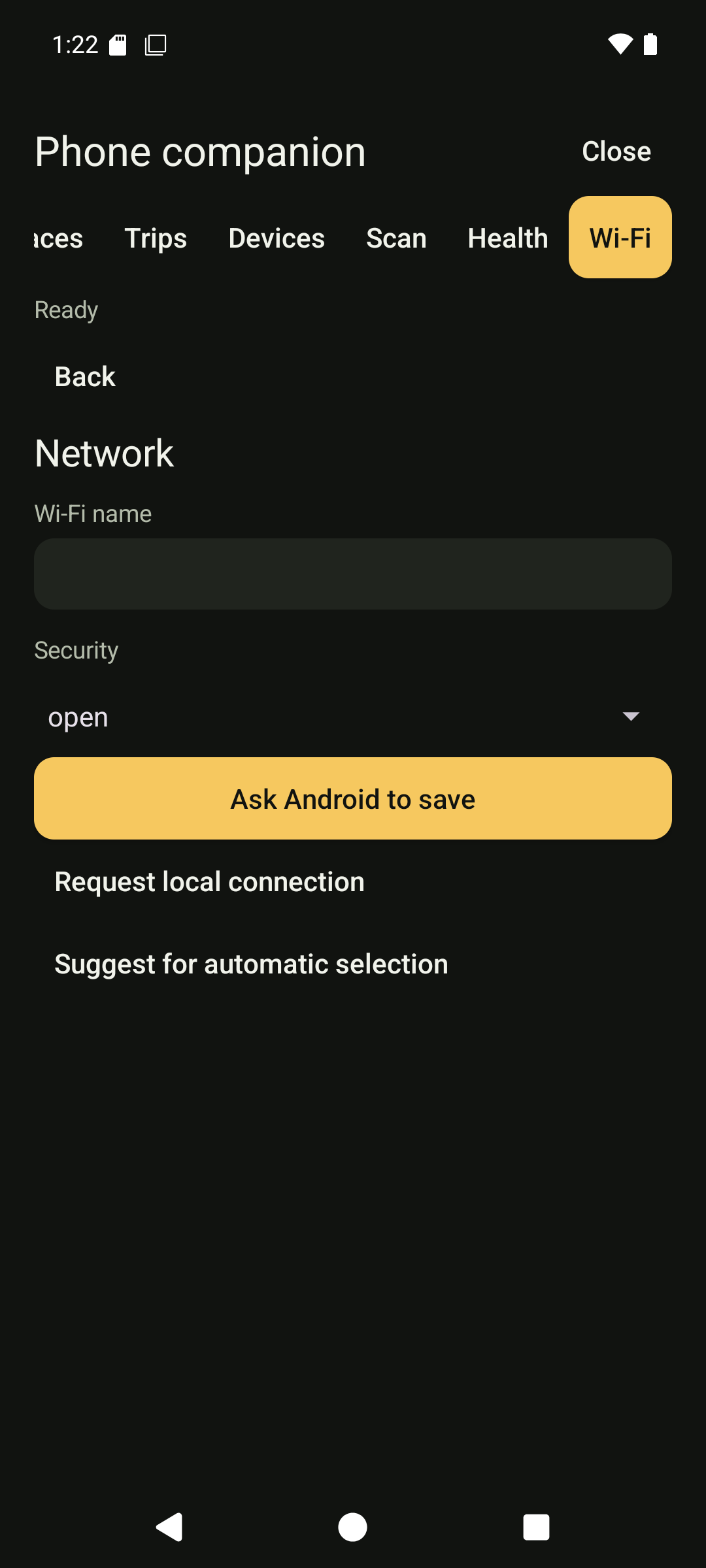
Network configuration.
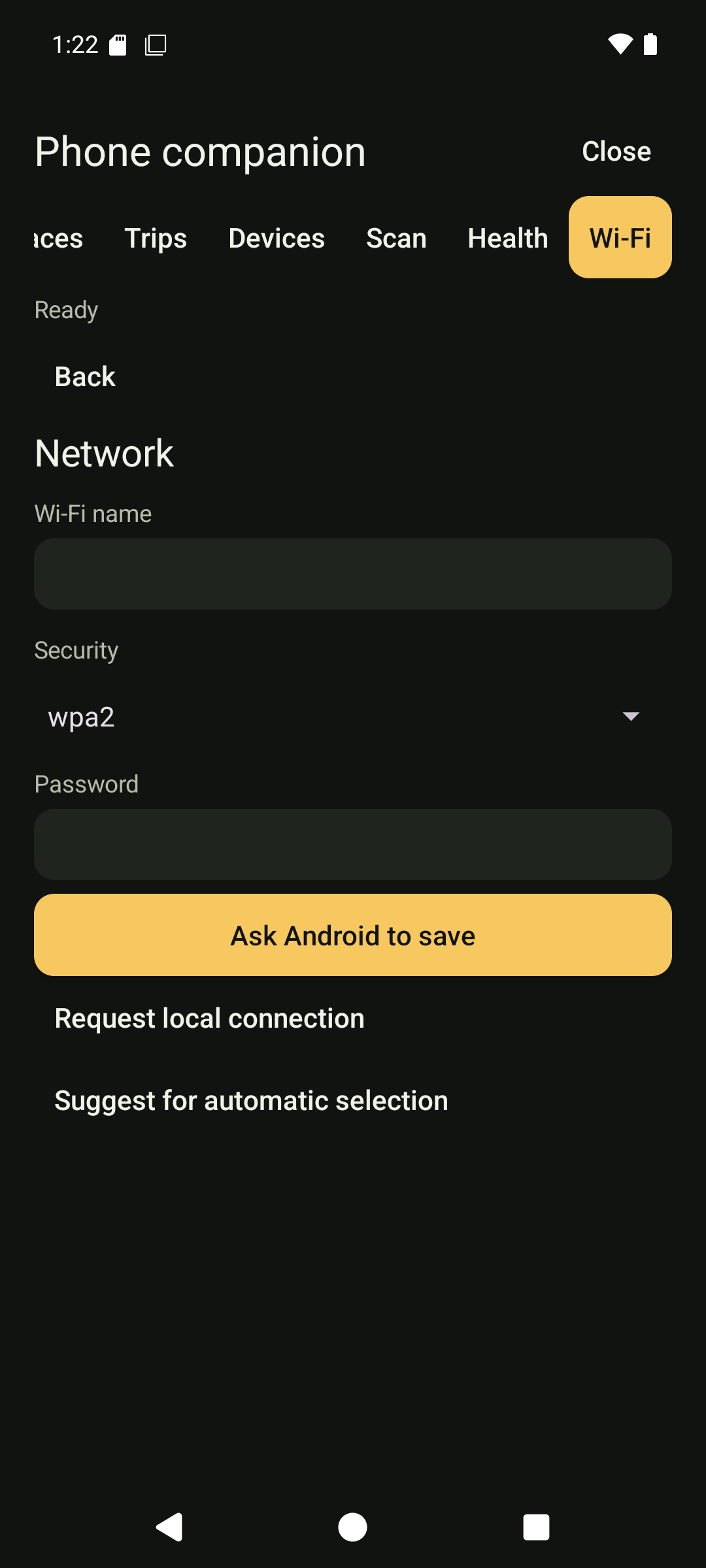
Secured network configuration.
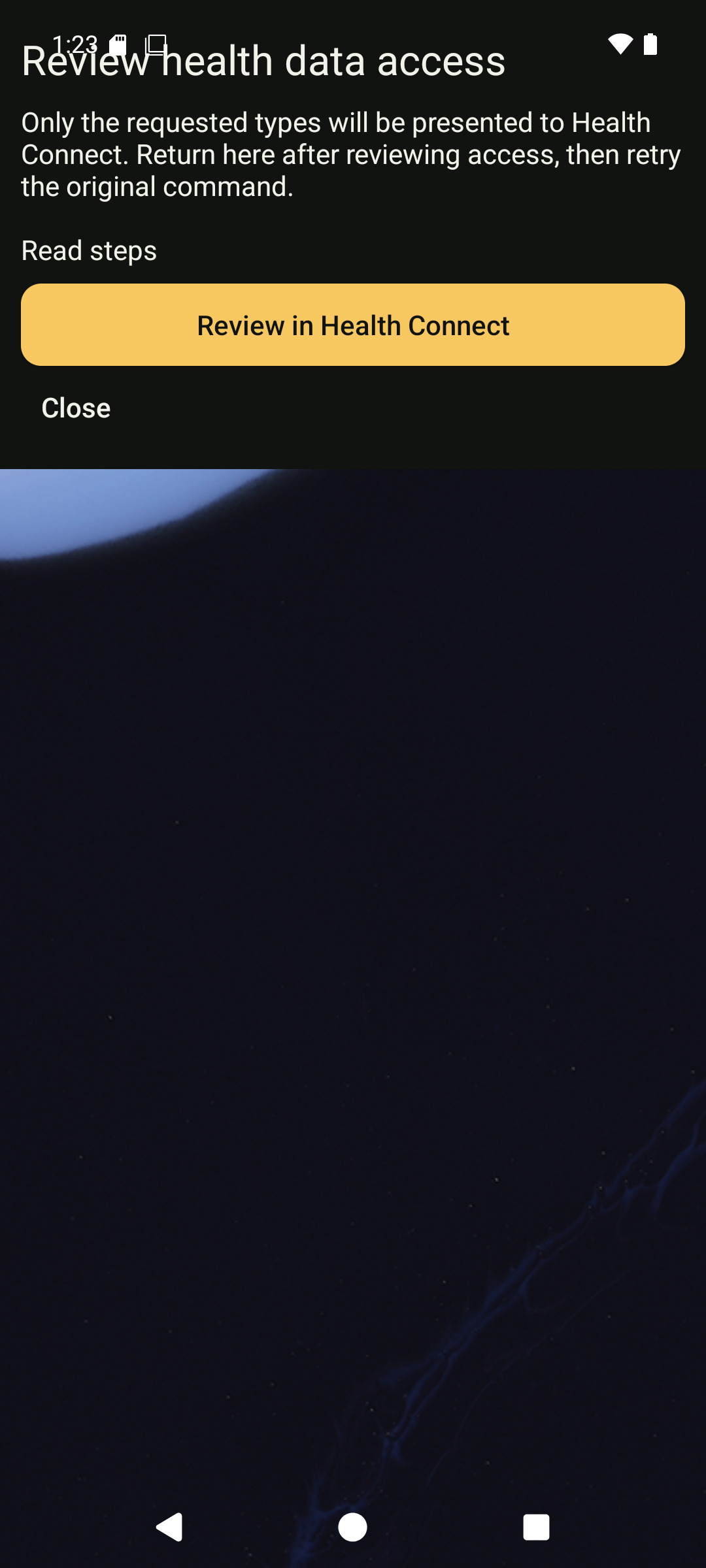
Health record permission review. Review opens Android's permission or network flow; Cancel/Close returns without completing this review.
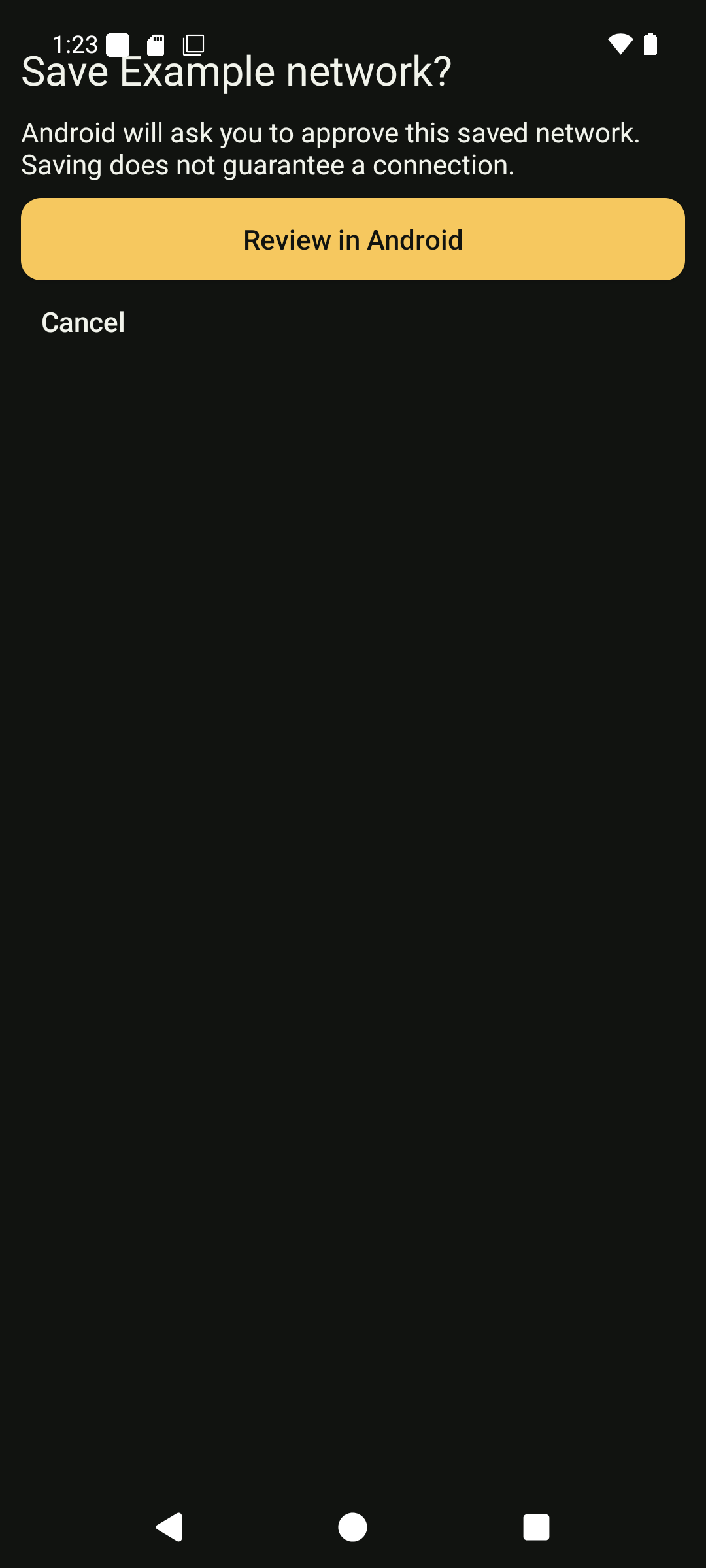
Saved-network approval. Review opens Android's permission or network flow; Cancel/Close returns without completing this review.
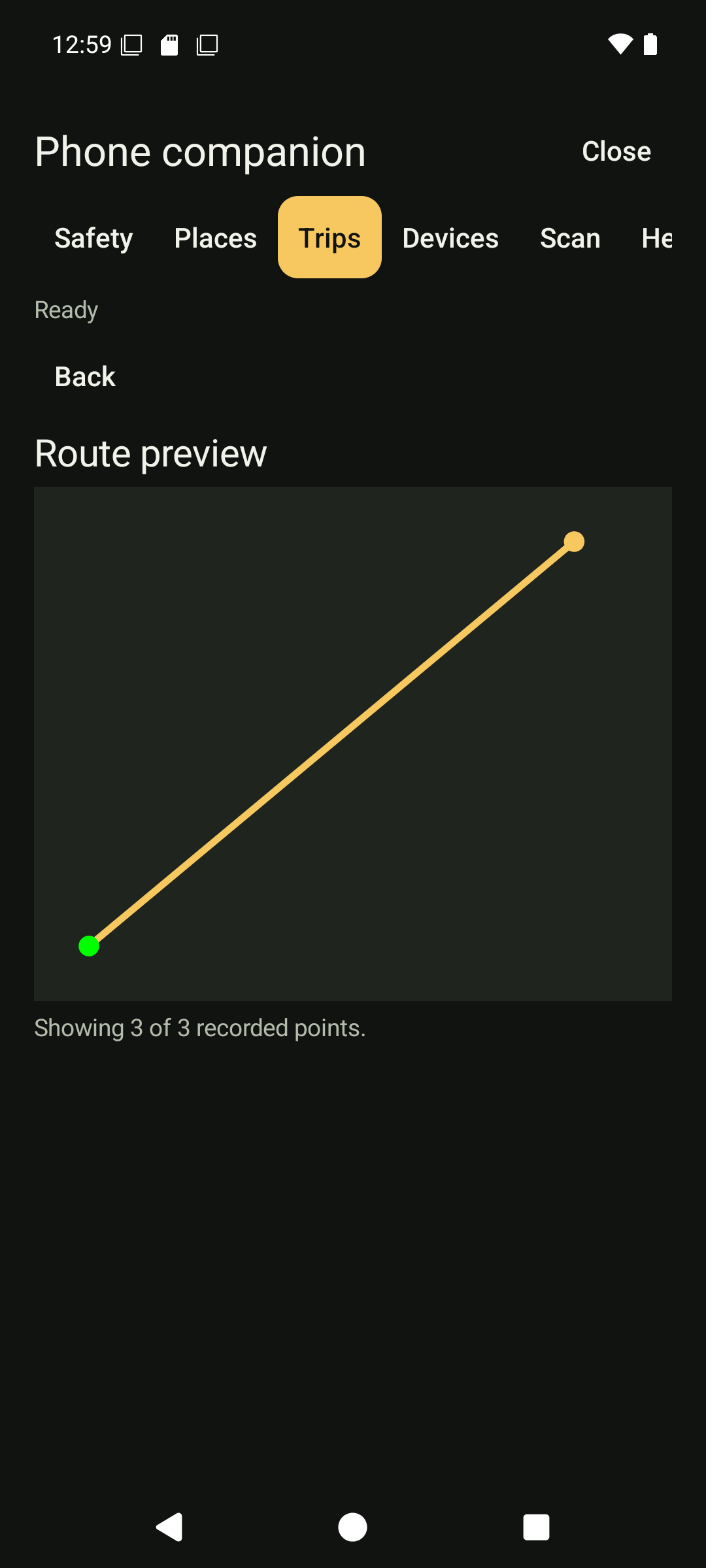
Recorded route preview. Coordinates and route samples come from the private emulator.
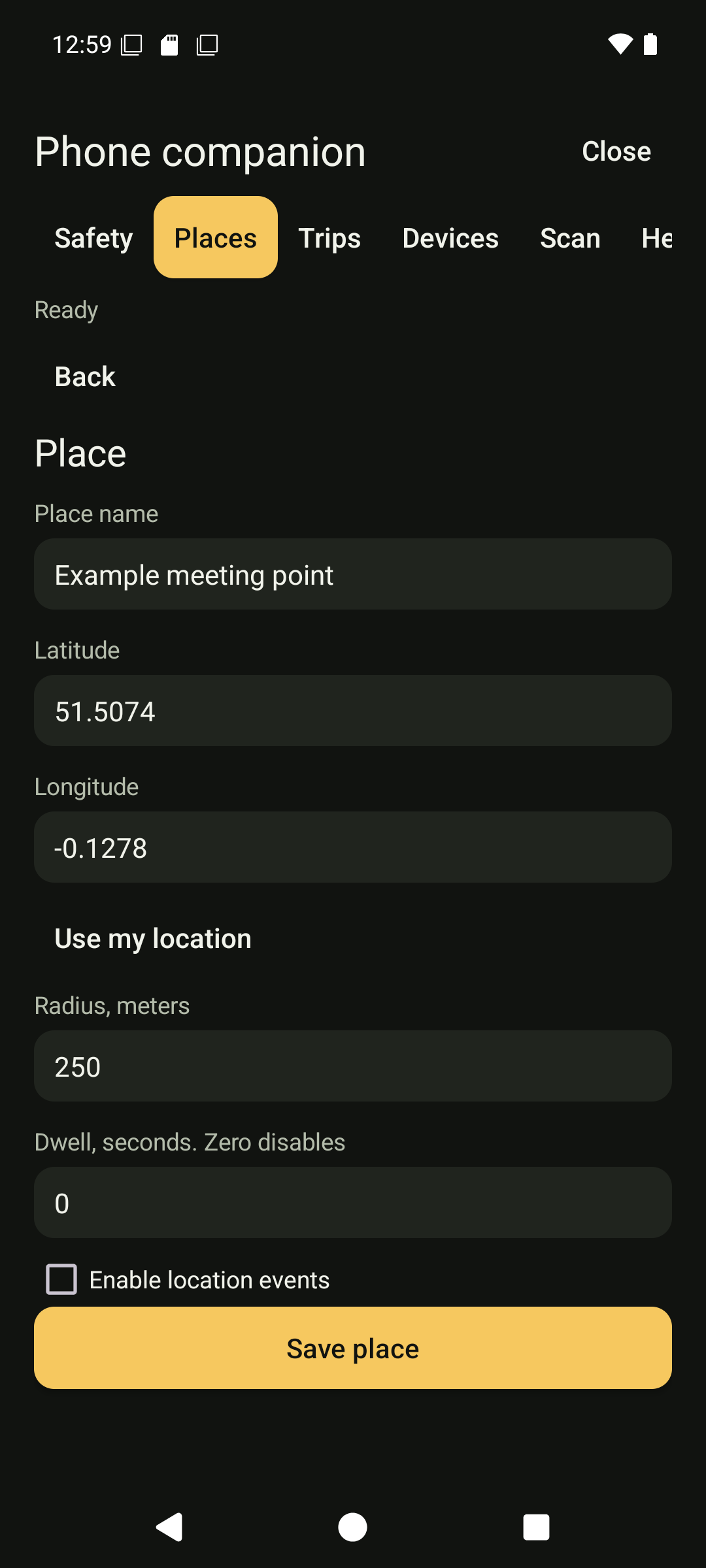
Edit a saved place. Coordinates and route samples come from the private emulator.
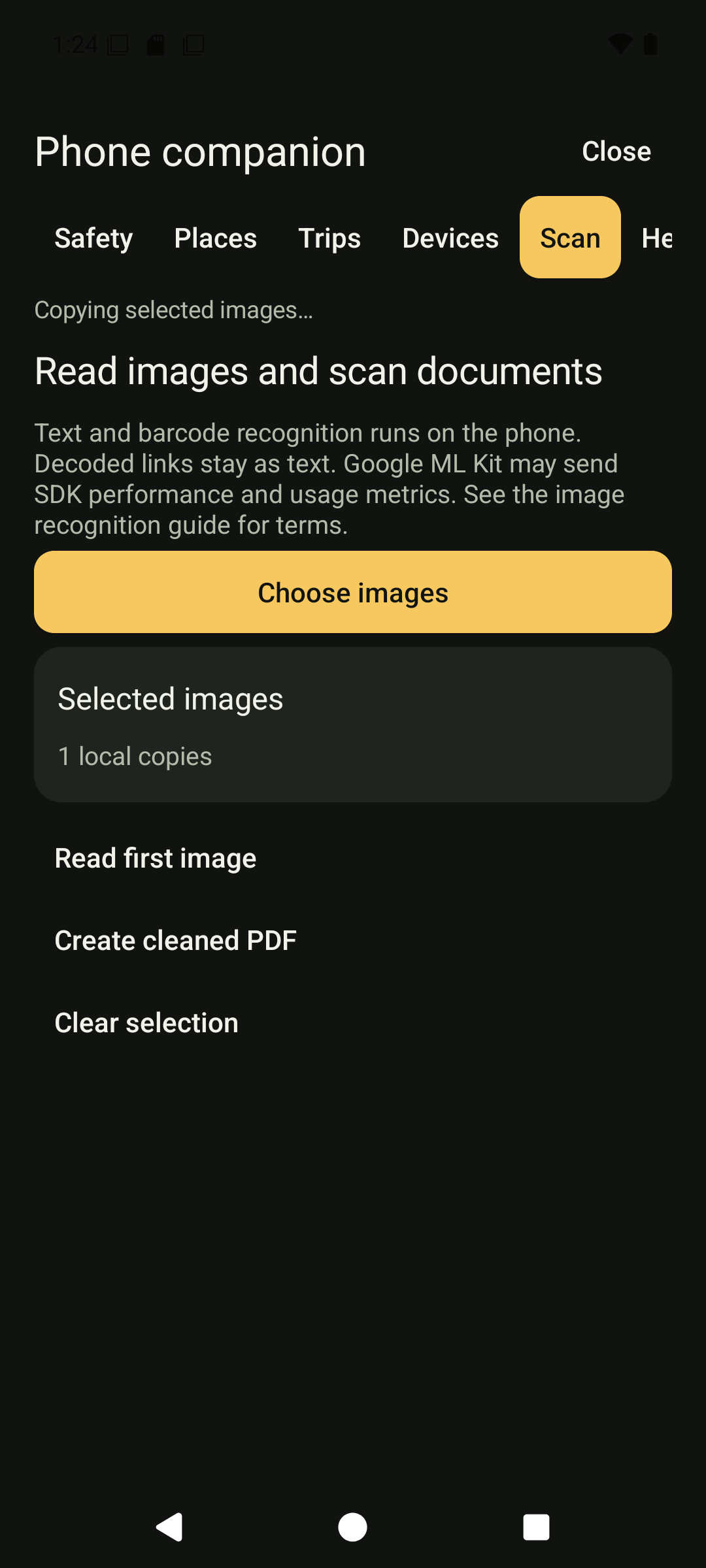
Selected local image.
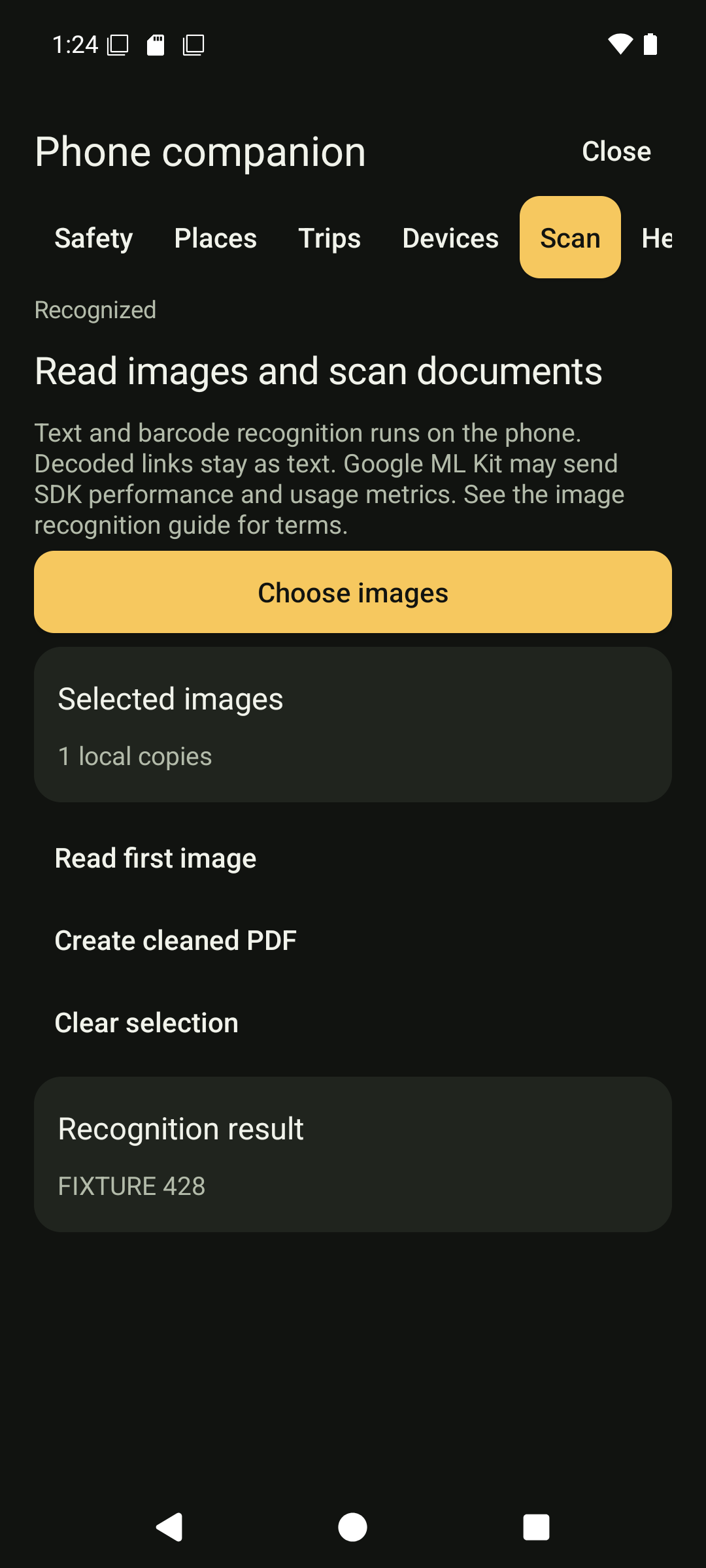
On-device text recognition.
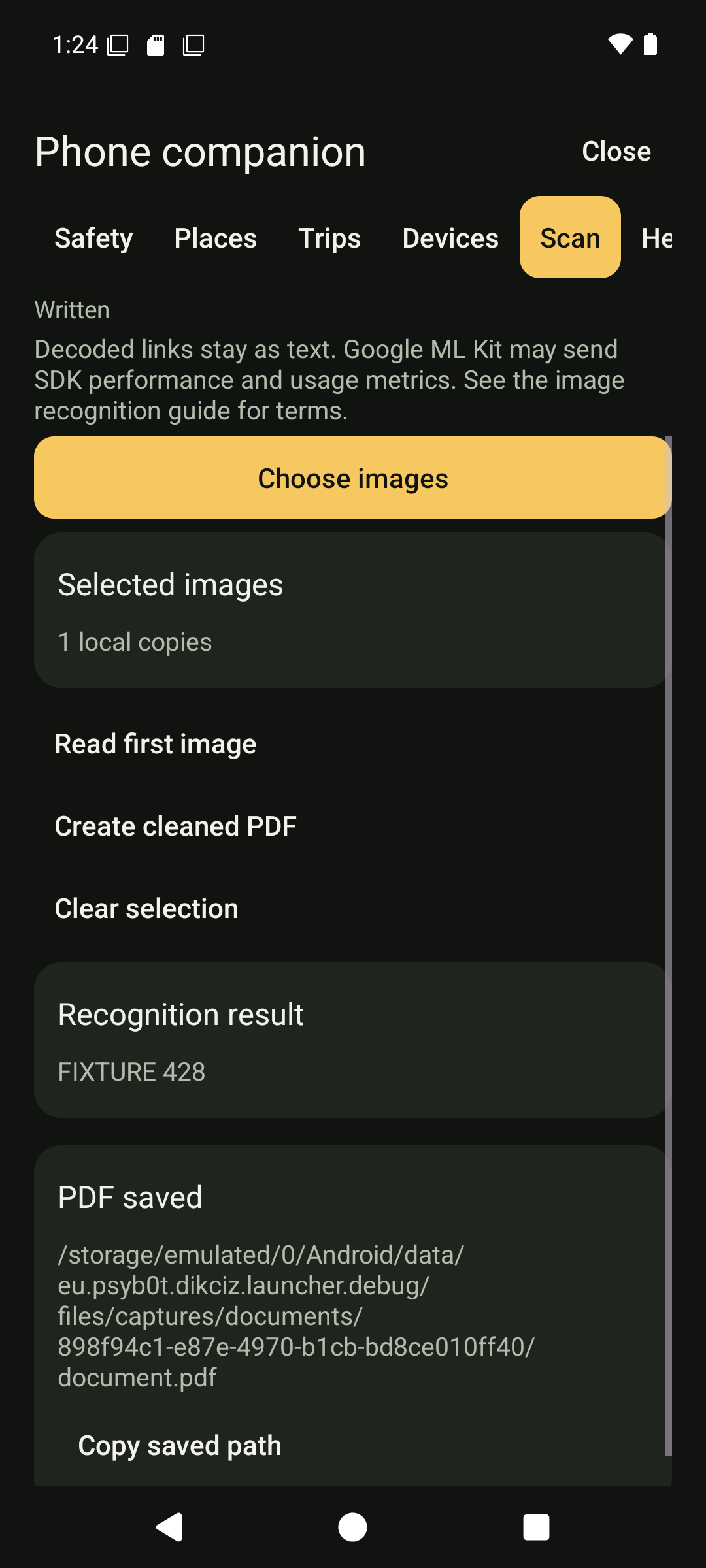
Saved cleaned PDF.
Reset the home
Open Settings and choose Reset Dikciz home. Read the confirmation before continuing. Cancel leaves the current home intact. Reset changes the bundled home configuration; it does not grant Android permissions or erase chat history. Export app source and preserve any data you need separately.
View the screens
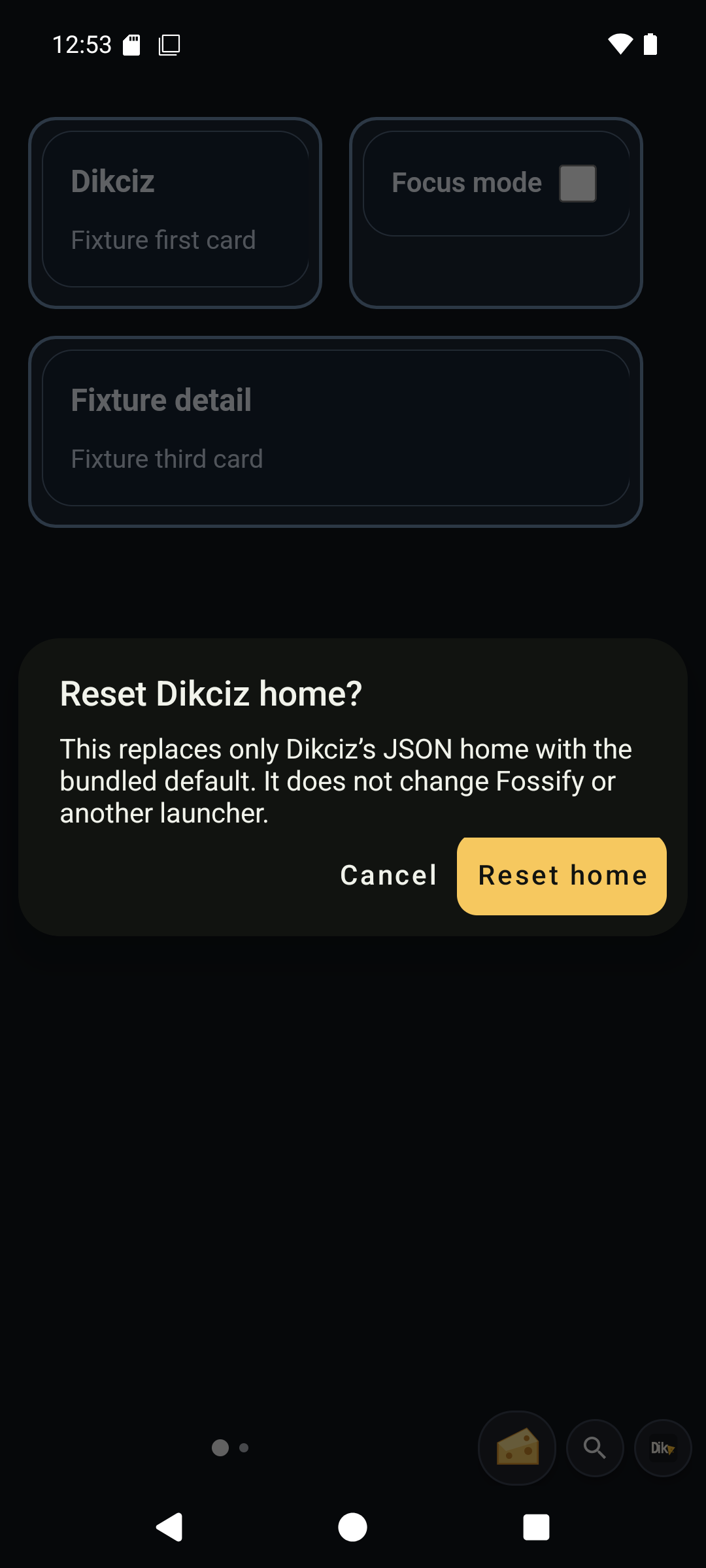
Reset home confirmation.
Urgent alerts and cancellation
SOS opens a dimmed modal with the pending action and a large cancellation control. Review the message and countdown, then cancel before the deadline to prevent the pending send. A warning can request sound, vibration and speech; Android volume, notification and lock-screen settings still apply. The example uses a private emulator and was cancelled without sending. Read SOS setup and outcomes before arming a real plan.
View the screens
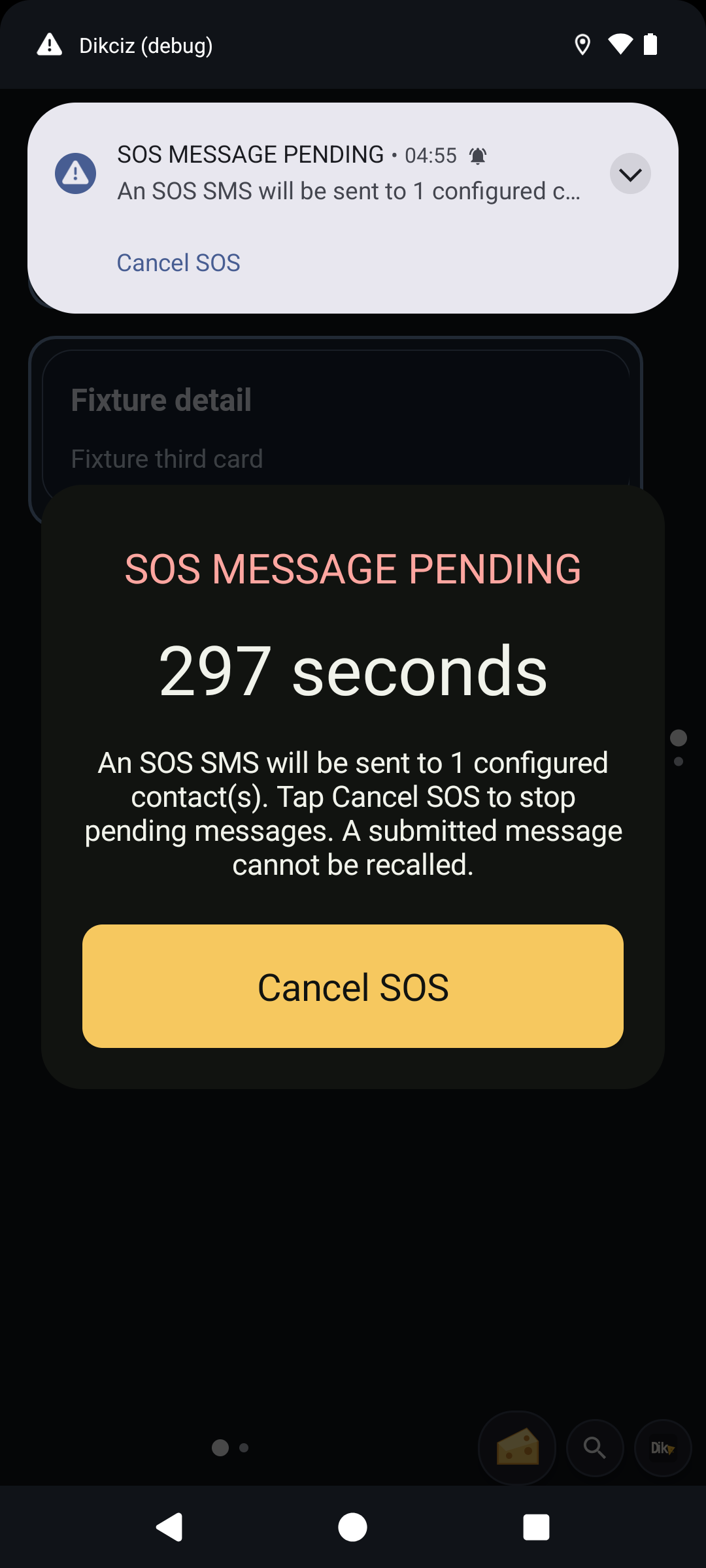
SOS countdown and cancellation.
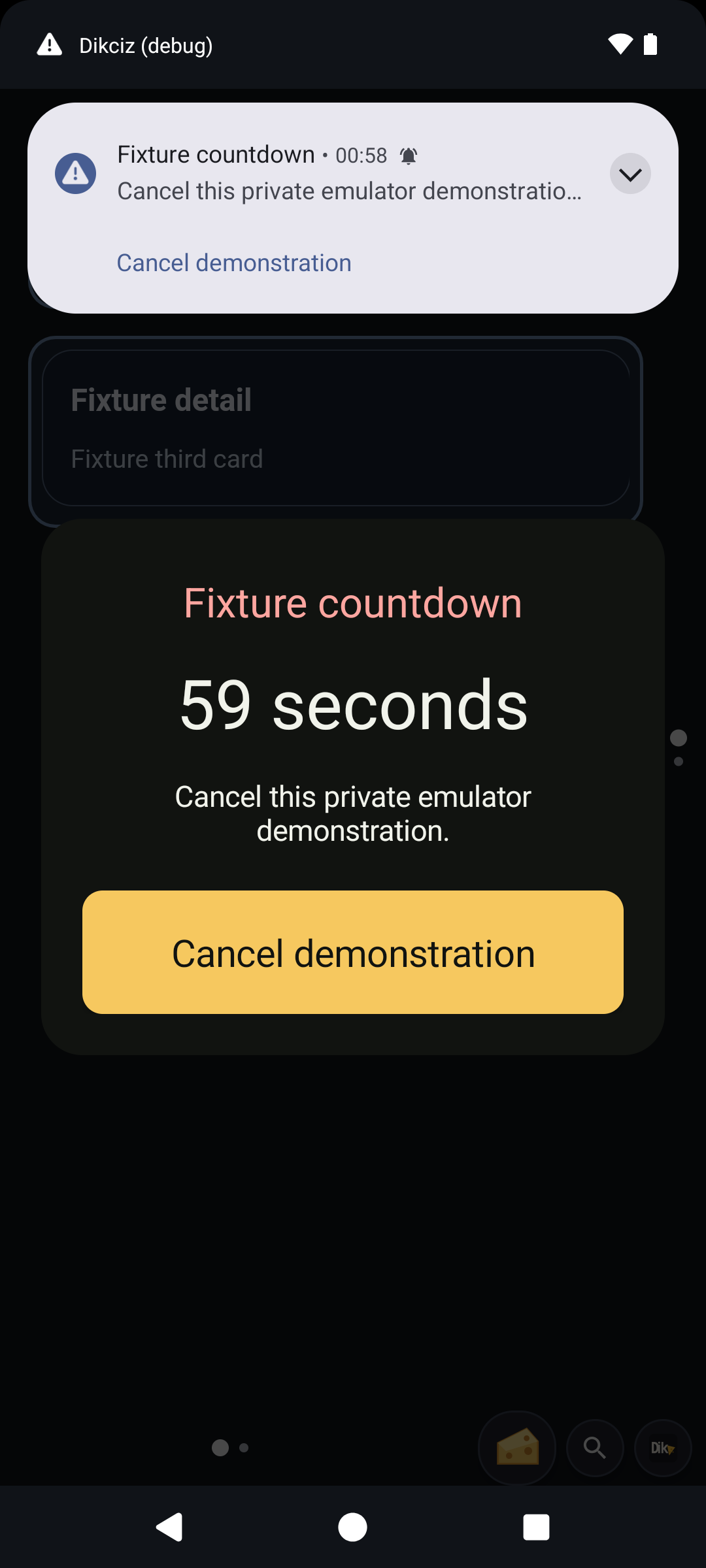
The same dimmed host supports app-defined urgent alerts through customAppAlert. The app owns the pending work and its cancellation handler; see timers and alerts.
Widget options
Long press an HTML widget and choose Appearance to change its native wrapper. Pick opens the color palette; the font control opens bundled and imported choices. Leave a field empty to inherit it. For page-wide editing locks, open Manage this page, Change widget locks. Locking blocks edits while normal widget actions remain available. In Add to this page, expand Dikciz and choose a template to preview it before Load creates an independent copy. See the widget editing guide.
View the screens
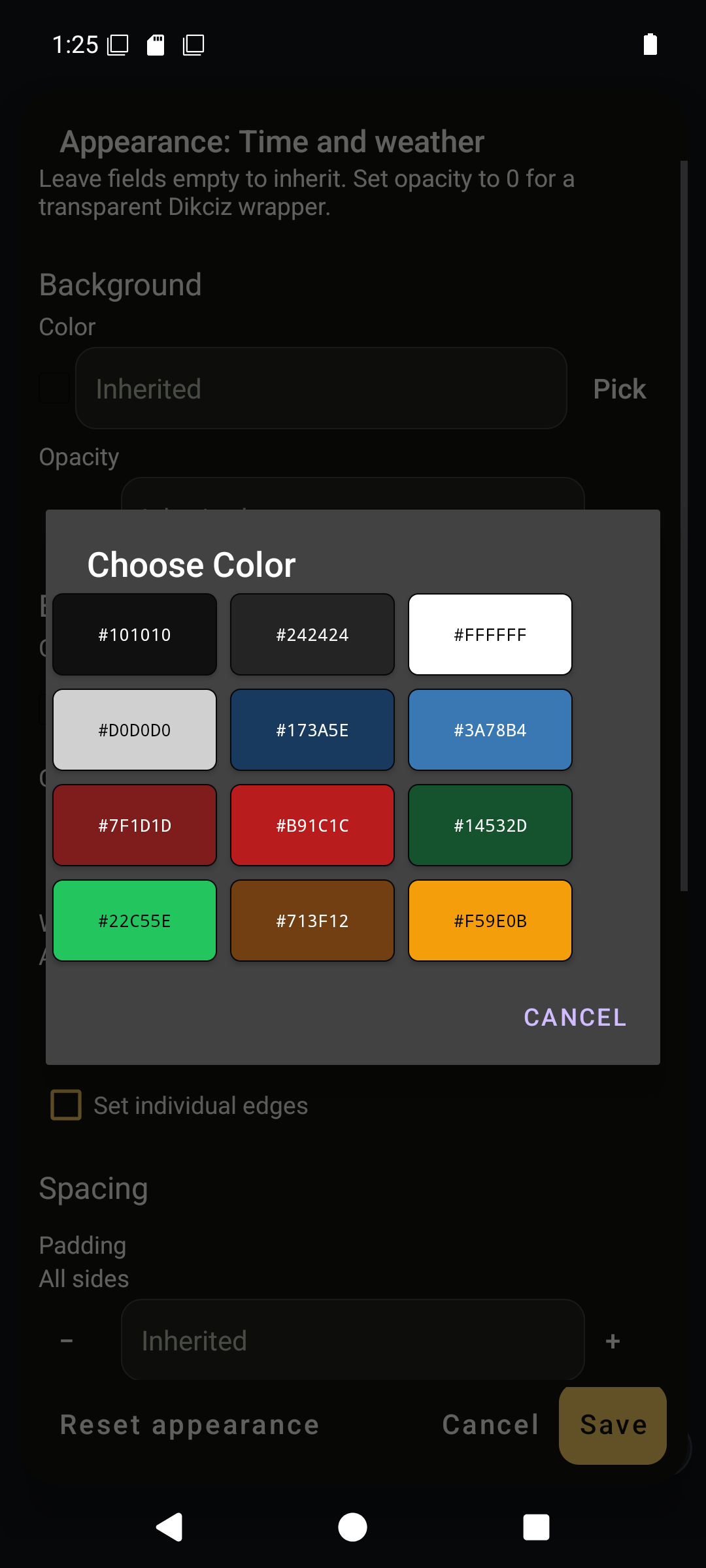
Wrapper color palette.
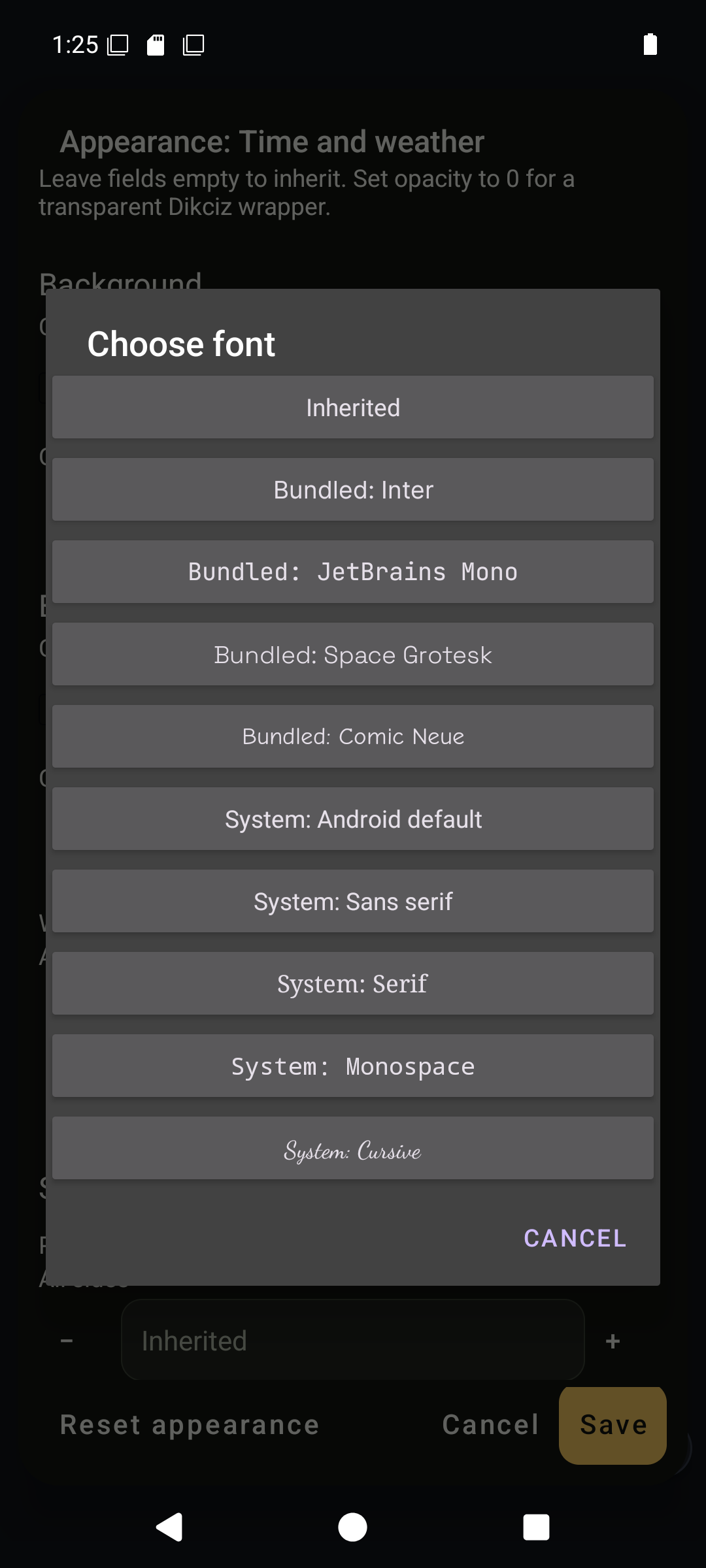
Font selection.
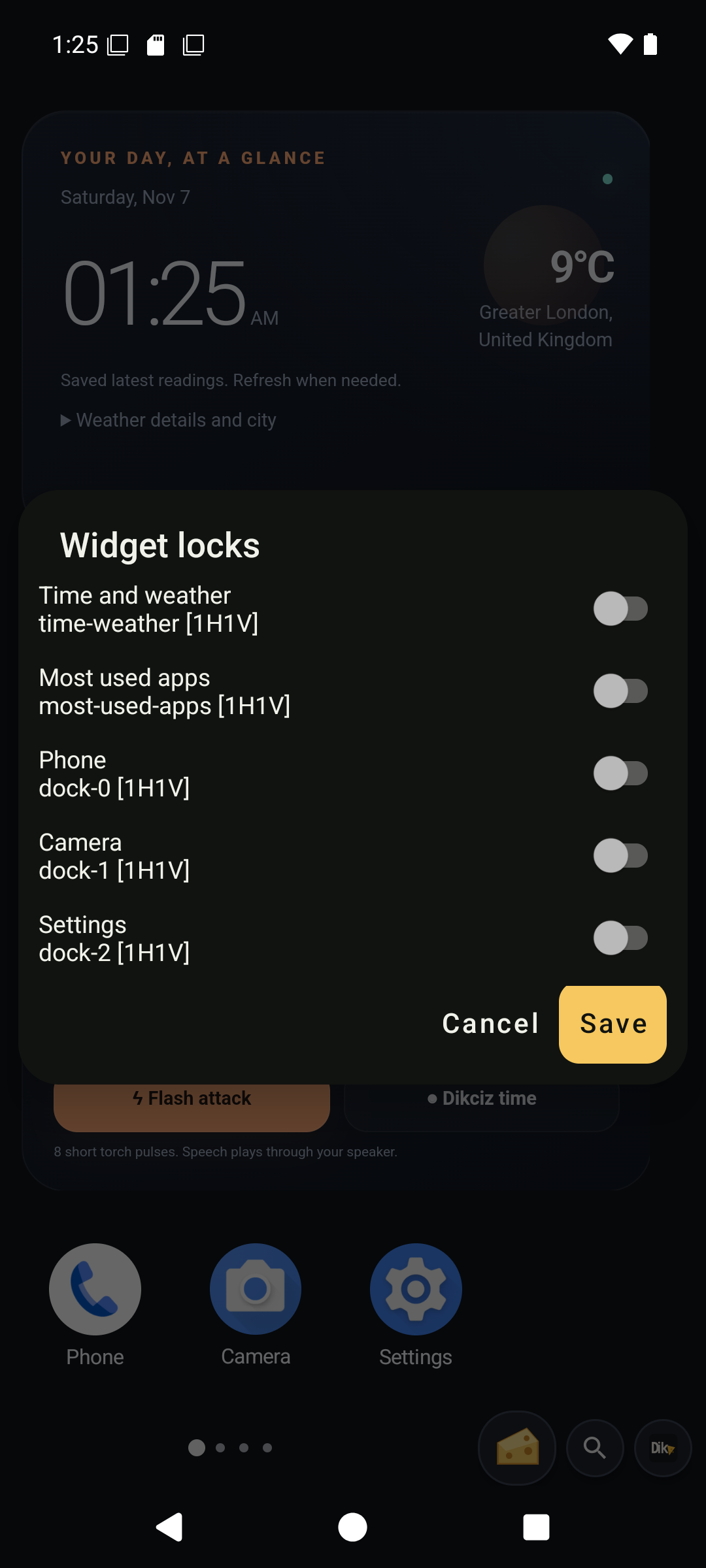
Per-widget locks.
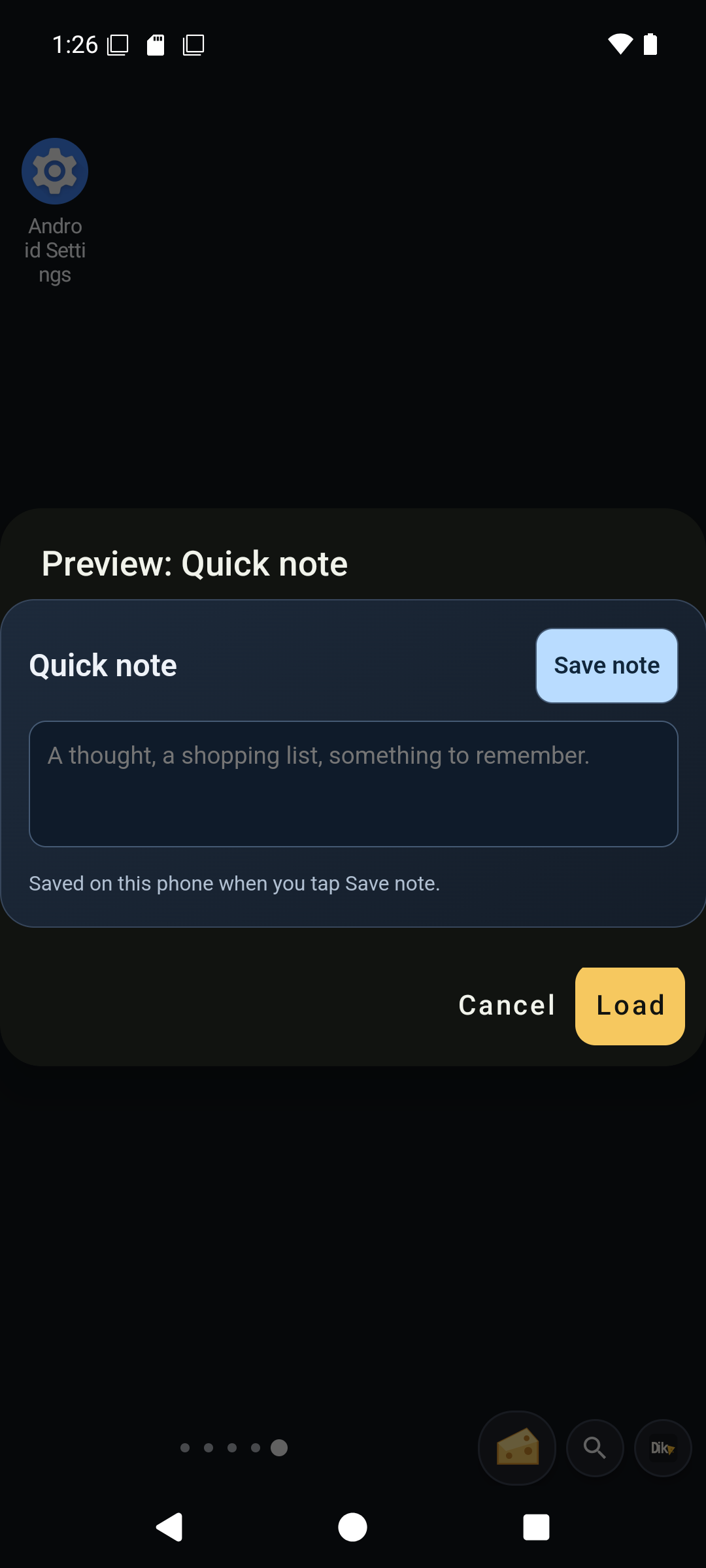
Complete template preview.
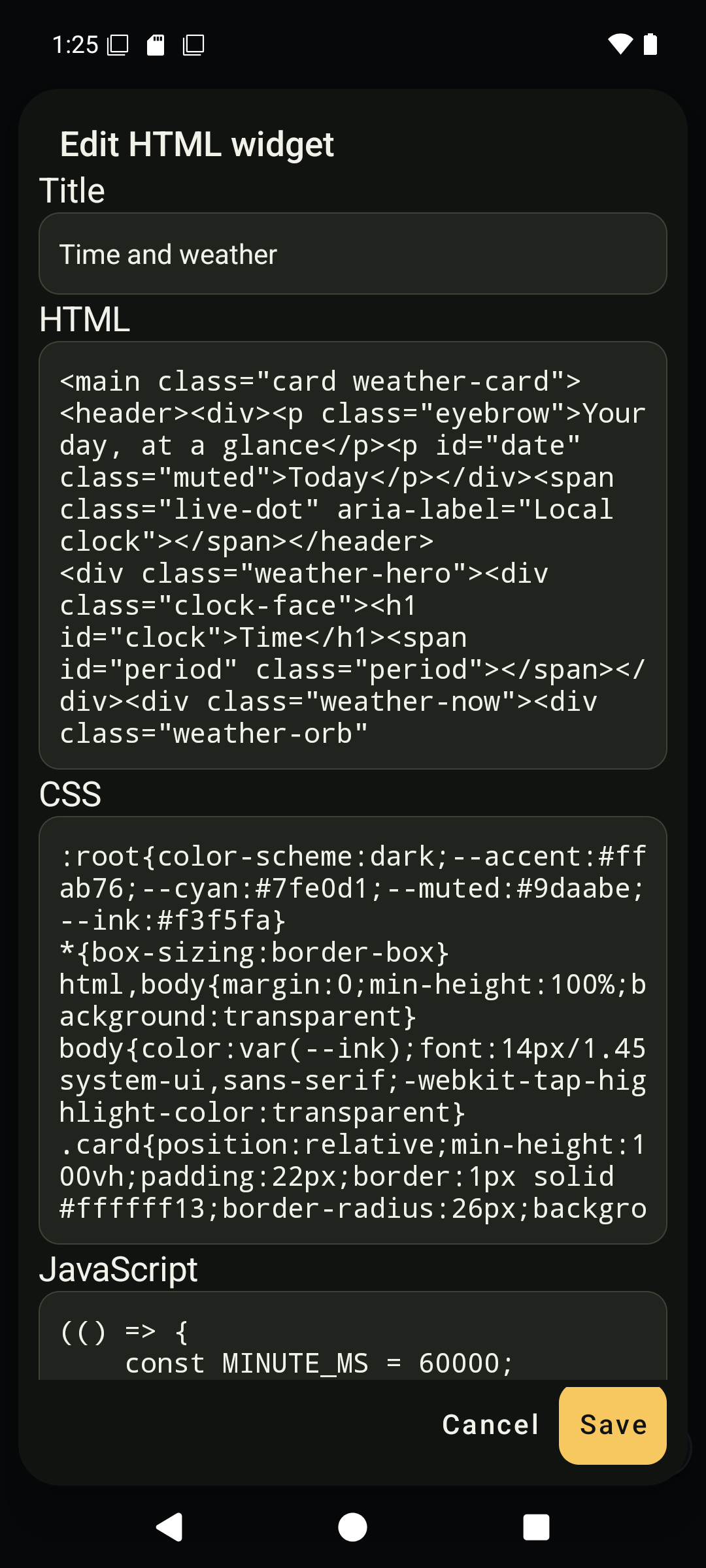
Widget stylesheet.
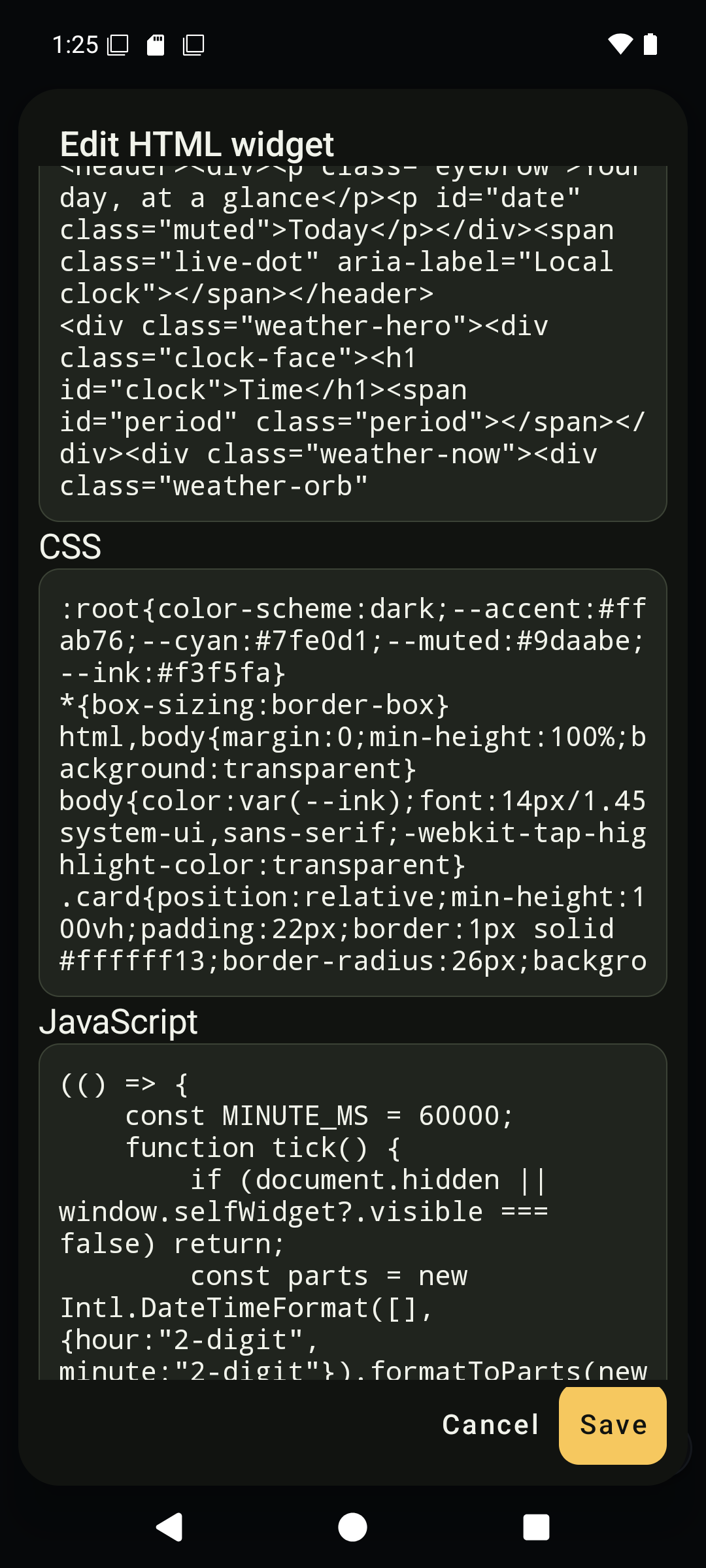
Widget JavaScript.
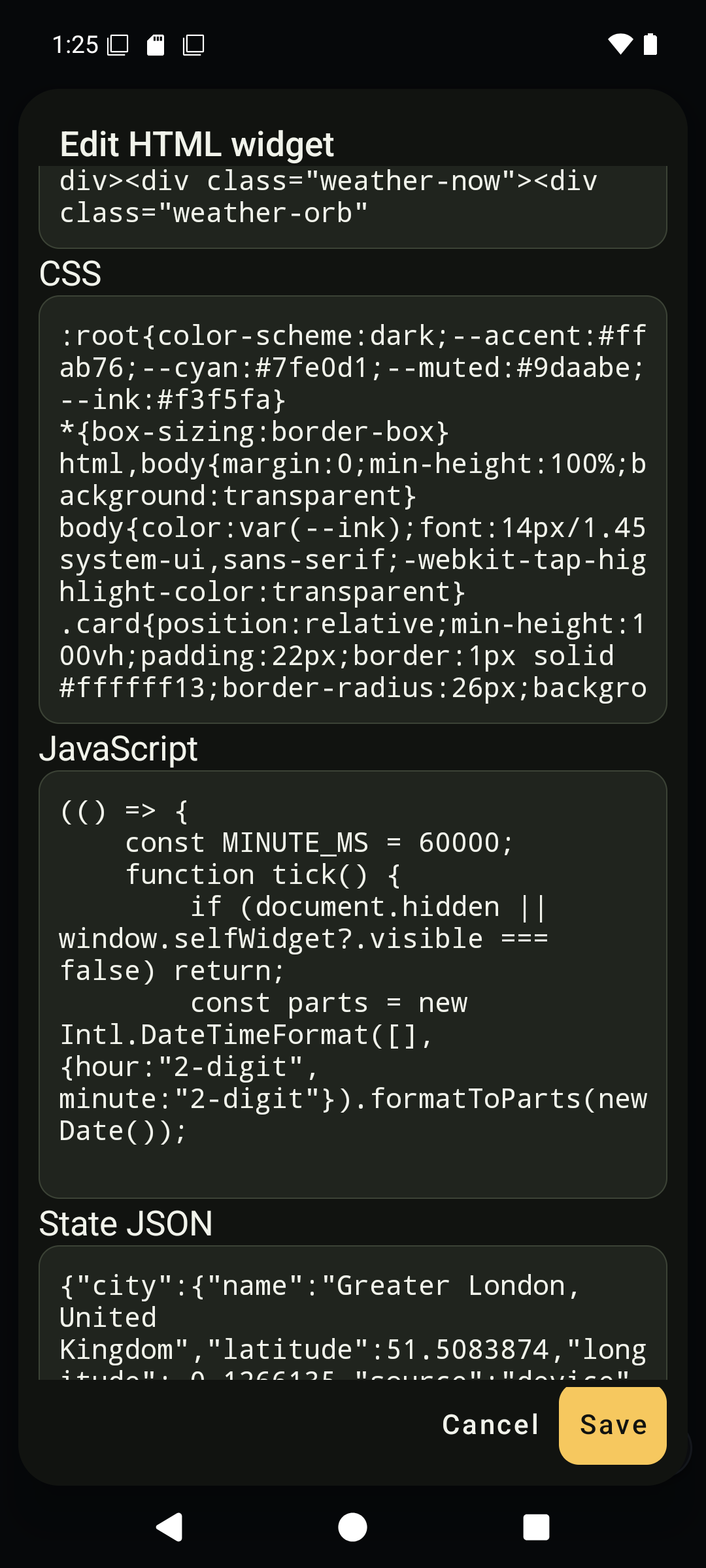
Instance JSON state.
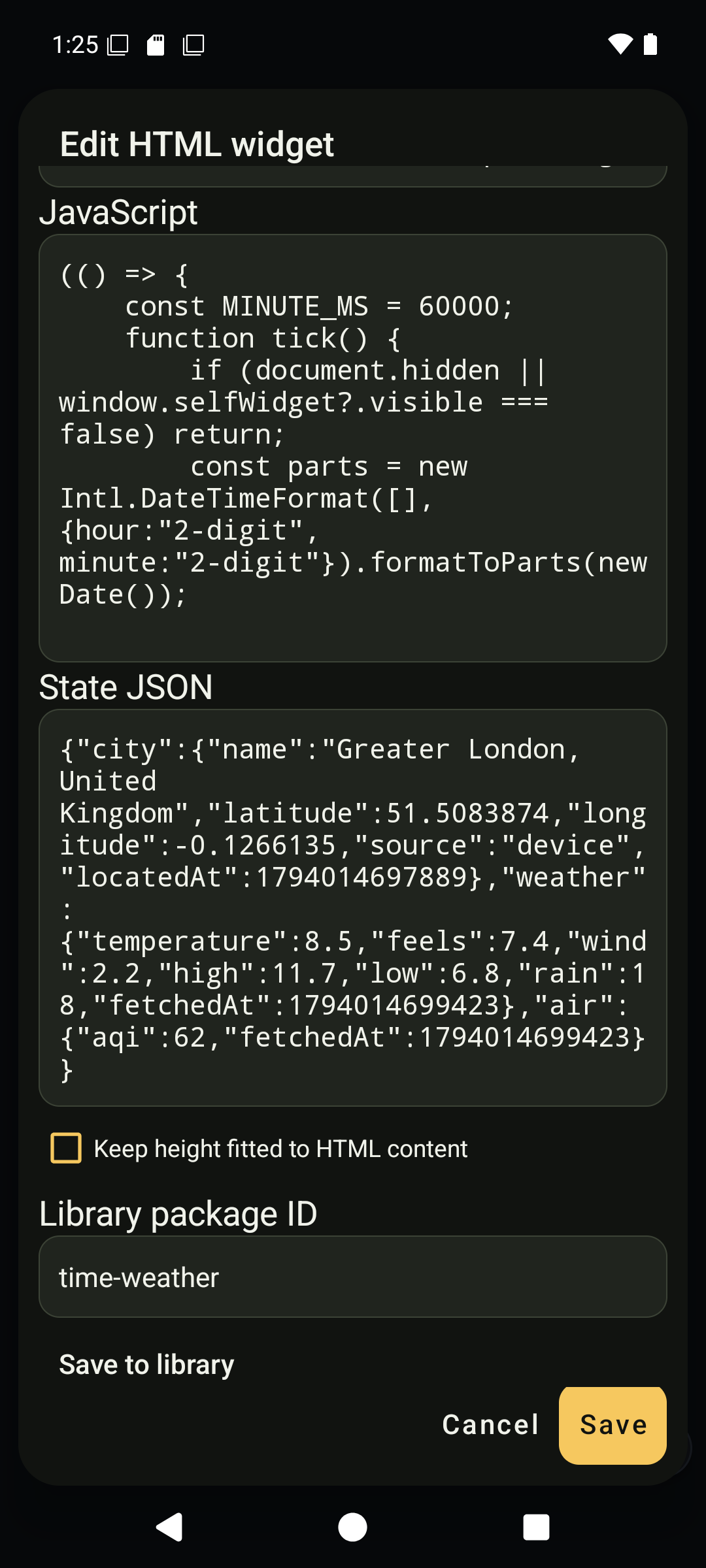
Content sizing and reusable source export.
Permission setup and logs
Open Settings, Automation, Set up full device access. The screen lists granted, missing, on-demand and unavailable capabilities. The highlighted next action advances setup; individual controls let you review a particular capability. Return after each Android handoff and continue. Scroll to the lower entries for special access and package installation. Grant only what you intend to use; a permission does not create missing hardware or root access. Open Settings, View logs to inspect retained logs, and Configure logging for level and retention. See Android access and logging.
View the screens
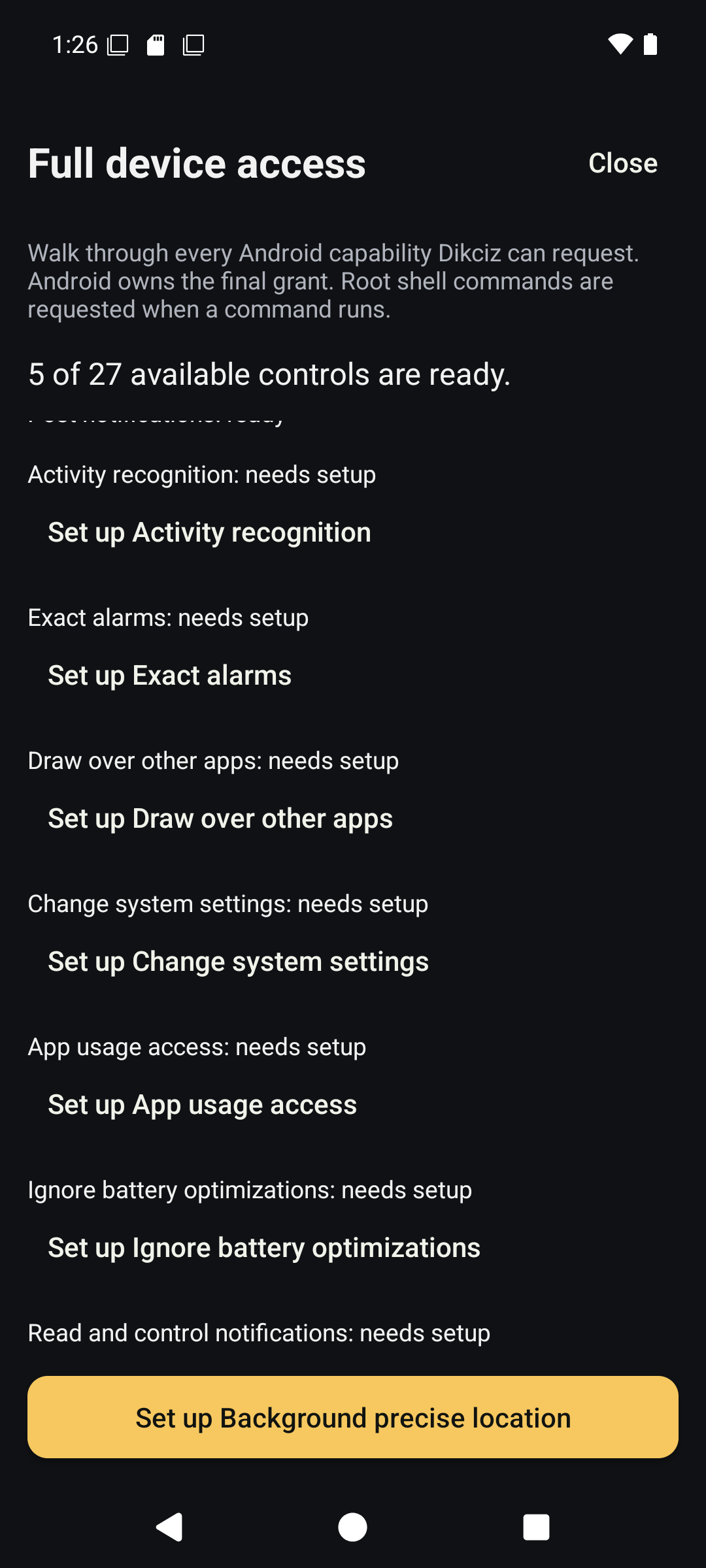
Special Android access controls.
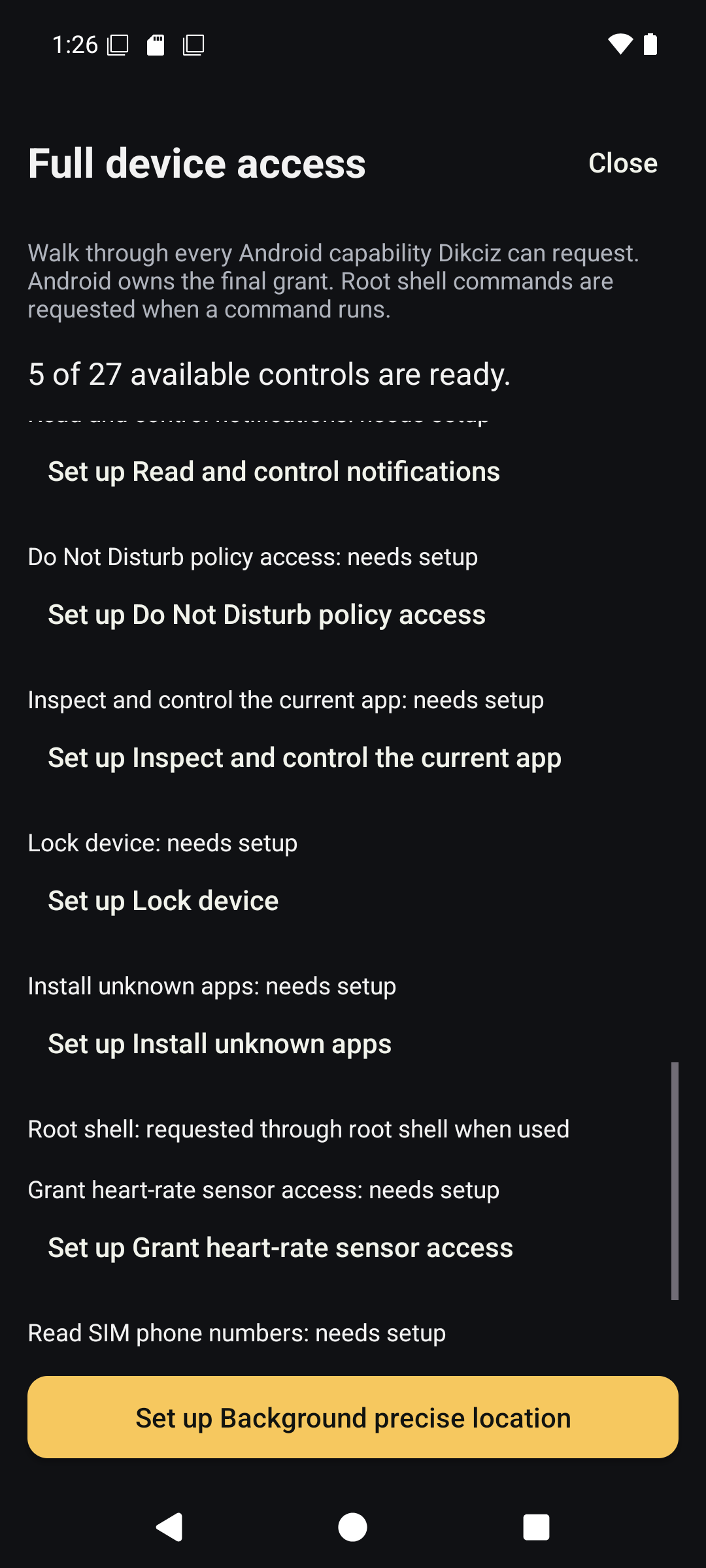
Lower setup controls.
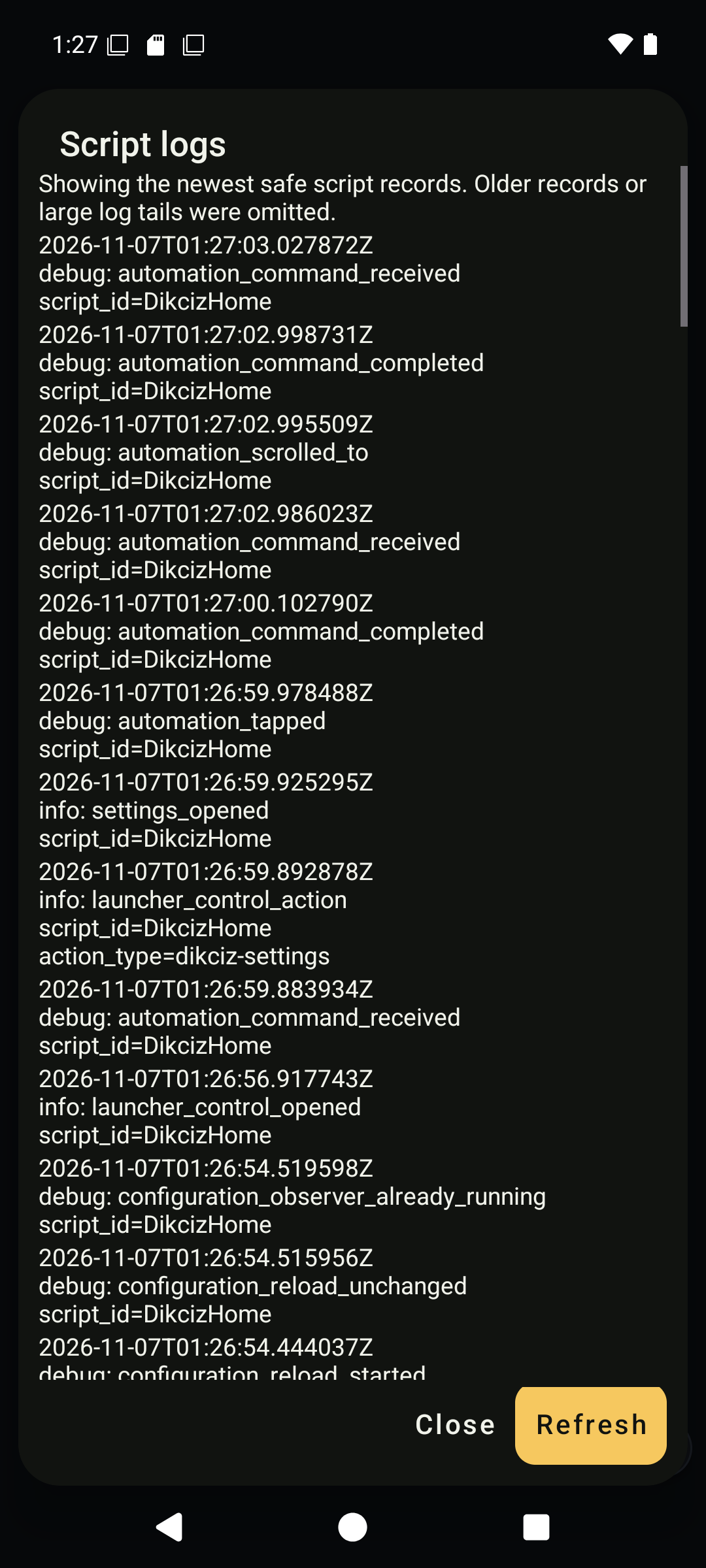
Retained log viewer.
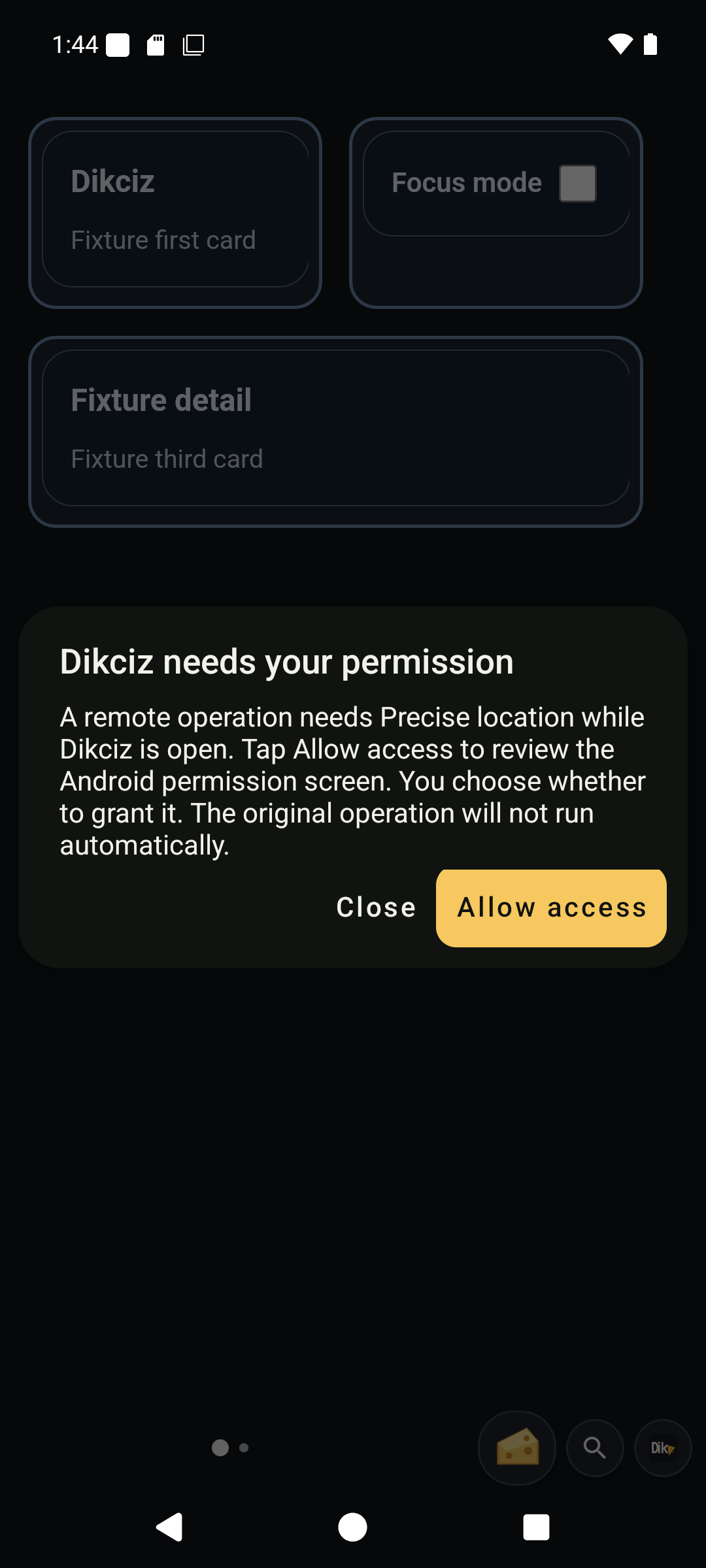
Owner review opened from the notification. Continue with Allow access when you approve the requested capability.
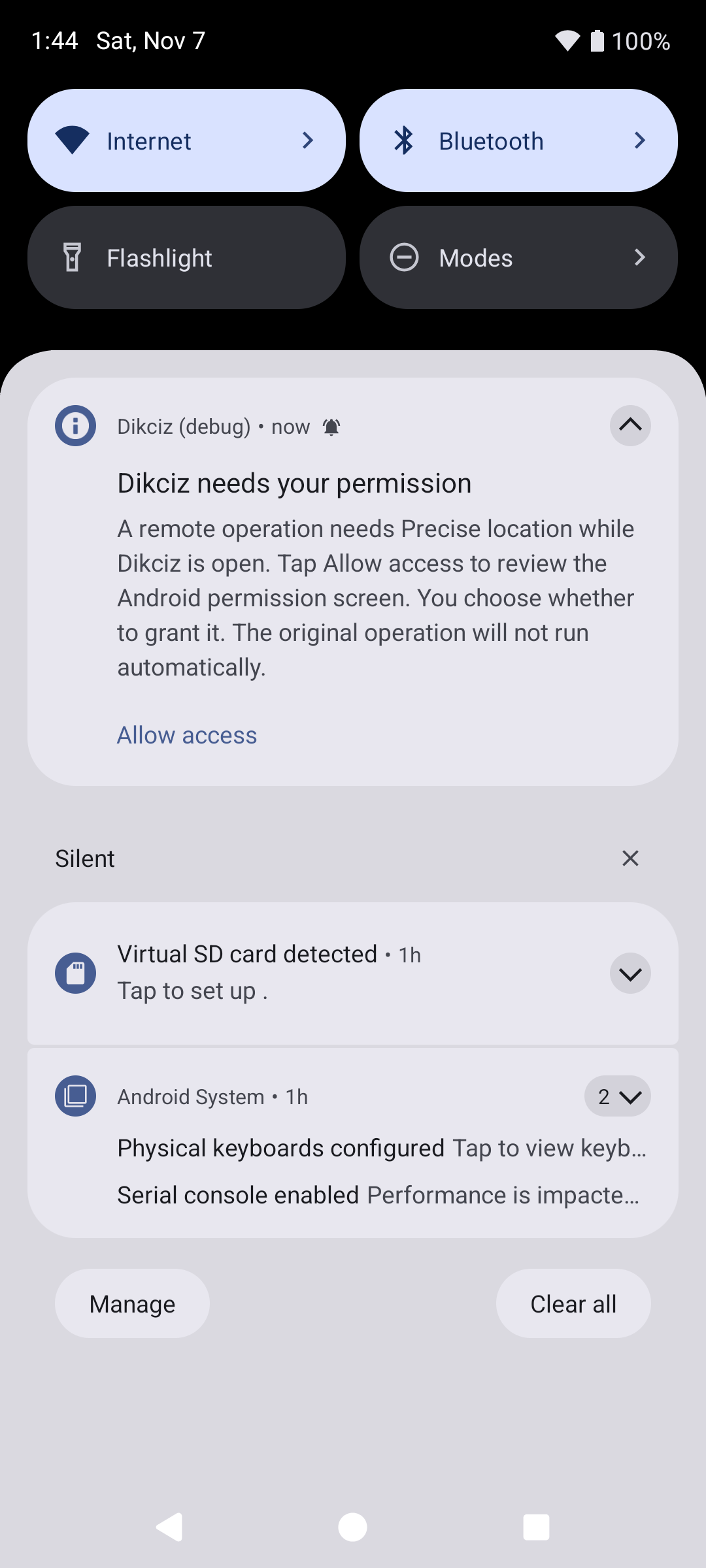
Permission request in the notification shade. Tap the notification action to continue the owner review on the phone.
Script creation and transfer
Open Settings, Manage scripts. Choose New Lua script or New JavaScript script, enter a title, edit the source and JSON state, then Save. Scripts and event subscriptions are separate: saving source does not grant permissions or subscribe to every event. An existing script can be exported as a reusable archive. Copy the archive to the imports directory, choose Import script archive and inspect the confirmation before importing. Delete script has its own confirmation; Cancel returns to the editor. See background JavaScript and the scripting tutorial for event registration, policy and state.
View the screens
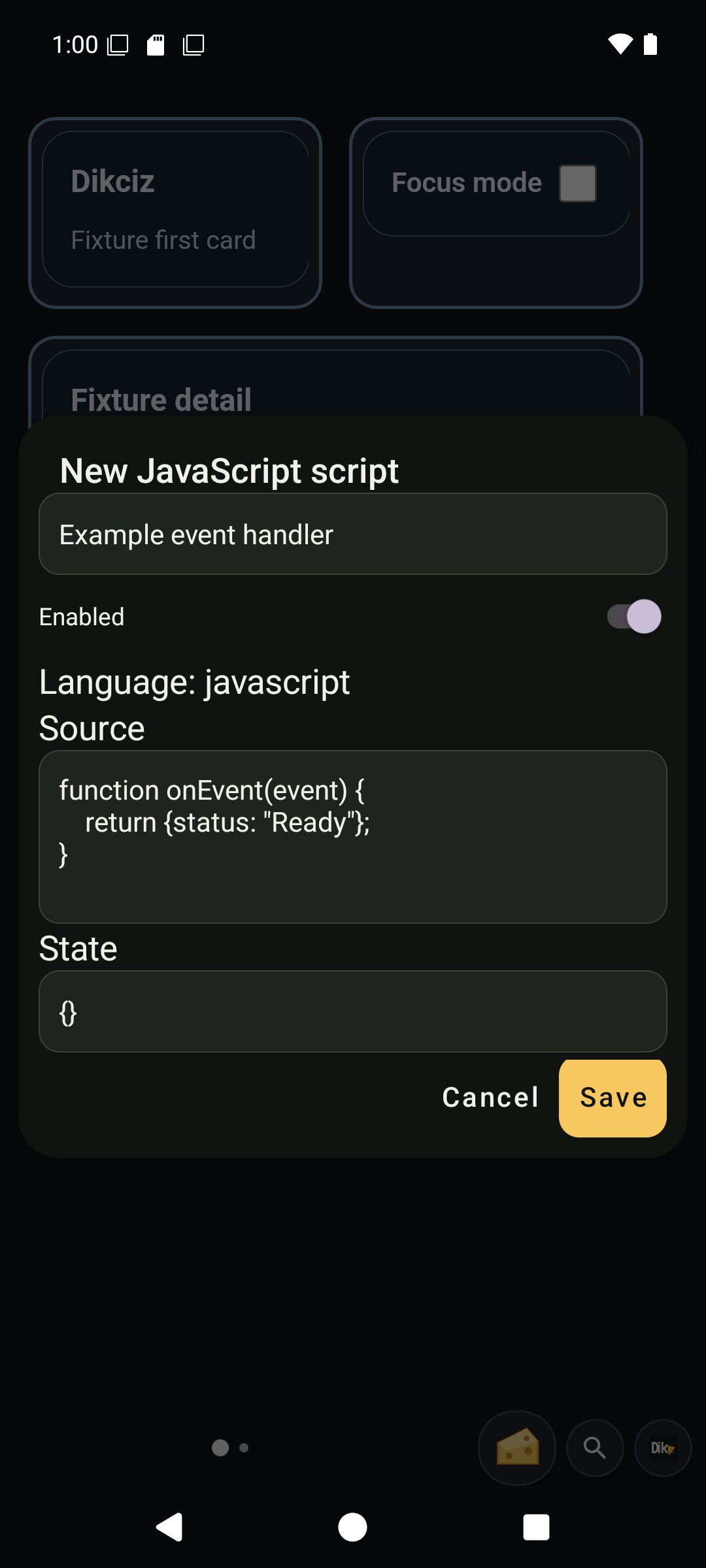
Create a JavaScript handler.
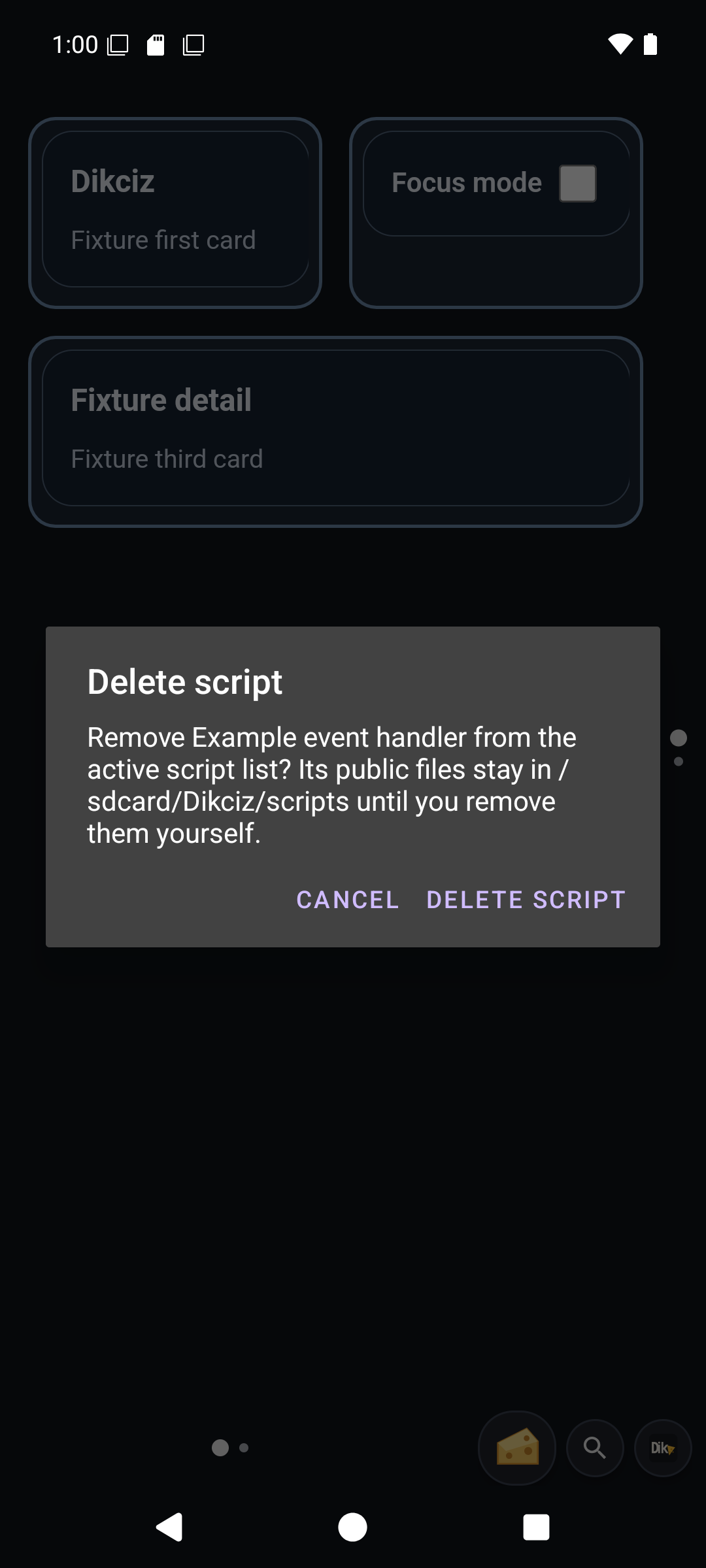
Delete script confirmation.
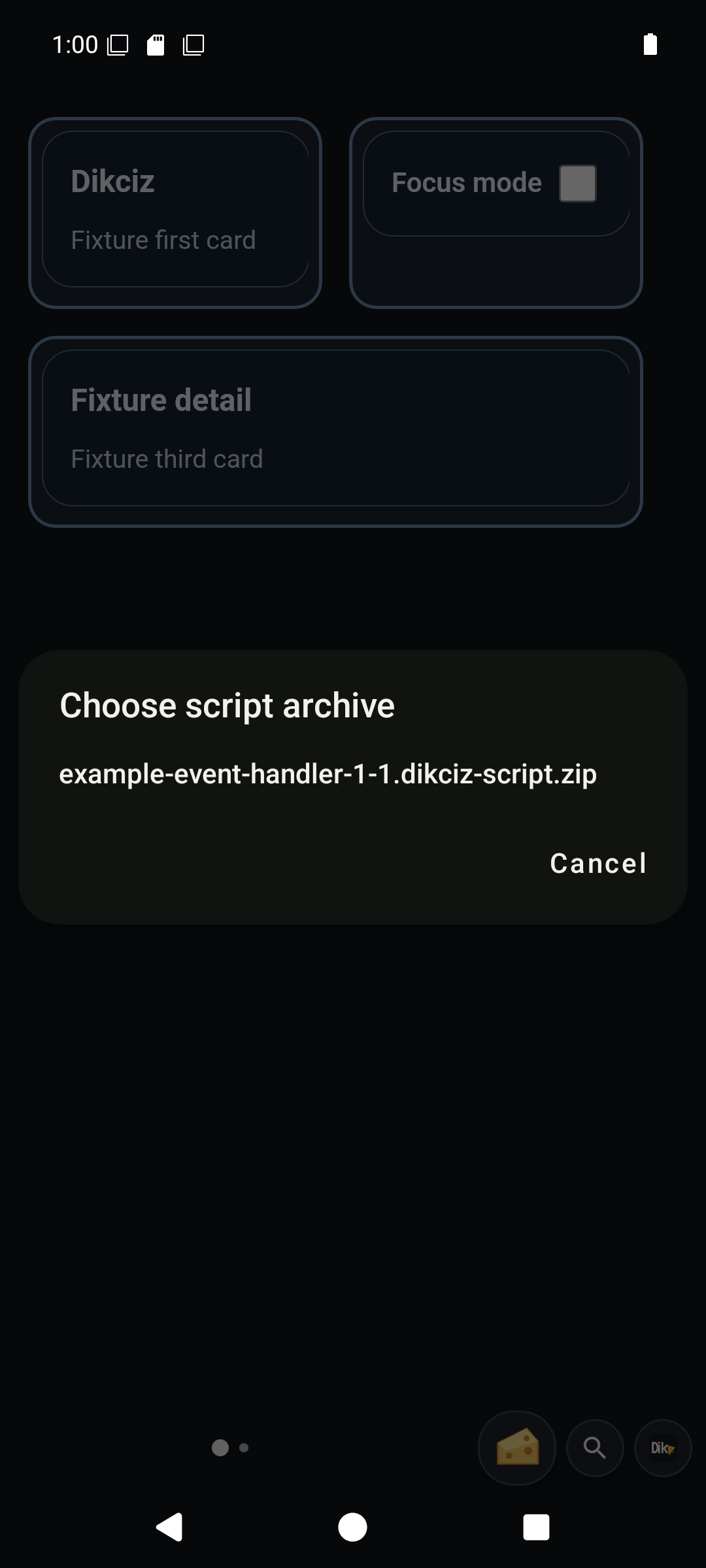
Choose a script archive.
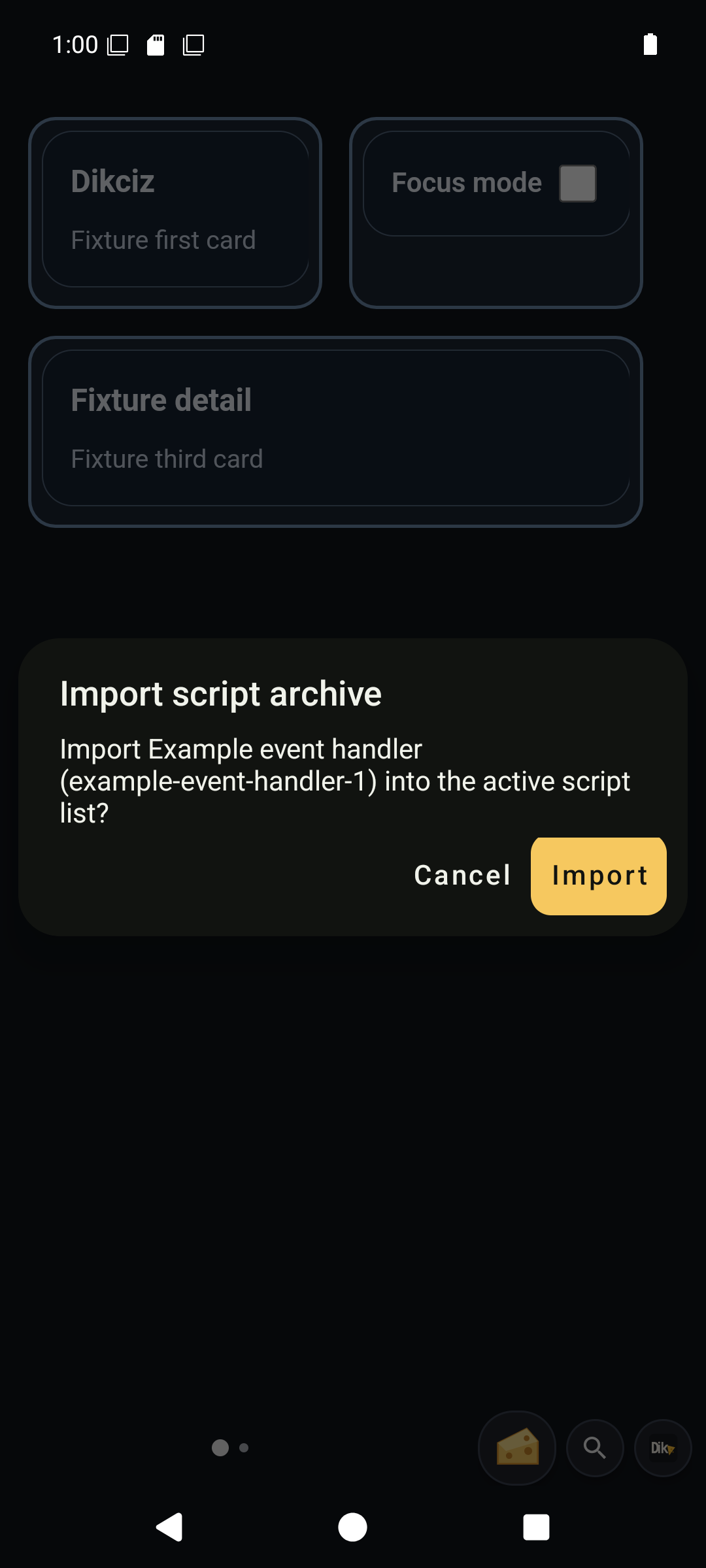
Review an archive before importing.